Key Takeaways
- Opt-out free trials convert at 48.8%, while opt-in trials only convert at 18.2%, making trial type critical.
- Three tracking options exist: Stripe integration, manual tracking, or linking Google Ads with GA4.
- Linking GA4 and Google Ads allows campaign-level visibility into which traffic sources produce paying customers.
- Importing GA4 conversion data into Google Ads improves Smart Bidding by targeting users likely to upgrade.
- For accurate tracking, GA4 must be properly configured, conversion events firing, and auto-tagging enabled.
Tracking Free Trial to Paid Conversions in Google Ads (2026 Guide)
One way many web service providers hook people is with the free trial. Think about how many services and web apps out there have a free plan available to new users. It might last a week, two weeks, a month, or even indefinitely.
This is fine! Free trials are a great way to hook new users on a product, integrating it into their workflow such that they can't live without it. Once the free trial runs out, you push them into converting to the appropriate paid plan. Throughout it all, you're harvesting data you can use to optimize future conversions.
And the data backs this up. According to First Page Sage, opt-out free trials (where a credit card is required upfront) convert at a remarkable 48.8%, compared to just 18.2% for opt-in trials. The median B2B SaaS trial-to-paid conversion rate in 2025 sits at 18.5%, with top-performing companies hitting 35-45%. CRM platforms lead all SaaS verticals at 29%, followed by AdTech at 24.3% and HR software at 22.7%. So yes, free trials work - but only if you're converting them properly and tracking what's actually happening.
Free trials do come with a complication, though. The existence of the free trial creates a sort of gap between two systems. You can track the conversion from a free trial to a paid account using your billing service, or you can track it through Google Analytics 4. That's fine.
The other end of the system, though, is Google Ads. You probably run Google Ads to get more users to your landing pages, where they'll be enticed to try your free trial. You can use Google Ads' built-in tracking to monitor conversions from that group - people who sign up for free trials. The problem is, how do you track which of those people actually upgraded to a paid version of your product?
Thankfully, there are a few different ways to do this, depending on the systems you use to track your conversion process. And it's worth noting upfront: Google Ads conversion tracking is a free tool, so there's no excuse not to be using it.
Option 1: With Stripe
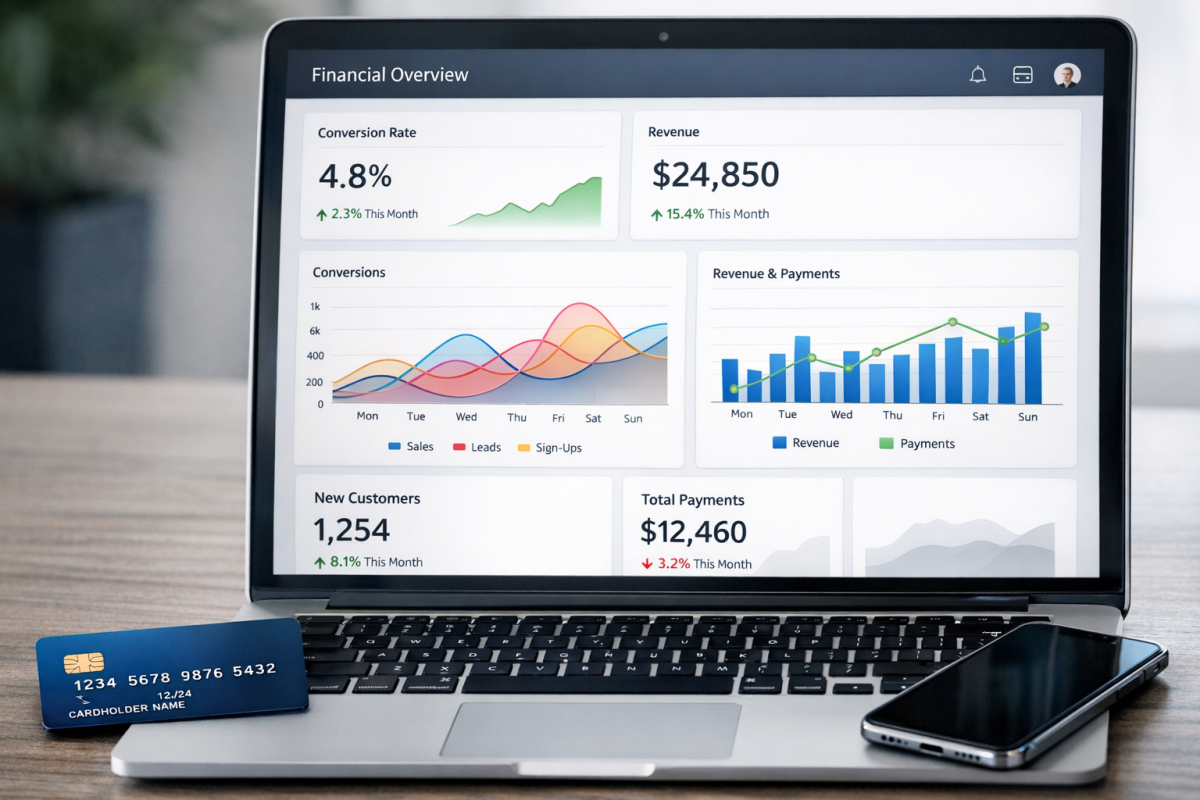
Stripe is a payment processor a lot of you out there use, and with good reason. In addition to their wealth of useful features, they give you meaningful insight into your billing conversions on an ongoing basis. Their dashboard surfaces conversion percentages and lifetime value data you can use to identify which users came in via a free trial and eventually converted to a paying customer.
I'm not going to go into great detail here because we've already covered Stripe conversion tracking over in this article. Go ahead and give it a look if you're on Stripe.
One important quirk to watch out for: Google's tracking code can't be loaded via PHP. The workaround is to add it to the customer dashboard, where you can track account status. Monitor when users log in and check whether they're still on a free plan or have upgraded to paid. That status change becomes your conversion event for analytics purposes.
In 2026, Stripe's integration ecosystem has matured significantly. There are now well-supported direct integrations between Stripe and Google Ads via tools like Zapier, Make (formerly Integromat), and Stripe's own webhook system, which makes this pipeline far cleaner than it used to be. If you're building this out fresh today, lean on webhooks - they'll save you a lot of headaches. You may also want to look into how to pass your conversion value to Google Ads to get the most out of this setup.
Option 2: Manual Tracking
Instead of relying on a complex automated tracking system, you can always just track your data manually. Monitor your Google Ads and record a free trial signup as a conversion. You can flag accounts internally with the source of their signup - did they come from Google Ads, organic search, an affiliate link, or somewhere else?
This is particularly useful for the affiliate angle. Many web services and apps get a lot of mileage out of running an affiliate program. You can get people willing to advocate for your product in exchange for a cut, and publishing your affiliate offers on a major affiliate network can extend your reach considerably.
When you track where a user came from at signup, you can then monitor what they do next. You can maintain a list of people who signed up via Google Ads and quickly determine which ones converted to paid customers.
Of course, the more you do manually, the harder it becomes to maintain. Custom spreadsheets and manual data sources work fine at small scale, but once you're dealing with thousands of customers, you either automate it or start losing visibility. At that point you're looking at hiring a developer to build a custom tracking script, and you risk ending up with patchy integrations and inconsistent data.
As they say in the infomercials - there has to be a better way.
Option 3: Data Hand-Off via Google Ads + GA4
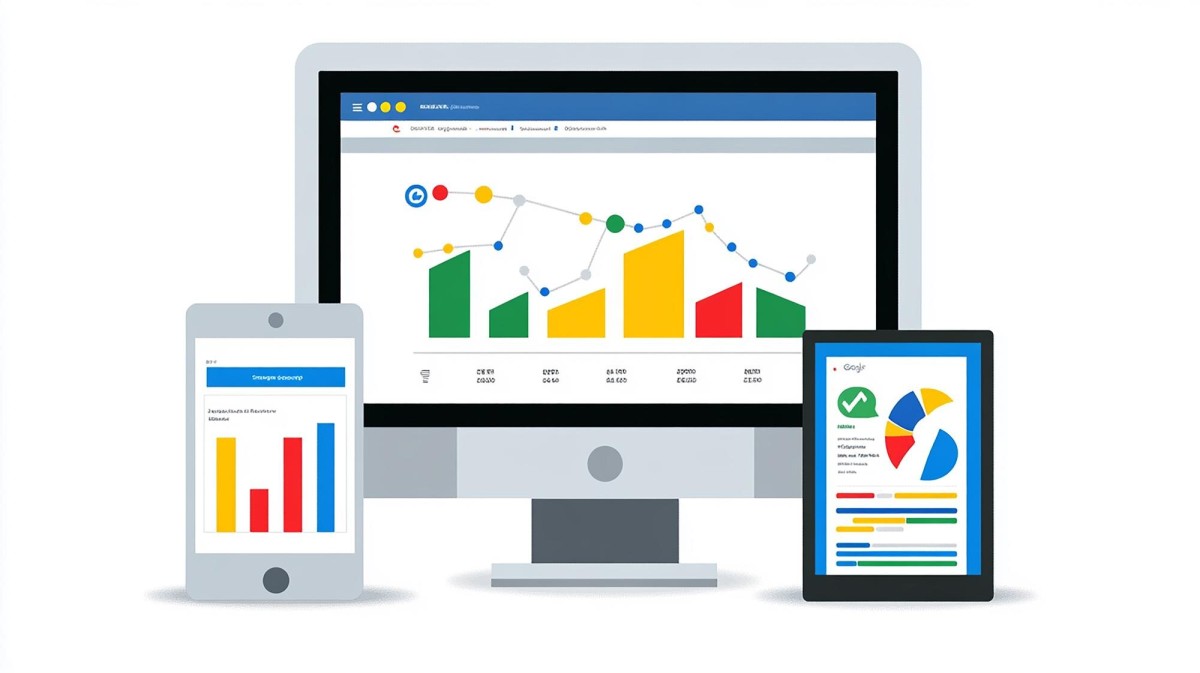
Possibly the smoothest option available today is to link your Google Ads and Google Analytics 4 accounts and let the two systems share data. It makes sense that two Google platforms would be built to work together - and in 2026, that integration is tighter than ever.
A quick but important note: if you're still referencing Universal Analytics (UA) anywhere in your setup, stop. Universal Analytics was officially sunsetted in 2023. Everything from here on out applies to Google Analytics 4 (GA4), which uses an event-based data model rather than the session-based model of UA. If you haven't fully migrated your goal tracking into GA4, that's your first priority before any of this works.
Here's what the setup looks like in 2026:
Step 1: Set up conversion tracking in Google Ads. You want to track each meaningful action a user can take - signing up for a free trial, immediately upgrading to a paid plan, joining a mailing list, and so on. Google Ads conversion tracking is free and supports all of these. The key limitation is that standard Google Ads tracking only captures the first action; it won't automatically follow that user if they later upgrade from free to paid.
Google does offer conversion imports, which allow you to upload a data file or push data via API. This is useful for tracking conversions that happen outside your website - phone calls with a sales rep, in-app upgrades, or delayed conversions that happen days after the ad click.
Step 2: Set up conversion events in GA4. In GA4, the old "Goals" interface is gone. Instead, you work with events and mark specific events as conversions. The event you care most about here is the free-to-paid upgrade. You can fire this event from your user dashboard when a status change is detected, or from a purchase confirmation page.
You can also set up separate conversion events for upgrading to different plan tiers if your product has them, which gives you more granular data about where your highest-value customers come from.
To mark an event as a conversion in GA4, go to Admin → Events, find the event you want, and toggle on "Mark as conversion." GA4 also supports custom events, which you can create and fire via Google Tag Manager - the recommended approach for most setups.
Step 3: Link GA4 to Google Ads. In your Google Ads account, click the settings wrench, navigate to Linked Accounts, and find Google Analytics. Select your GA4 property and link it. This allows Google Ads to see the conversion events you've defined in GA4.
Make sure auto-tagging is enabled in your Google Ads account settings. This is what allows GA4 to associate sessions with the specific ad clicks that drove them. Without auto-tagging, you lose the thread between your ad spend and your on-site behavior data.
Step 4: Import GA4 conversions into Google Ads. Go to Tools → Conversions → Import in Google Ads, select Google Analytics 4, and choose the conversion events you want to import. This brings your upgrade data directly into Google Ads, so you can see - at the campaign, ad group, and keyword level - which traffic sources are producing users who eventually pay.
An added benefit here is that this richer conversion data feeds Google's Smart Bidding algorithms. The more downstream conversion data Google has, the better it can optimize toward users who don't just sign up for free trials, but who actually convert to paid. If you're running Target CPA or Target ROAS bidding, this is especially valuable.
After linking accounts, allow up to 24 hours for data to fully propagate before drawing any conclusions.
A Word on Smart Goals in 2026

Smart Goals still exist in GA4, though their role has diminished as GA4's predictive metrics (like purchase probability and churn probability) have become more capable. If you want to use Smart Goals, the thresholds remain the same: you need at least 500 clicks through Analytics in the previous 30 days, with no more than 10 million sessions in the same period. Fall below 250 clicks per month and you'll lose access.
For most SaaS businesses tracking free-to-paid conversions, Smart Goals are not the right tool. Use custom conversion events tied to real business outcomes - upgrades, purchases, plan activations - rather than letting Google infer what a "good" session looks like. If you're also seeing no conversions coming through AdWords, the issue may run deeper than your Goals setup, and it's worth reviewing whether your ad budget itself is hurting conversion rates.
The Bottom Line
Tracking free trial to paid conversions across Google Ads and GA4 in 2026 is more achievable than it's ever been, but it does require that your foundations are solid: GA4 properly configured, conversion events firing accurately, accounts linked, and auto-tagging enabled. Get those pieces in place and you'll have a clear line of sight from ad click to paying customer - which is exactly what you need to make smart decisions about where to put your budget.