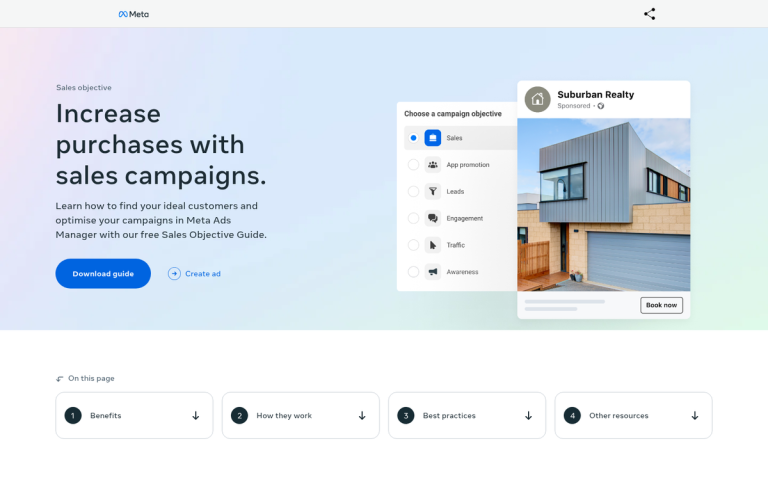
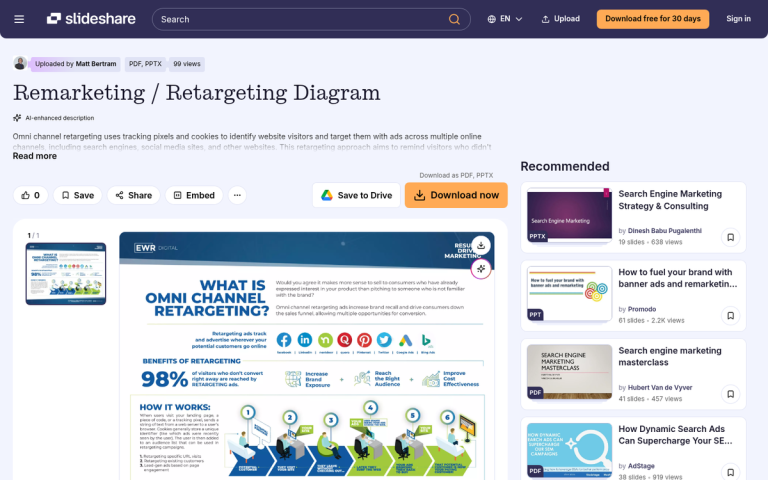
Tracking pixels are an extremely important component to any sales funnel. They're the code that allows you to track information about your visitors, particularly their conversions. Without the appropriate tracking pixel, you won't have the relevant data in Google Analytics, in Facebook Insights, or in whatever other analytics software you want to use. Not to mention all of the affiliate tracking code that's becoming more and more common every year.
The question is, do you need to pick one tracking pixel, or can you include more than one piece of tracking code on a single page?
Key Takeaways
- Multiple tracking pixels from different platforms (Google, Meta, TikTok) can generally coexist on one page without conflicts.
- Each additional pixel adds load time; Facebook's pixel alone can add 1.3-1.5 seconds, hurting the conversions you're tracking.
- GDPR consent requirements cause 20-35% conversion under-reporting in the EU, making server-side tracking increasingly important.
- Expect 10-20% variance between platforms tracking the same conversions due to differing attribution windows and counting methods.
- For multiple Meta pixels, use separate init lines within one script rather than duplicating the entire pixel code twice.
A Simple Answer
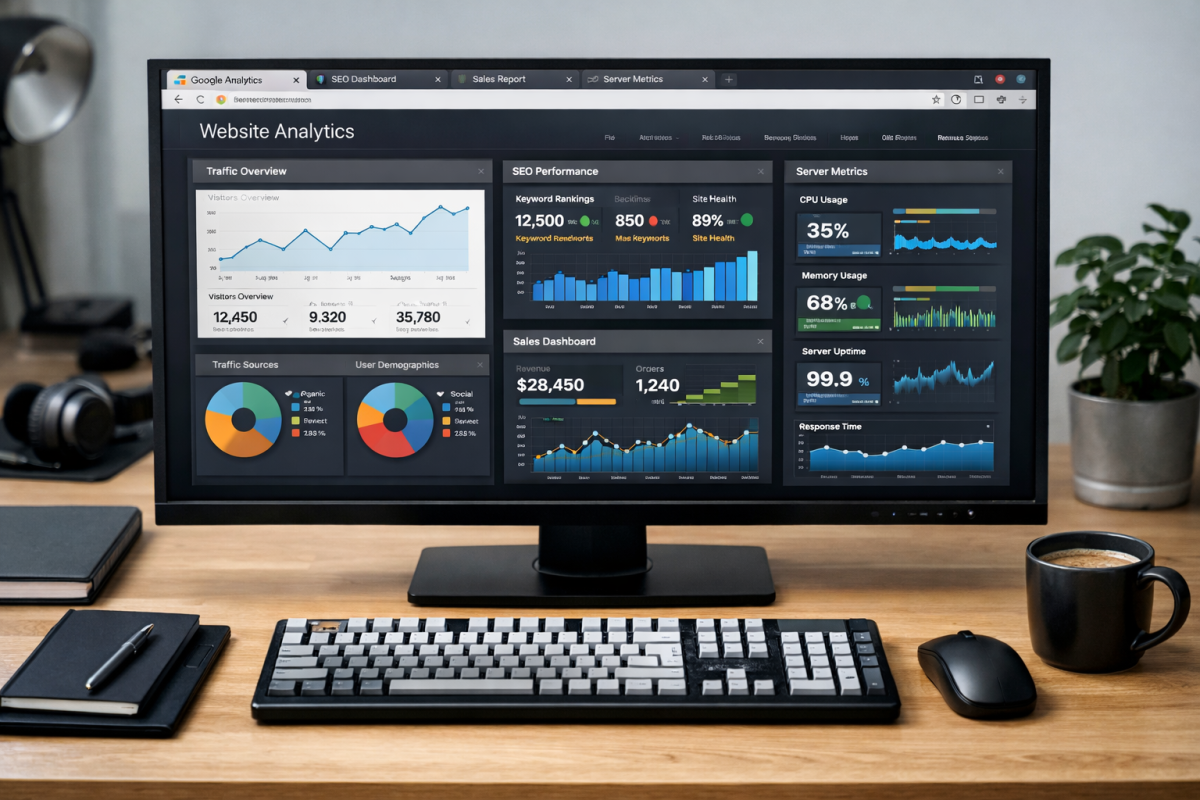
The short answer is "generally, yes" you can add more than one piece of tracking code to any given page on your website.
This is very common for landing pages and "thanks for buying" pages, for example. Google Ads wants to track data one way, Meta (Facebook) Ads tracks it another way, and if you want fluid information across both platforms, you need both pieces of tracking code.
That said, I can't give you a completely unqualified answer. There are a few reasons why this might cause problems, and a few real-world issues you might run into - so let's talk about them.
Multiple Google Ads Tracking Pixels
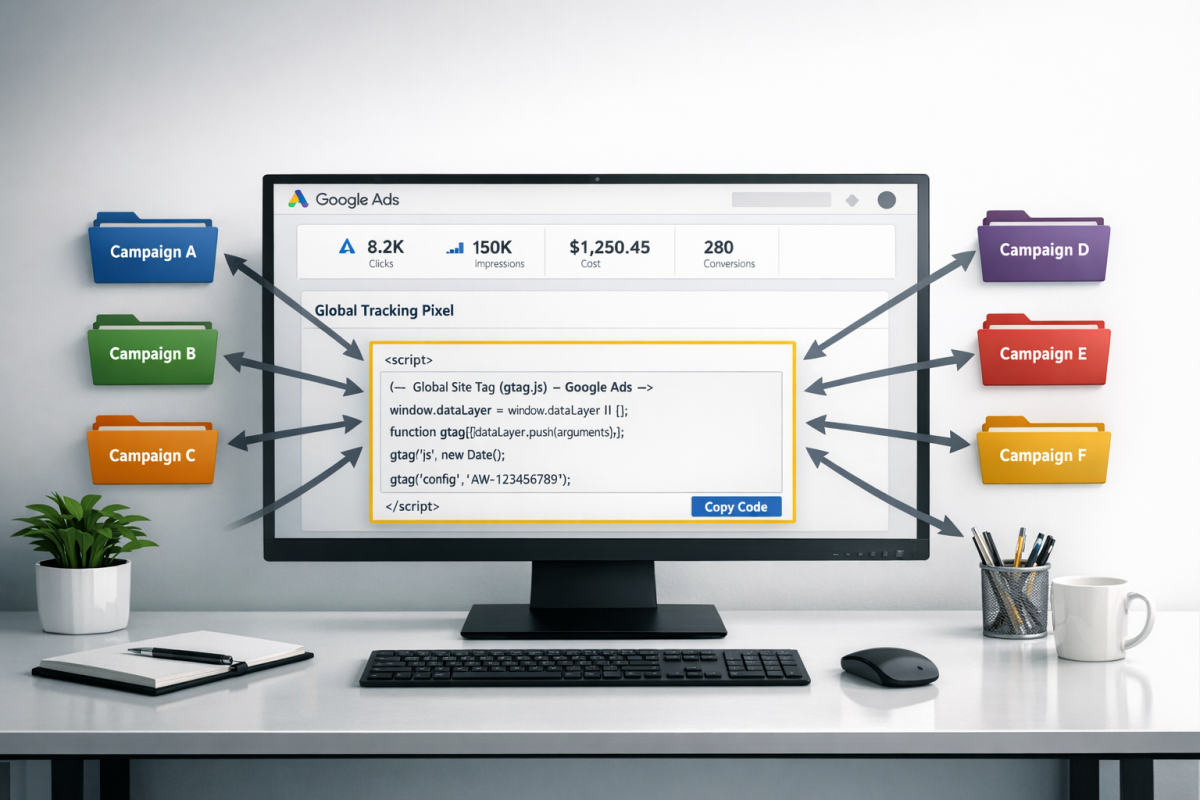
One common misconception I've come across on the Google Ads Help Community and elsewhere is that your Google tracking pixel is associated with an individual ad campaign. These users believe that each ad campaign has its own associated tracking pixel.
If each campaign had its own tracking pixel, you would run into issues where you have one order confirmation page triggered from multiple different landing pages. You would need multiple copies of the Google tracking pixel - one for each ad campaign - on that page. It would be a complex mess of referrer data and tracking. Obviously, the easiest solution would be to make multiple visually identical confirmation pages, one for each landing page, but that can spiral out of control quickly.
Thankfully, none of this is the case. Your Google Ads conversion tracking is associated with your account, not with any one campaign or ad set. You place one instance of the tracking code on your confirmation page, and you're good to go.
Google's tracking is smart enough to follow user information from page to page, carrying data forward from the moment a user clicks your ad to the moment they convert. In fact, Google Ads conversion windows are fully customizable - you can set them anywhere from 1 to 90 days depending on your campaign type and business cycle. There's no need for multiple tracking code snippets. All of the complexity is handled on Google's back end. For more on how this works in practice, see our expert guide to UTM parameters and conversion tracking.
Multiple Analytics Suites
Let's say you want to track three different sources of traffic to your landing page. You only have one landing page, but you have traffic coming from Google Ads, from Meta Ads, and from a platform like TikTok Ads or LinkedIn Ads. You want to associate conversions with their original source. Can you do it?
In this case, you will likely need to install multiple tracking pixels across your landing page and confirmation page - one for each platform. Each platform has its own pixel or event tag that needs to fire to record conversions accurately within that platform's reporting.
All of these code snippets load a script when the relevant part of the website loads. Usually this goes in the header of your site, though some frameworks handle it differently. The key is keeping them organized so they don't conflict with one another.
Can you run all of these tracking code strings without issues or conflicts? In general, yes - they are largely self-contained scripts that call their respective servers independently. But there are some important caveats worth knowing about in 2026.
Performance impact is real. Each pixel you add to a page contributes 20-50ms of additional load time individually, but the cumulative effect can be significant. Facebook's pixel alone has been shown to add 1.3-1.5 seconds to page load time, making four HTTP requests and adding approximately 170KB to page weight before First Paint. A Pingdom study of the top 50 news sites found an average load time of 9.46 seconds with trackers active versus just 2.69 seconds without them - with sites averaging 43 trackers. Keep in mind that a 100-millisecond delay in load time can reduce conversion rates by 7%, and a two-second delay can increase bounce rates by 103%. In other words, stacking too many pixels without proper management can actively hurt the very conversions you're trying to track.
Consent and privacy regulations affect accuracy. If you operate in the EU or serve EU visitors, GDPR consent requirements mean that pixels only fire for users who opt in. EU industry data shows 20-35% conversion under-reporting compared to pre-GDPR levels due to consent declines affecting pixel firing. This gap is only growing as more regions adopt similar frameworks. Server-side tracking has become an increasingly important way to mitigate this, as it moves some tracking logic off the browser and out of reach of consent blockers and ad blockers.
Cross-platform variance is normal - but you should know what to expect. When multiple platforms are tracking the same conversions, you will almost always see discrepancies between them. Typical variance between platforms tracking the same conversions runs about 10-20%. This isn't a bug or an error on your part - it reflects differences in attribution windows, counting methods, and which users consented to which cookies. The important thing is to understand this going in, pick one platform as your source of truth for decision-making, and use the others as directional signals.
The biggest attribution challenge comes when a user touches multiple channels before converting. For example, a user might click a Google Ad, not convert, then 28 days later click a link from your Meta ad and complete a purchase. Both platforms may claim credit for that conversion - Google as the first touch, Meta as the last touch. This cross-channel attribution problem hasn't been fully solved, though Meta has updated its attribution settings and Google has leaned more heavily into data-driven attribution to help address it. Still, some level of double-counting across platforms is something you need to account for.
Google Tag Manager

Google Tag Manager remains one of the best tools for managing multiple tracking pixels cleanly. Rather than hard-coding each pixel directly into your site's HTML, you manage all of your tags through a single GTM container snippet. A study by AnalyticsMania found that sites loaded approximately 10% faster using Google Tag Manager to hold tracking pixels versus hard-coding them individually.
GTM supports a wide range of tags natively - including Google Analytics 4, Google Ads, Meta Pixel, LinkedIn Insight Tag, TikTok Pixel, Hotjar, and many more - and allows you to control exactly when and where each tag fires using trigger rules. This makes it much easier to manage consent-based firing (so tags only fire for users who have opted in), reduces the risk of copy-and-paste errors, and keeps your page source code clean.
If you're not already using Google Tag Manager, it's worth setting up before you start stacking pixels manually.
Multiple Affiliate Network Tags
Affiliate network tracking comes in a very wide range of complexity. Some, like Amazon Associates links, are simply tracking parameters appended to URLs. Others might need to be run through a redirect page. Some can have Google UTM parameters layered on top, while others might behave unexpectedly if too much else is happening on the page.
I can't give you a simple, clear answer as to whether or not you can add any two given affiliate network tags to the same page. They work in too many different ways.
The main problem you might encounter when tracking multiple affiliate networks is if they both track the same conversion. If the same vendor is listed on multiple networks and you're enrolled in both, one sale could be tracked by both networks simultaneously. Suddenly two networks are supposed to pay you for one conversion, which means the advertiser is over-charged, which means the networks need to investigate. This is likely to be flagged as fraud, and the consequences can be serious. Map out your affiliate relationships carefully and make sure you're not creating situations where duplicate commission claims are possible.
Multiple Instances of One Pixel

Now let's look at a common agency scenario. You're a marketing agency, and you want to track customer data with your agency-level Meta pixel. You also want to track data with the client's own Meta pixel. Since you want to record the same data in two different places, you have a few options.
The first option - tracking everything through just your agency pixel - is a bad idea. If the client cancels, they walk away with no historical data of their own. Don't do it.
The second option - pasting two separate, complete copies of the pixel code - also causes problems. Both pixels will initialize the same script, meaning the script runs twice for every user. This can slow down the page and may result in duplicate event data, with every conversion being counted twice. That method is out.
The correct approach is to use the Meta pixel's built-in support for multiple pixel IDs within a single script. In the pixel code, you'll see a line that looks like this:
fbq('init', '{{pixel_ID}}');
You can simply duplicate that init line and swap in the second pixel ID, like so:
fbq('init', '{{pixel_ID_1}}');

fbq('init', '{{pixel_ID_2}}');
One script, two IDs. Both pixels receive the same event data simultaneously. This is the clean, supported way to handle this in Meta's system.
Just make sure the client understands which pixel ID is theirs and which belongs to your agency, so they don't accidentally start routing unrelated traffic through the wrong ID.
For Google Analytics 4, managing multiple properties on one site is handled cleanly through Google Tag Manager. You can configure multiple GA4 Configuration tags, each pointing to a different Measurement ID, and control exactly which events flow to which property. If you want to make sure your data is reliable, it's worth understanding how accurate traffic numbers in Google Analytics really are. If you're still running anything on the older Universal Analytics platform - it was officially sunset in July 2023, so if you haven't migrated to GA4 yet, that's the first thing to fix.
Your Turn
Have you ever needed to track the same conversion or the same piece of referral data in multiple analytics suites? How did it work for you? I'm curious what kind of configurations you're all using out there, and how tracking it all has worked out. Some of you are probably doing some pretty creative things with server-side tracking or consent mode - I'd love to hear about it. Let me know!