Key Takeaways
- Even official WordPress.org plugins can contain malware, as over 25 plugins were pulled in a single day in April 2026.
- Popularity and high ratings are useful signals but don't guarantee safety; popular plugins can still carry serious vulnerabilities.
- Scan plugin files locally using antivirus software or VirusTotal before uploading them to your site.
- Use Wordfence or Sucuri Security for ongoing monitoring, as one-time scans are insufficient against evolving threats.
- Remove inactive plugins regularly, keep everything updated, and subscribe to security advisories to stay ahead of vulnerabilities.
How to Check WordPress Plugins and Themes for Viruses (2026 Edition)
WordPress is a fantastic blogging platform for many reasons. Among these are the fact that it has so many plugins, extensions and themes that you can make the platform look and act in virtually any way you could desire.
The problem with being such a robust, powerful and popular platform is that it becomes a target for hackers and viruses. And in 2026, the threat landscape has never been more serious. In April 2026 alone, over 30 trusted WordPress plugins were found to contain backdoor malware, with the official WordPress plugin repository pulling more than 25 plugins in a single day on April 7th. This wasn't some shady third-party marketplace - these were plugins hosted on WordPress.org itself.
The EssentialPlugin package is a sobering example of how this can happen. After the project was acquired in a six-figure deal in mid-2025, cybersecurity researchers discovered that a backdoor had been quietly embedded in all of its plugins since August 2025, exposing countless sites for months before anyone noticed. Meanwhile, Wordfence's firewall blocked over 3,600 attacks in a single 24-hour period targeting the Ninja Forms plugin alone. The scale of the problem is staggering.
WordPress is like the Windows XP of blogging platforms - used by an enormous number of people and left unprotected by far too many of them. When one single exploit can infect millions of people, it pays to be cautious. So let's talk about how to actually protect yourself.
Step 1: Trust the Source - But Know That Even Trusted Sources Can Fail You
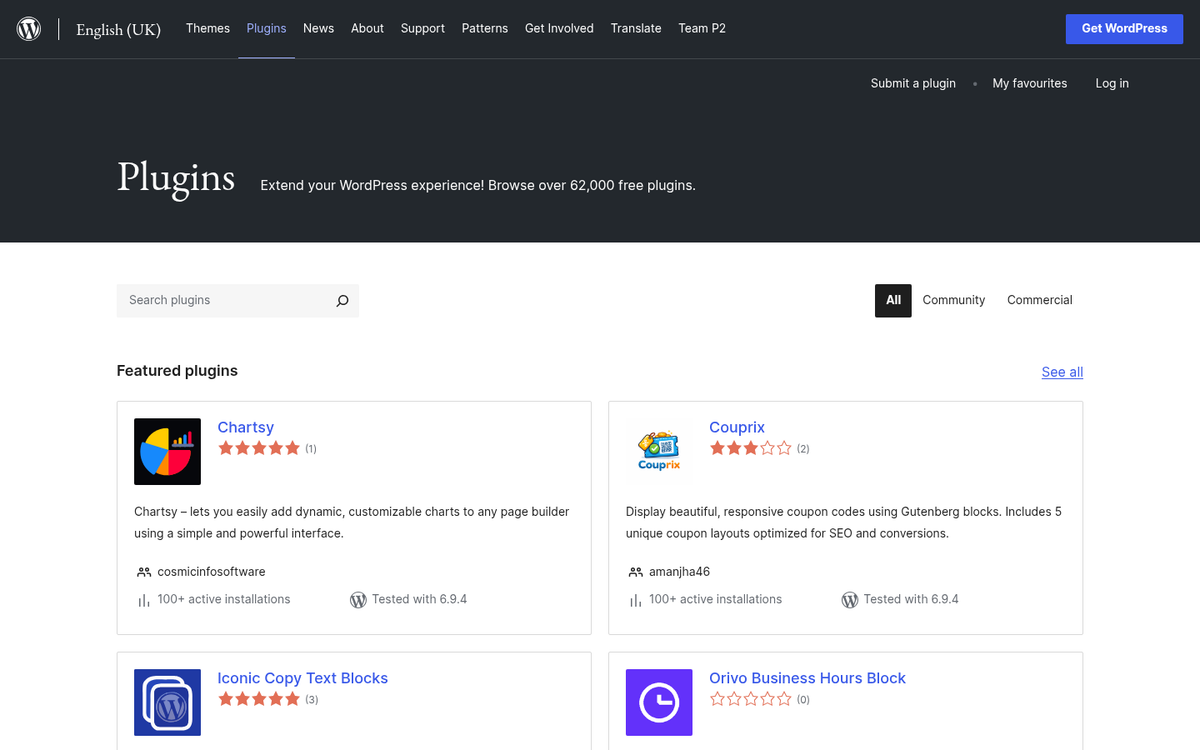
When you're downloading a plugin or a theme, you might be tempted to use a third-party site. As a general rule, stick to the official WordPress plugin directory or reputable developers with a verifiable track record. Avoid downloading themes in sketchy formats from low-quality sites that have no reputation to speak of.
That said, the events of April 2026 serve as a brutal reminder that even the official WordPress repository is not infallible. Plugins can be acquired by new owners who then introduce malicious code, or developers themselves can be compromised. Trusting the source is still your first line of defense, but it can no longer be your only one.
Step 2: Opt for Popular - But Don't Stop There
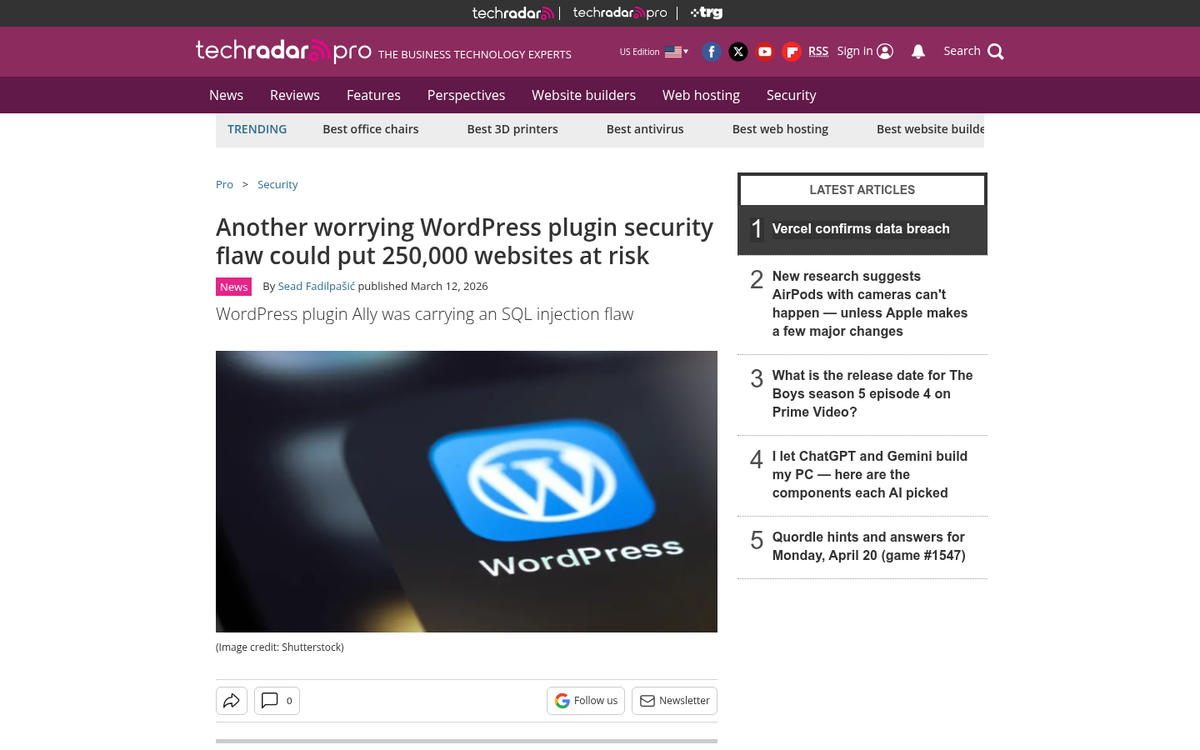
Popularity and high ratings are still a useful signal. When a plugin has millions of active installs and a strong review history, it's generally a safer bet than something with 12 downloads and no reviews.
But again, 2026 has shown us the limits of this approach. Smart Slider 3, a plugin active on over 800,000 websites, carried an Arbitrary File Read vulnerability, and nearly 500,000 sites remained exposed even after the patch was released. Sucuri and PublicWWW reported over 3,000 WordPress sites compromised from a single unpatched vulnerability. Popularity doesn't equal safety - it just makes you a bigger target.
Treat popularity as one factor among many, not as a green light.
Step 3: Scan Before You Install
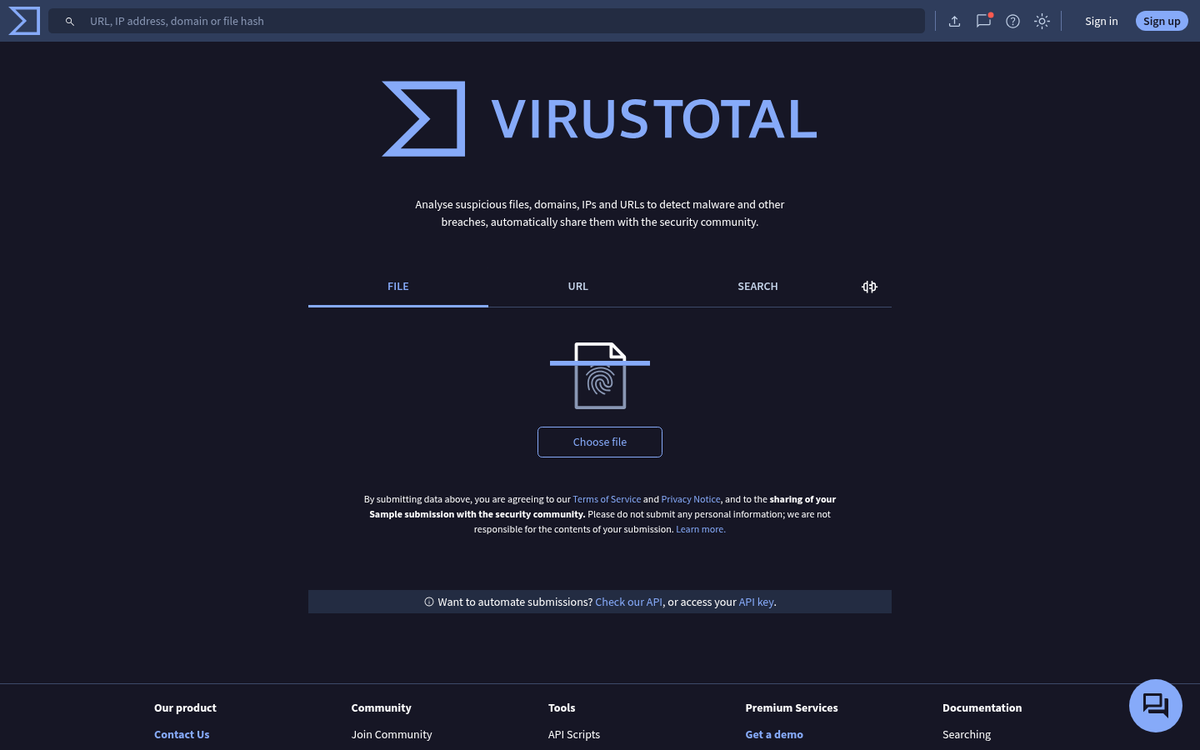
Before uploading any plugin or theme files to your site, scan them locally. Your antivirus software should allow you to scan specific files or folders. If you want a second opinion, services like VirusTotal let you upload files and scan them against dozens of antivirus engines simultaneously - and it's free.
This won't catch everything, particularly obfuscated malicious code that doesn't trigger traditional antivirus signatures, but it's a fast and easy step that can catch obvious threats before they ever touch your server. For added peace of mind, you can also scan your WordPress blog for bad external links to keep your site clean after installation.
Step 4: Check for Malicious or Obfuscated Code
The old Theme Authenticity Checker (TAC) plugin has been deprecated and is no longer maintained, so don't rely on it. Instead, use Wordfence or Sucuri Security, both of which actively scan your installed plugins and themes for obfuscated code, unauthorized changes, and known malware signatures.
These tools are far more capable than TAC ever was, and they're actively maintained and updated to reflect current threats. Wordfence in particular maintains a large threat intelligence database and will flag code that looks suspicious even if it hasn't been formally classified as malware yet. If you're also concerned about how AI bots are crawling your site, our AI Crawler Database can help you identify which automated agents may be accessing your content.
Step 5: Ongoing Protection and Active Monitoring

One-time scans aren't enough. You need ongoing protection that monitors your site continuously. Both Wordfence and Sucuri Security offer daily or real-time scanning, firewall protection, and alerts if anything changes unexpectedly in your core files or plugins.
Given that Wordfence blocked more than 3,600 attacks in a single day targeting just one plugin, having an active firewall in place isn't optional anymore - it's essential. These tools can also alert you when a plugin you've installed has been flagged or pulled from the repository, which is invaluable given what happened in April 2026. If you want to go deeper on this topic, our ultimate guide to protecting your site from a DDoS attack covers additional layers of defense worth considering.
General Security Tips for 2026
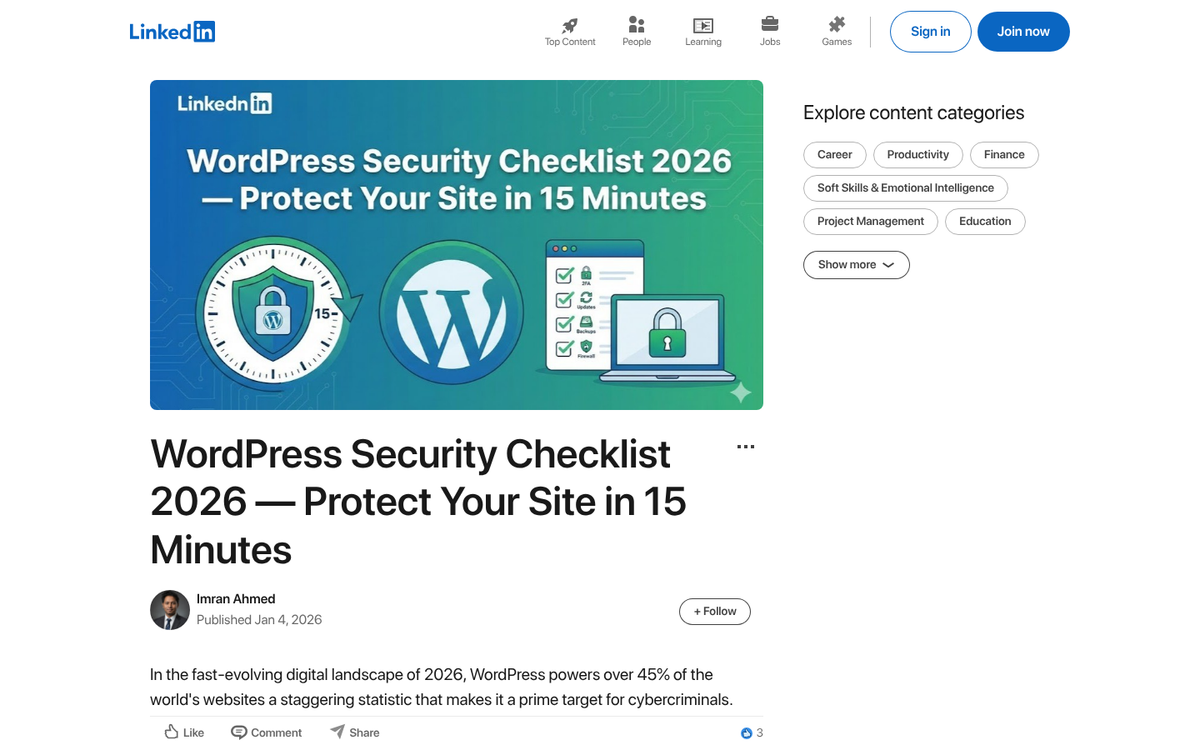
WordPress remains one of the most heavily targeted platforms on the internet, and the threat environment continues to evolve. Here's what you should be doing right now.
- Keep your WordPress core up to date. Security patches exist because vulnerabilities exist. If you're running an outdated version, you're running a known risk.
- Keep your plugins and themes up to date - but also audit them regularly. Remove anything you're not actively using. Every inactive plugin is a potential attack vector, and abandoned plugins rarely receive security patches. If you're unsure what's installed, learn how to find what plugins a WordPress blog is using.
- Subscribe to security advisories. Services like Wordfence Intelligence and Patchstack publish vulnerability disclosures regularly. Knowing about a flaw before your site is exploited gives you time to act.
- Use strong, unique passwords and enable two-factor authentication on your WordPress admin account. A secure site can still be compromised through a stolen password.
- Set correct file permissions. The WordPress Hardening Guide covers this in detail and is worth reading in full.
- Take regular backups and store them offsite. If the worst happens, a clean backup is your fastest path to recovery. Solutions like UpdraftPlus make this straightforward.
- Keep your own computer secure. Even the most hardened WordPress installation can be compromised if your local machine is infected and a keylogger captures your credentials.
- Limit login attempts and restrict access to
wp-adminby IP address where possible. These simple measures significantly reduce brute force attack exposure.
The events of early 2026 have made one thing crystal clear: no plugin, no matter how trusted or how many downloads it has, should be treated as unconditionally safe. Layer your defenses, stay informed, and treat WordPress as an ongoing practice rather than a one-time setup task. Your site - and your users - are counting on it.