





Key Takeaways
- No tool can guarantee a complete plugin list; most methods only detect plugins leaving visible traces in public source code.
- Tools like WP Theme Detector, InspectWP, and BuiltWith each offer different strengths, so combining multiple tools improves detection accuracy.
- Manually searching source code for "wp-content/plugins/" is a free, reliable method that also reveals plugin load order.
- AI-assisted scanning has improved modern plugin detectors by cross-referencing code patterns against known plugin fingerprints more accurately.
- Good plugin hygiene matters: keep plugins updated, delete unused ones, and test new plugins in staging before deploying live.
There are plenty of reasons why you might want to do a little detective work to figure out what a site is using to run itself. Maybe they have a feature you quite like and would like to use it for your own site. Maybe you're performing a competitive analysis and want to figure out which plugins are most used across your niche. Maybe you're an agency auditing a client's site, or you're basically curious what's powering a site you admire.
I'll also give you some tips for what plugins you might want to use regardless of what your research will teach you.
I will say this up front: you're probably not going to be able to get a full list of plugins for a given site unless they have a publicly published plugin list or folder - this will usually need direct server access and you're almost certainly not going to have that. However, these different methods will get you as close as you can.
As another note, some of these will also help you find the theme a WordPress blog is using - it won't help you much if the theme is custom and it might not help if the developer heavily modified a base theme. But it will get you pointed in the right direction.
One more thing worth mentioning first: AI-powered tools have changed this space. Several modern plugin detectors use machine learning or AI-assisted scanning to cross-reference code patterns against known plugin fingerprints, which makes detection more accurate than the older rule-based strategies from a few years ago.
1. WP Theme Detector
WP Theme Detector is a very quick lookup tool that scans the source code of a site and looks in common locations for any data it can find. The primary use is to find a theme, at which point it will look up that theme and show you what version the site is running; the theme can be found and pull in the theme description from its hosting source.
After the theme has been detected, the tool does the same thing with plugins - it lists each plugin's name, preview image, a flag if it's popular, its description, and a download link - it will also show if the plugin is free or premium.
WP Theme Detector is one of the more reliable free options still available in 2026 and it has kept its database reasonably up to date. That said, the detector can be slow because it has a large database to compare against the source code of any given site. The more plugins it has to check for, the longer it takes - it's basically the nature of this type of scanning tool.
2. WP Plugin Checker (by Earth People)
This tool checks for the presence of known plugins instead of doing a large source scan - it covers the 50 most popular WordPress plugins and those published by the site's creator. Because it only searches for a fixed list of plugins, it's limited in scope - you won't discover obscure or niche plugins this way.
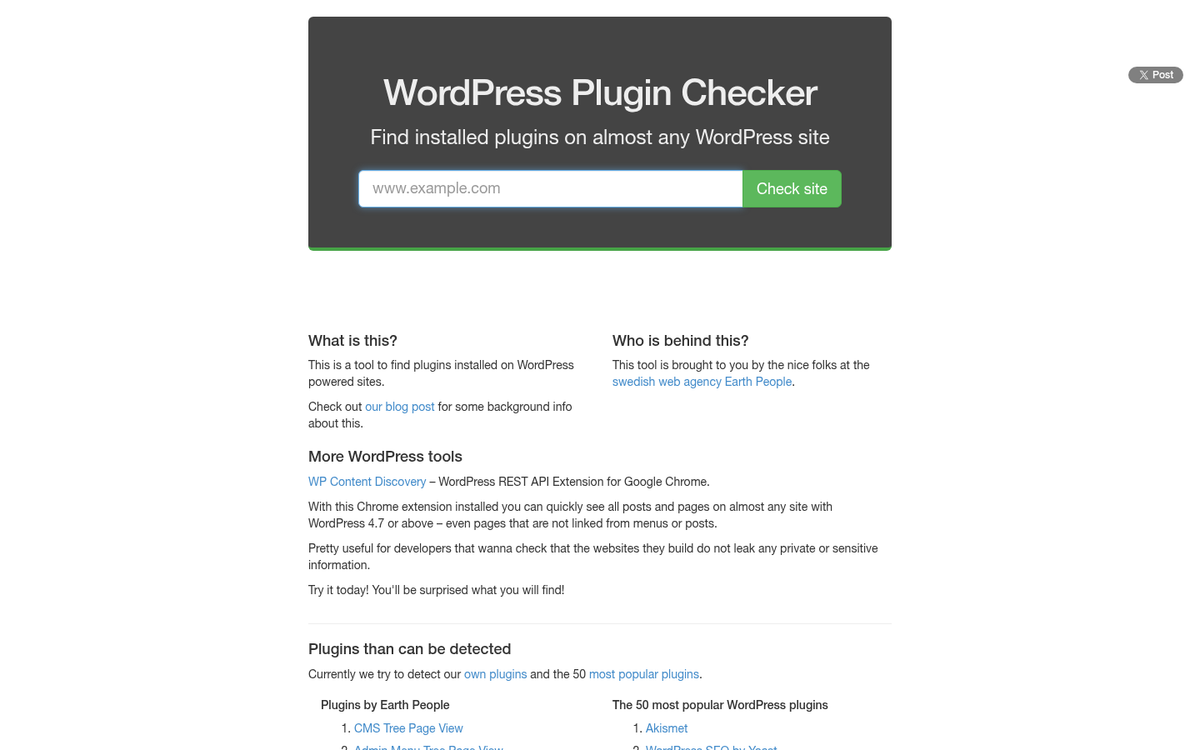
The upside is that it's easy and free to use. If you're only trying to confirm if a site is running something common like Yoast SEO, Akismet, or WooCommerce, it can confirm or deny that faster. Just don't use it as your only tool, because its limited plugin list means it will miss quite a bit.
3. InspectWP
InspectWP has become one of the more capable options available as of 2026 - it fetches plugin metadata - like version number, author, number of active installations, and ratings - directly from the official WordPress.org plugin directory - it means the data you're seeing isn't cached or outdated; it reflects the latest state of each plugin as listed by WordPress itself.
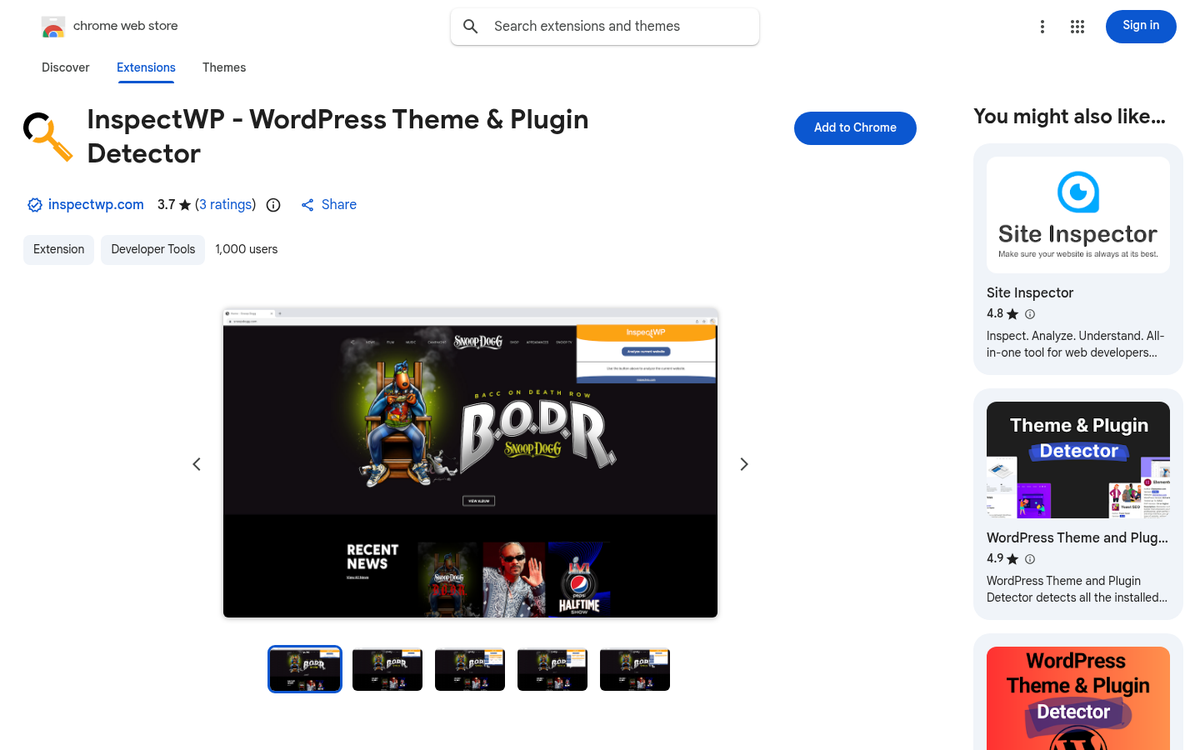
For premium users, InspectWP also lets you export full plugin list reports in PDF, CSV, or JSON formats, which is especially helpful if you're doing competitive research at scale or running audits for clients. If you're doing any plugin research, this is worth looking at closely.
4. Sitechecker Plugin Detector
Sitechecker has a plugin detection tool as part of its wider SEO and site audit suite - it's a good option if you're already using Sitechecker for other purposes - it has a 14-day free trial with no credit card required, so you can test its plugin detection capabilities without any financial commitment before deciding if the paid tier is worth it for your workflow.
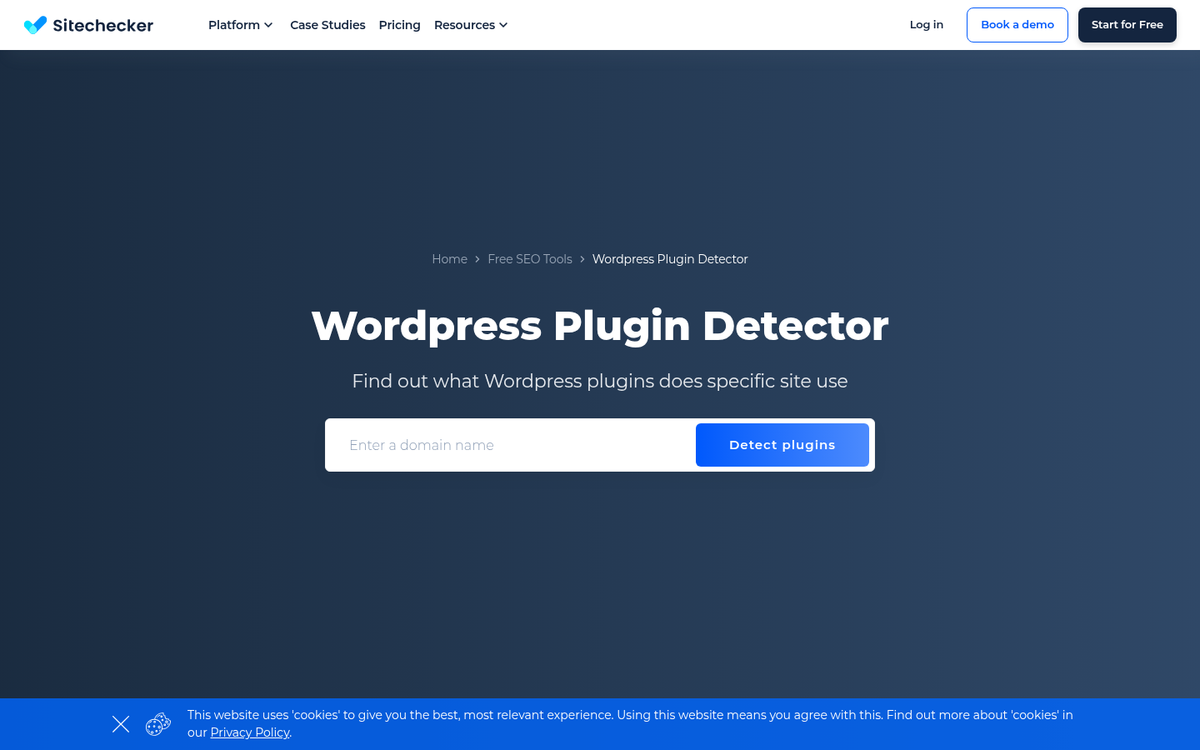
Like most modern detectors, it works by scanning publicly visible source code and matching patterns against known plugin signatures - it's especially helpful when combined with Sitechecker's other audit features, as you can get a fuller picture of a site's technical setup in one location. If you're setting up a new site, it's also worth knowing which plugins you should install from the start.
5. BuiltWith
BuiltWith is a more thorough lookup. But it's not designed exclusively to surface WordPress plugins or themes - it goes much deeper into site architecture. For a common WordPress site, it might show facts like:

- Web server type (Apache, Nginx, etc.)
- CDN in use (Cloudflare, Fastly, etc.)
- SSL certificate provider
- Advertising networks in use (AdSense, etc.)
- Analytics platforms (Google Analytics 4, etc.)
- Detected WordPress plugins and JavaScript frameworks
BuiltWith is very fast. But it's not exhaustive with plugins - it's more focused on pulling site architecture facts than looking into WordPress-specific code. Plugins that don't leave a visible fingerprint in the front-end output won't show up here. Still, it's a great complement to the more WordPress-focused tools above and it remains one of the best free resources for a site's technology stack.
6. View Source Code
Viewing source code is a more manual strategy. But it's reliable and free. The first thing you want to do is view the raw source code of the website you're trying to investigate. In most browsers, hitting Ctrl+U (or Cmd+Option+U on Mac for Chrome, Cmd+U for Firefox on Mac) will open the raw page source in a new tab.
Once you have the source open, run a search (Ctrl+F or Cmd+F) and look for this string:

wp-content/plugins/
This is the standard file path WordPress uses for its plugins, and plugin references usually appear in the source as script or stylesheet calls. The folder name immediately following that path is usually the plugin's directory name, which usually corresponds directly to its name on WordPress.org.
It can also show the load order of plugins, which can be helpful for diagnosing performance problems. A plugin that loads early and takes a long time to respond can bottleneck everything that comes after it - it's an easy trick but fairly informative if you know what you're looking at. For example, social buttons are a common culprit that can drag down load times when they load too early in the queue.
7. Google Search (Indexed Plugin Folders)
This is a lesser-known trick. Sometimes a webmaster will forget to block their plugins directory from being indexed by Google. You can search using a query like:
site:example.com inurl:wp-content/plugins

If the folder is indexed, Google may return results that show which plugins are installed. However, this will not work most of the time. Most sites - especially those using a modern security plugin or a caching solution - will have this directory blocked via robots.txt or server-level rules.
If you do find a site with its plugin directory exposed, it's worth mentioning to the owner. An exposed plugin directory can help attackers find plugin versions and target known vulnerabilities.
8. Contacting the Webmaster
Contacting the webmaster is a strategy of last resort and, sometimes, the most helpful strategy of all. If the site is run by a small business owner, an independent blogger, or a person who is usually open and communicative, a polite, direct message asking about their setup can go a long way.

Be upfront about why you're asking. If you legitimately admire something about their site and want to replicate the functionality (not the content or branding), most reasonable webmasters will be happy to share. If your intent is to clone or closely imitate their site, expect a less enthusiastic response - and rightfully so.
Tips for Using Plugins in 2026
The WordPress plugin ecosystem has matured enormously. There are tens of thousands of plugins available on WordPress.org alone, and with premium marketplaces like CodeCanyon and plugins sold directly by developers, the options are legitimately vast. AI-assisted plugins have also become their own category, covering everything from content generation to automated SEO optimization and image compression.
That said, the fundamentals of responsible plugin use haven't changed. Let's talk about what you should keep in mind:
Always keep your plugins updated. This is as true in 2026 as it has ever been. Outdated plugins remain one of the leading causes of WordPress site compromises. Updates patch security vulnerabilities and add actual new features. Enable automatic updates where practical and check in manually for anything that will need manual review before updating.
Remove plugins you no longer use. Deactivating a plugin is not the same as removing it. Files left behind from uninstalled plugins can still be exploited if they have known vulnerabilities. Delete the plugin files once you're done with them.
Use a one-year update rule as a minimum threshold. If a plugin hasn't received an update in over a year, start looking for alternatives. Unmaintained plugins accumulate unpatched security vulnerabilities over time and they start to conflict with newer versions of WordPress and PHP.
Be selective about how many plugins you run. Every extra plugin can add some degree of overhead. The things that matter most are:
- Site load times. More plugins generally means more HTTP requests, more database queries, and slower page loads.
- Code quality. A poorly coded plugin can slow down your site more than a dozen well-optimized ones combined.
- Plugin conflicts. The more plugins you run, the higher the chance that two of them will interfere with each other's functionality.
Test plugins in a staging environment before deploying to production. WordPress plugins are not sandboxed - they can modify the database, change core behavior, and leave behind configuration changes even after removal. Testing in a staging environment first protects your live site from unexpected breakage.
As a general starting point, here are some plugins worth thinking about for a new WordPress site in 2026. The community has shifted since the early days and some older staples have been replaced by better alternatives:
- Yoast SEO or Rank Math - SEO optimization (Rank Math has gained significant ground and is worth evaluating - see our Yoast SEO sitemap comparison for more context)
- Wordfence or Solid Security - security scanning and login protection
- WP Rocket or LiteSpeed Cache - caching and performance optimization
- Imagify or ShortPixel - image compression (both have AI-assisted optimization options)
- Akismet - spam filtering for comments and forms
- UpdraftPlus or BlogVault - automated backups
- WooCommerce - if you need e-commerce functionality
- Gravity Forms or WS Form - advanced form building
- Broken Link Checker - still useful for content-heavy sites
- Redirection - 404 and redirect management for error pages
- MonsterInsights or Site Kit by Google - analytics integration
- Smush or Imagify - media optimization
From there, customize your plugin stack based on your requirements. The best plugin setup is the one that does what your site needs without unnecessary bloat. Less is usually more - a lean, well-maintained plugin list will serve you quite a bit better than a crowded one full of half-used tools.

2 responses
Thoughtful replies only - we moderate for spam, AI slop, and off-topic rants.
Thank you for explaining the topic in a clear and practical way. The wording is approachable and makes the subject easier to explore. Thank you for making the key information easier to understand.
Thank you for the kind words, Emerson! We always aim to break things down in a way that feels accessible, especially for topics that can get a bit technical. Glad it clicked for you! If you ever have questions while exploring plugins on a site, feel free to drop them in the comments. Happy to help!