





Key Takeaways
- Use LinkPatrol ($50 one-time fee) to scan your WordPress site and export all external links as a CSV.
- Use ScrapeBox with the Moz API to pull Domain Authority scores and check whether linked pages are indexed by Google.
- Nofollow or remove links pointing to unindexed pages, as these likely indicate spam, penalized, or compromised sites.
- Manually review all domains under DA 60, nofollowing low-quality links while keeping contextually valuable ones.
- Use a broken link checker plugin to identify and replace dead links, then repeat the full audit every six months.
Bad links can hurt your website, both in giving and receiving.
There are a few ways links in this category can hurt you. The one I'm primarily focusing on is links to low quality or spam sites. These sorts of links can get you in trouble because, if they're followed links, it looks like you're endorsing a spam site. If not endorsing a spam site, it can make you look like part of a private blog network, which Google has a history of detonating when they find them.
The tough part with these links is that, even if you're vetting links as you publish them, you have to stay on top of them over time. If your site is five years old, do you know the status of the links in five year old blog posts? Many of the destination pages may have moved, changed, or been deleted. Hell, one strategy of building backlinks to a site is to find sites that disappear, register their URL, and copy the pages in a microsite to direct to yours - it's part of broken link building. The links you've published on your site might no longer go to a legitimate piece of content, and it's not like anyone will tell you when they change.
Thankfully, auditing your links is pretty easy, if a bit time consuming, if you have WordPress as a framework for your site. All you need are a few cheap tools and some judgment over the quality of a site. Here's the process I use, and I've used it to great effect, which can improve my SEO by negating links that were holding me down.
Step 1: Get LinkPatrol to Scan All Links
LinkPatrol is a premium WordPress plugin that will scan your entire site for links - it can be used as a tool to change links as well, and we'll use it for that later in the process. But for now it's basically a scraper to pull and download a CSV or other form of spreadsheet of the links on your site.
If you're auditing one single site, all you need is the Blogger license for LinkPatrol. That will run you a one-time fee of $50 and can be used indefinitely. You can use it to audit your site once every six months if you so desire and never have to pay another cent. If you need it on more than one site, you need a bigger license. Five sites will run you $100 and 20 sites will run you $200, after which you'll need to talk to them directly for bigger licenses. The tool is made by Search Engine Journal, by the way, so it's pretty high quality.
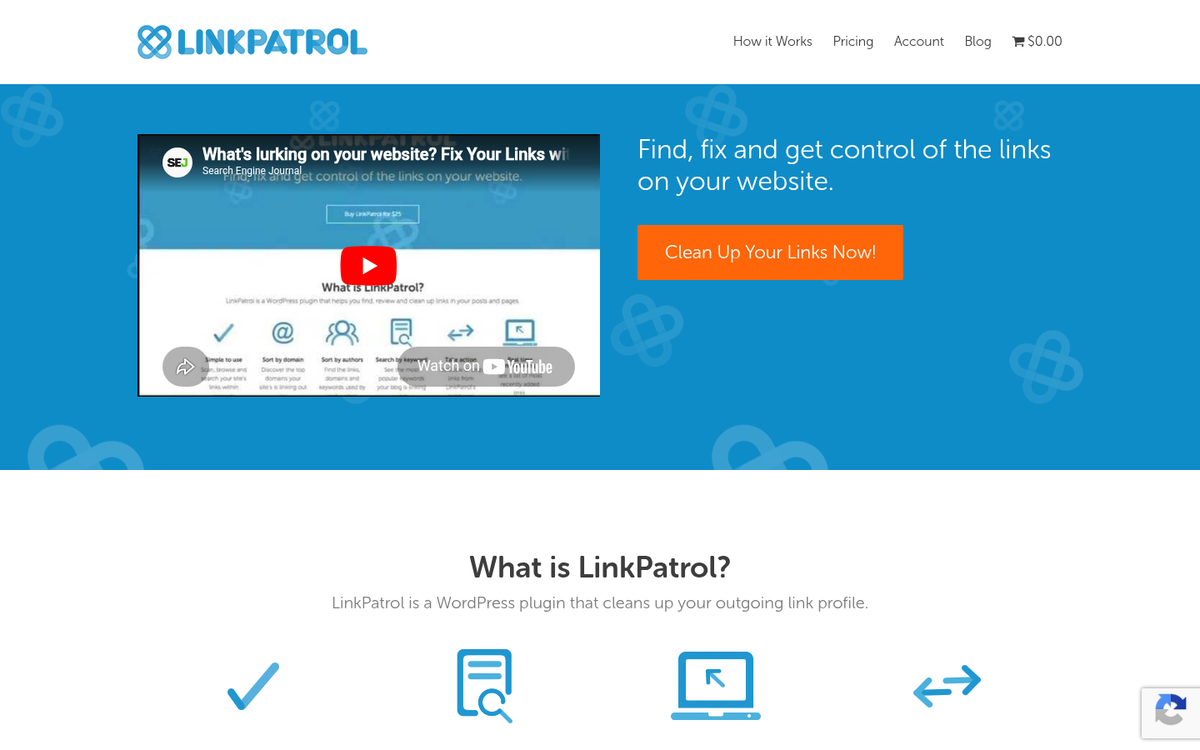
Simply buy and install the plugin the same way you would install any other plugin on WordPress. Once you have it installed, you'll see a LinkPatrol entry on the left column of your admin dashboard. Click it and it will show you a scanner with 0% and a "start scan" button. Click that and it will start to scan your website. Keep in mind that this has to scan every page, post, and piece of content on your site where a link may be hiding. A 100-post site will usually finish in a few minutes. But a 1,000-post site may take 20-30 minutes. For anything under 50,000 posts it should still be manageable in a single sitting.
Once it's done, you'll find a reports page with four tabs, and each tab has different functions, some of which we'll use later. Right now, what you want to do is choose one of the reports with data you care about and export the data as a CSV. I like the domain reports. I don't care who the author was and I don't need to run searches for keywords, I just want every link. The domain report will show you the root domain, number of posts the link appears in, the number of links to that domain, and the number of authors who have linked to it.
Step 2: Use ScrapeBox to Pull the DA and Indexation of All Links
Once you have your spreadsheet of your links, you want to download ScrapeBox. ScrapeBox is a very versatile tool that's usually used for some gray and black hat techniques, but has legitimate uses as well. It's also a one-time fee and it's usually going to run you about $100, though the price will vary and you can sometimes find discounts from affiliates around the web.
In order to use ScrapeBox to audit your links, you'll also need to register a Moz account. Specifically, you need access to the MozScape API. They have a free account that lets you scan 25,000 links per month, at up to 6 per minute. If that's too low, or too slow, you can pay $250 for a month of faster service, which bumps your quantity limit to 120,000 rows and your rate to 200 per second. In either case, you need your MozScape API login information added to your ScrapeBox app.

In ScrapeBox, you're looking for the Page Authority add-on, which is included free - this lets you upload a list - your link CSV - and will scan each link for its Page Authority, Domain Authority, and MozRank. Page Authority isn't all that matters here; you're looking more at the root domains instead of individual links.
You can also scan your list with ScrapeBox to find whether or not a page is indexed in Google - this doesn't need the Moz API, but will basically give you a yes or no answer. Keep this data handy for the next step. Pull the Domain Authority from your ScrapeBox results and get ready to analyze some data. If you're wondering whether blog posts can rank on Google without building links, understanding domain authority data like this is a good place to start.
Step 3: Nofollow All Links Not Indexed by Google
The first and simplest bit of auditing you can do is ridding yourself of sites that are no longer indexed by Google. Any page not indexed by Google is likely to be a spam page, a penalized page, or a page with so many manual actions taken against it that it hasn't resolved them. In each case, it does you no good to send a bit of your PageRank to that site, so nofollow those links. You can, if you want, basically remove them all, though that's potentially more dangerous if those pages do have value even though they're not being indexed.

To nofollow or remove the links to a given domain, go back to LinkPatrol and find the domain in the domain list. There are two buttons you can press, one for each option, so press the one that fits your plan.
One interesting thing to note is that LinkPatrol doesn't directly edit the pages on your website. The buttons in question are check boxes, which you can uncheck later if you want to restore some links, in case your SEO takes a hit. LinkPatrol actually just adds a minor script to the rendering of your page that will block links from displaying or add a nofollow attribute to them dynamically - this way it makes a minimum of calls to your server, a minimum of edits to your data, and can be undone by unchecking the box later.
Step 4: Review All Links Under DA60 and Nofollow Bad Links
The most time consuming part of this audit is to manually review the domains and links that are left. Anything with a Domain Authority above 60 is likely an authoritative, honest site. You can leave those alone - this will probably cover a majority of the links on your site, though maybe not, depending on the age of your site and your linking habits.
Anything under DA 60 should be audited manually. Sometimes the domain is tried and trusted, and you can leave those links alone as well. Sometimes the link is to a site that just isn't doing well, for one reason or another. If the content at the other end of the link is still viable and helpful, it's a link worth keeping around. But it still could be hurting you to pass some of your PageRank to their site. You can nofollow the domain but keep the links around.
Anything with a very low or invisible DA might just not be a worthwhile site. Old sites that haven't been updated in years, sites that have been hacked or compromised, sites that have been replaced or parked - these will all show up. At this point you'll have to go through each one and choose: is the link worth keeping? If it is, nofollow it, so you aren't losing value to a site that doesn't matter. If it's not, remove the link entirely, again using the LinkPatrol check boxes.
Step 5: Use a Broken Link Checker to Replace Broken Links
The final step of my audit process is to rid my site of broken links. Broken links will probably show up with a DA of zero, so you might have come across them already. But you can also use a dedicated tool to scan and remove them as well. I don't like LinkPatrol for this because I don't simply remove or nofollow broken links. Rather, I like to replace them with new links to similar content, if that content exists.
There are a couple of options here. The Broken Link Checker plugin by WPMU DEV has over 700,000 active users and it's one of the most widely used tools for this job, detecting broken links 20x faster than competitor plugins. Alternatively, AIOSEO has their own Broken Link Checker with a free tier that gives 200 link credits per month, which may be enough for smaller sites or periodic spot-checks. In either case, the goal is the same: surface the links on your site that are returning errors or going nowhere.
Once you have your broken links identified, I sort them into two categories: those with obvious destination content and those that aren't so obvious.
Obvious destination content is easy to replace. If I link to a basic guide to SEO and that guide disappears, I just find a new, up to date guide to basic SEO and replace the link.
If the content was not obvious - as is the case with joke links and with links with generic anchor text and not enough context in the paragraph itself - I will run the link through Google or the Wayback Machine to find out what it used to be. Then I'll decide if the link needs to be replaced, or if it can be removed without a problem. Often it can be removed just fine. But sometimes I'll find a decent replacement and be able to swap it out immediately.
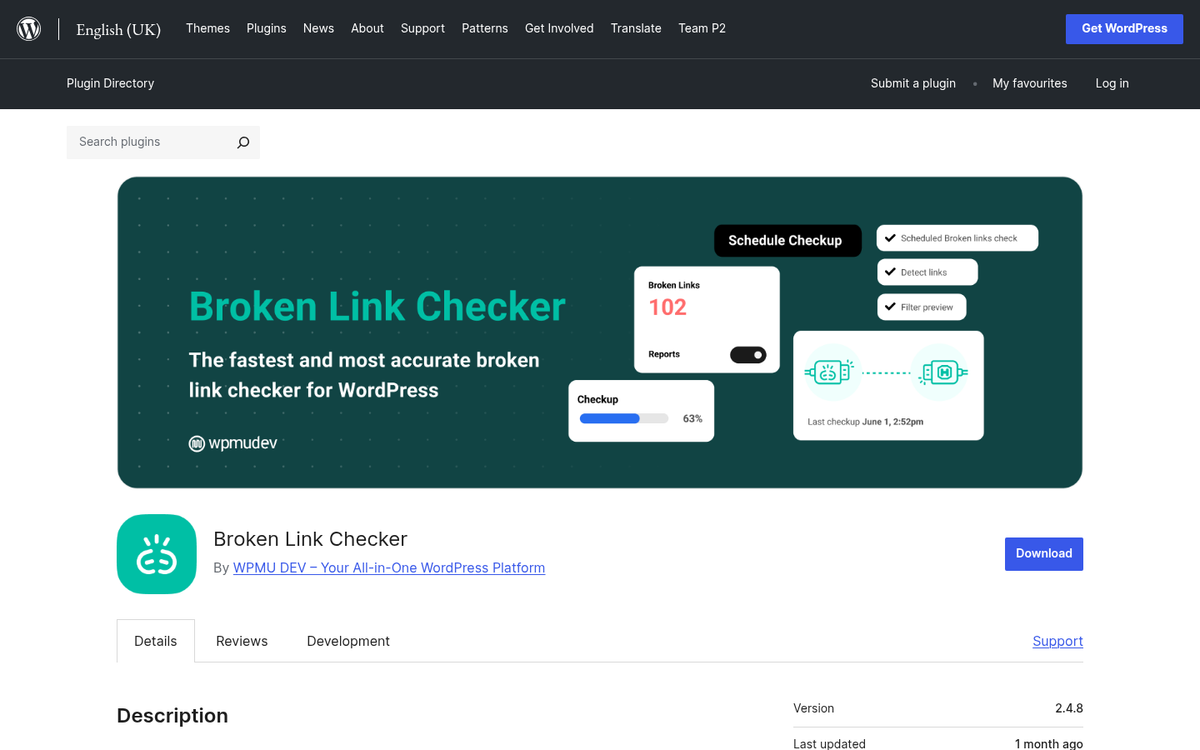
It's a pretty tedious process, so I recommend keeping up on it. Leave Broken Link Checker installed and it will periodically check your site links to see if their status has changed. If they have, the plugin will notify you via your dashboard or via email, and you can address the change immediately.
Once you're done with the above, you'll have a cleaner link profile on your site and should see a bit of an increase to your SEO - it might not be a giant increase. But if you're in a competitive niche you might see yourself rise in the ranks somewhat. If you see a decrease in ranking, you might have problems with too few external links on your site and should restore and replace some of the links you hid or removed.
I also recommend doing a moderate-depth scan of your site links about once every six months or annually. The longer you let it go, the more negative results it can have, and the more work it will take to audit, edit, and analyze those links. The first audit is always the hardest, but at best you'll be able to stay on top of things so it never gets bad again. If your blog isn't growing fast enough, a neglected link profile could be one of the contributing factors worth addressing.
1 response
Thoughtful replies only - we moderate for spam, AI slop, and off-topic rants.
Thank you for this great article.
I wanted to check my links as described, but how do you get the full urls out of LinkPatrol to check them with ScrapeBox? The domain report only exports a list of domains as CSV, not the whole links. In ScrapeBox' domain report I can click on the domain and see the links per domain, but can't export all of them in one file. I have hundreds of domains with only one or two links so it would make no sense to export them domain by domain. I found no way to export the full urls of all domains found by LinkPatrol.