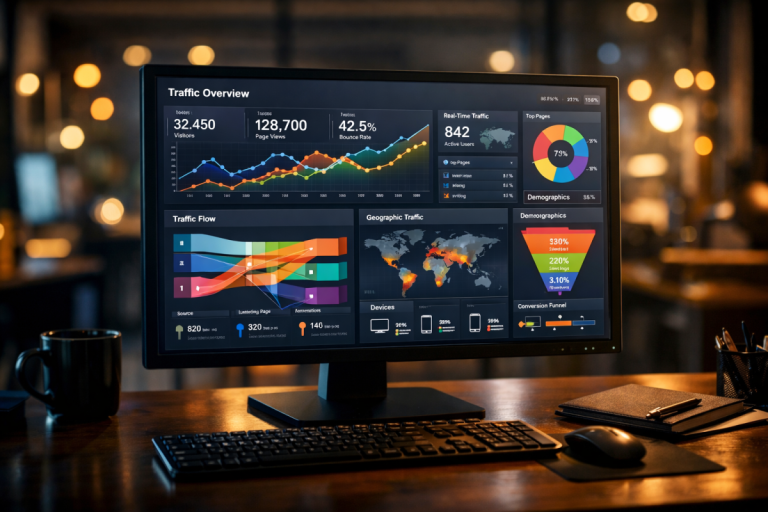
Google Analytics has evolved significantly, but the ability to build a custom dashboard remains one of its most practical features. A lot has changed since GA4 became the standard - the old Universal Analytics interface is gone, and with it, the classic "Dashboards" section most guides still reference. Here's how custom reporting and dashboards actually work in 2026.
Key Takeaways
- GA4 replaced the classic Dashboards section with two areas: Reports and Explorations, each serving different customization purposes.
- Explorations offer six visualization types and flexible dimensions and metrics, but are private by default and subject to data sampling.
- Admins can customize the Reports section to create a persistent, team-wide default view requiring no additional sharing steps.
- Marketers still spend roughly 27% of their time on manual reporting; third-party tools like Looker Studio or AgencyAnalytics can reduce this significantly.
- For most teams, combining GA4 Explorations with Looker Studio offers the most practical, cost-free custom dashboard solution available.
1: Find Your Reports & Explorations

In GA4, the old Dashboards section no longer exists in the way it once did. Instead, Google has replaced it with two key areas: Reports and Explorations. For building something close to a custom dashboard experience, head to the Explorations section in the left-hand navigation. This is where you can build flexible, customizable reports that function similarly to the old dashboard widgets. If you want a more structured overview, the Reports section allows you to customize the default report layout to surface the metrics you care about most. If you're still getting familiar with the direct traffic metric in Google Analytics, understanding these sections will help you find that data more easily.
2: Pick a Start
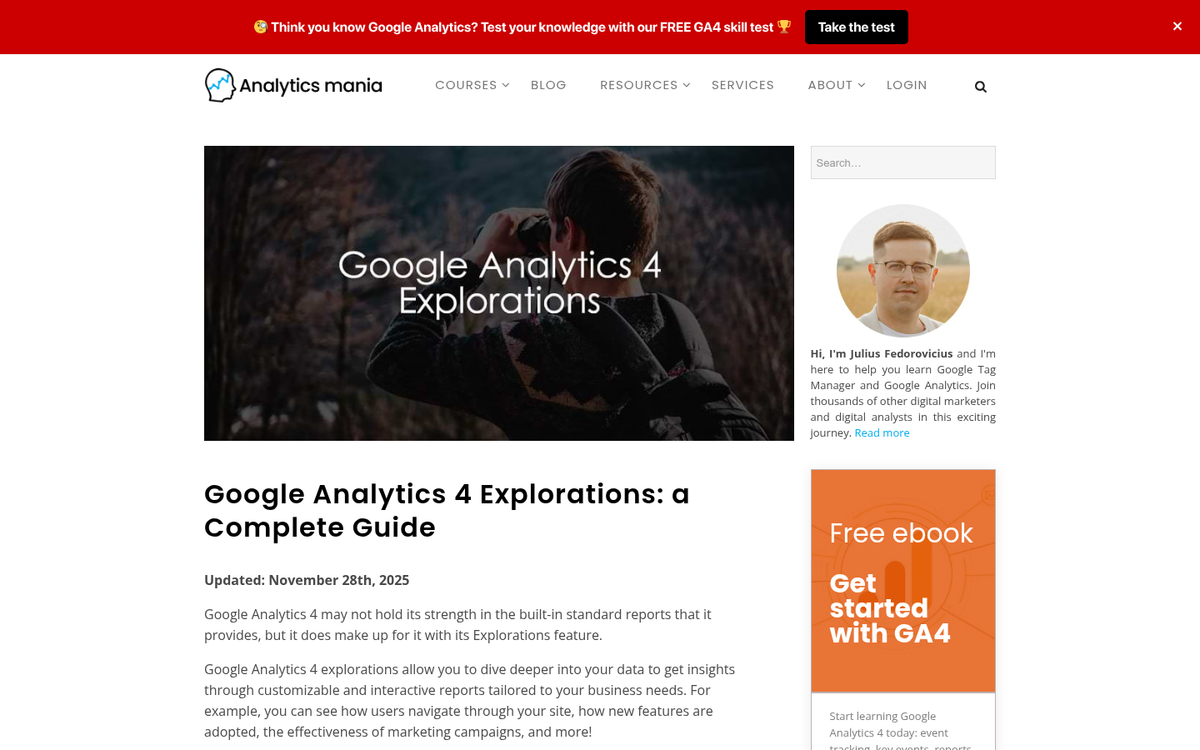
Within Explorations, you can start from a blank canvas or choose from several templates including Funnel Exploration, Path Exploration, Segment Overlap, and more. For a truly custom experience, starting from a blank Free Form exploration gives you the most flexibility. You choose your own dimensions, metrics, and visualization types from scratch. If you just need a quick overview and aren't looking to dig deep, the prebuilt templates are a solid starting point that you can modify as needed.
3: Add Visualizations and Configure Your Metrics
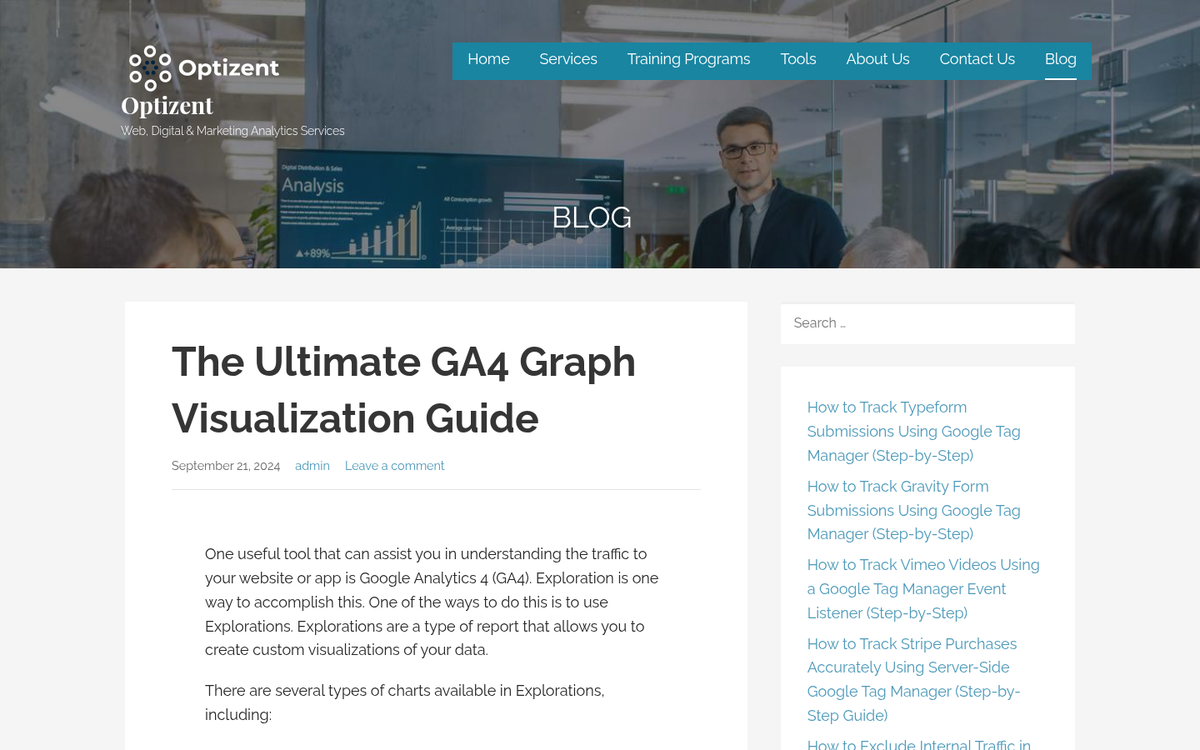
In Explorations, you can choose from several visualization types including tables, donut charts, line charts, scatter plots, bar charts, and geographic maps - giving you roughly 6 different ways to display your data, similar to the old widget types.
Dimensions are the descriptive attributes of your data - things like device type, browser, country, or landing page. Metrics are the quantitative measurements attached to those dimensions - sessions, bounce rate, conversions, and so on. You might build a donut chart breaking down traffic by device category, or a table showing new versus returning users by channel.
Filters remain a critical tool here. You can filter out internal traffic, isolate specific channels, or exclude irrelevant segments to keep your data clean and actionable. This is especially useful now that keyword-level data is even more limited in GA4 than it was in the Universal Analytics era - a reality that makes third-party tools like Google Search Console integration essentially mandatory for SEO-specific reporting. Tools like keyword ranking monitors can help fill in gaps that GA4 leaves behind.
Once a visualization is configured, you can duplicate it, adjust it, or build additional tabs within the same Exploration. Each Exploration can hold multiple tabs, so you can group related data together logically.
4: Customize Your Reports Section

Beyond Explorations, GA4 allows admins to customize the Reports section itself. Under Admin settings, you can add, remove, or rearrange report cards in the overview pages. This functions more like the old dashboard setup - a persistent, shareable view that your whole team can access by default when they log in. You can add comparison cards, summary metrics, and insight tiles that update automatically.
This is worth setting up for your team even if you use Explorations heavily, because it gives everyone a consistent landing point without needing to dig through menus.
5: Share Your Work

Explorations in GA4 are private by default - this is a notable change from Universal Analytics, where dashboards could be shared via a link. In GA4, you can share an Exploration with other users who have access to the same GA4 property, but you cannot share a public link the way you once could. Shared Explorations do carry the underlying data with them for users within your property, so be mindful of access permissions.
For the Reports section, any customizations made by an admin are visible to all users of that property automatically - no sharing step required. If you're looking for ways to explore alternatives to Google Analytics, there are several options worth considering.
GA4 Dashboard Limitations Worth Knowing
GA4 has its own set of constraints. Explorations are subject to data sampling at high traffic volumes, which can affect accuracy. There are also cardinality limits on certain dimensions, meaning high-cardinality data like long-tail URLs or granular event parameters can get bucketed into an "other" category. Explorations are also not truly real-time - they reflect data with a processing delay, so for live monitoring you'll need to use the dedicated Realtime report or a third-party tool for tracking visitors in real time.
If you need dashboards that pull from multiple platforms - not just GA4 - this is where GA4 alone starts to show its limits.
Going Beyond GA4: Third-Party Dashboard Tools
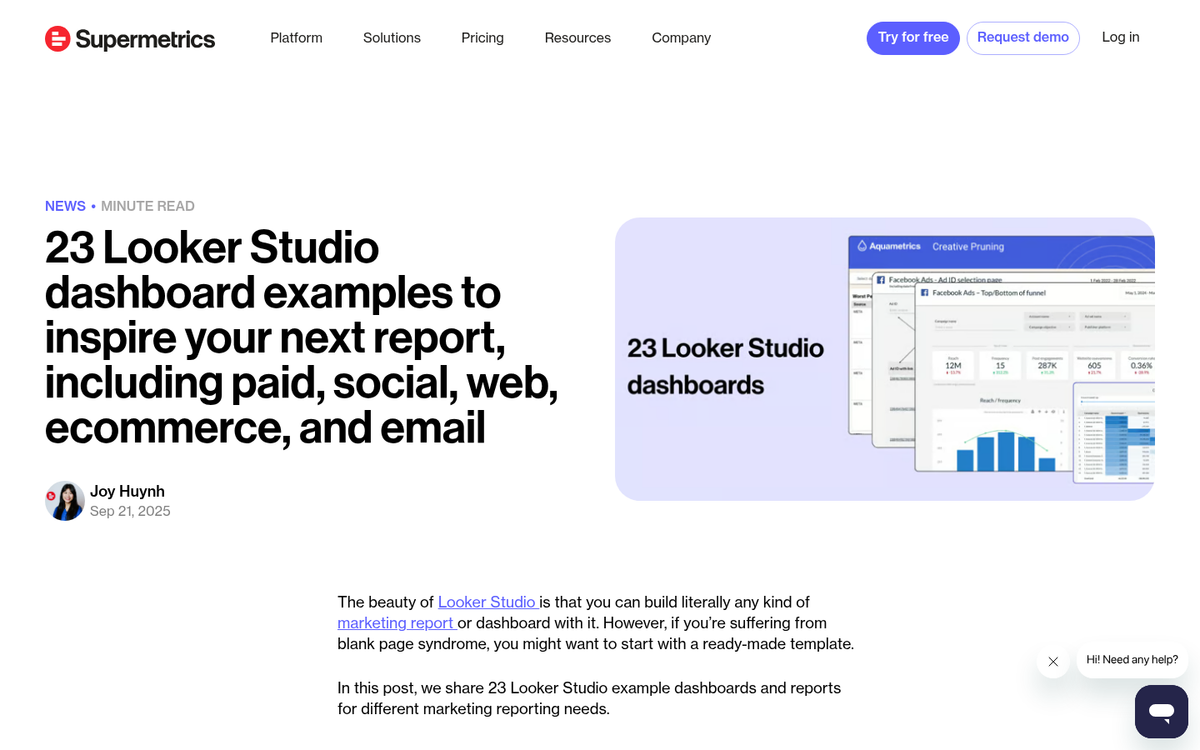
In 2026, many marketers have moved significant portions of their reporting out of GA4 entirely and into dedicated dashboard platforms. The core reason is efficiency - marketing teams still spend an estimated 27% of their time on manual reporting, and consolidating data sources into one dashboard cuts that dramatically.
Tools worth knowing about include:
- Looker Studio (formerly Google Data Studio) - Google's own free dashboard builder. It connects natively to GA4 and pulls in data from Google Ads, Search Console, YouTube, and hundreds of third-party connectors. This is the closest modern equivalent to the old shareable GA dashboard experience, and it's completely free. If you want shareable, visual, always-on dashboards, start here.
- AgencyAnalytics - Purpose-built for agencies managing multiple clients. It offers over 80 marketing integrations including GA4, Search Console, Google Ads, Facebook, and more, with automated reporting that reduces manual work significantly. It includes a 14-day free trial and is particularly strong for client-facing reporting.
- Databox - A popular option for teams that want mobile-friendly dashboards with goal tracking built in. Supports 200+ pre-built integrations and has a usable free tier.
- Tableau and Power BI - Enterprise-grade options for organizations that need advanced data modeling, custom calculations, and large-scale data handling across many sources simultaneously.
One thing to keep in mind when evaluating any dashboard platform is load time performance. For most marketing dashboards, data should refresh in under 2 seconds to remain practical in day-to-day use. If you are building dashboards for real-time campaign monitoring, that threshold matters even more, and some lighter platforms will struggle under heavy data loads.
The Bottom Line on Custom Dashboards in 2026
If you are working purely within Google's ecosystem, the combination of GA4 Explorations for deep analysis and Looker Studio for persistent, shareable dashboards is the most practical setup at no cost. If you are managing multiple clients or pulling from many platforms simultaneously, a tool like AgencyAnalytics or Databox will save you significant time. The old Universal Analytics dashboard workflow is gone, but the replacement options are genuinely more powerful - they just require a bit more initial setup to get right.