





Key Takeaways
- A 500 Internal Server Error is a generic server-side problem that can appear anytime, regardless of device or operating system.
- The three primary causes are incorrect file permissions, PHP timeouts, and corrupted or invalid .htaccess files.
- Checking server error logs first is the fastest diagnostic step, with log locations varying by Apache, Nginx, or IIS servers.
- WordPress-specific fixes include resetting .htaccess, increasing PHP memory limits, and deactivating plugins one by one.
- If all fixes fail, the issue may be at the hosting infrastructure level, requiring your web host's support team.
Websites and computers are fraught with issues. If you've ever had your computer come up with the Blue Screen of Death, you know what I'm talking about. Most, when confronted with that error screen, just shut their machines down and take them to the nearest geek they know. Some of us are those geeks and know how to read the information on the screen and what to do about it. Did you know that the different lines of code on that screen mean different things, and those codes show what error caused the computer to crash?
When an error comes up, it's a problem with a connection or a computer. Sometimes it's a configuration error, or an error with a server.
One of the most common errors is the Internal Server Error.
There are a whole bunch of names you might see this under: 500 Internal Server Error, HTTP 500 Error, and more. First defined in the original HTTP/1.0 specification back in 1996, the 500 error has always served as a generic signal for server-side problems. Per RFC 7231, section 6.6.1, it officially means that the server ran into an unexpected condition that prevented it from fulfilling the request. But you can only fix it if you're the owner of the website and you're capable of accessing and configuring said server.
When You See It
The tough part of the 500 Internal Server Error is that it can show up at any time and for any user. It doesn't matter what operating system your users or your server is running, nor does it matter what device the user is using to browse - it can come up at any time. On high-traffic WordPress sites in particular, this single error can account for as high as 40% of all server-related incidents, which makes it one of the most common problems a site owner can be looking at.

The primary problem with diagnosing this error is what it means.
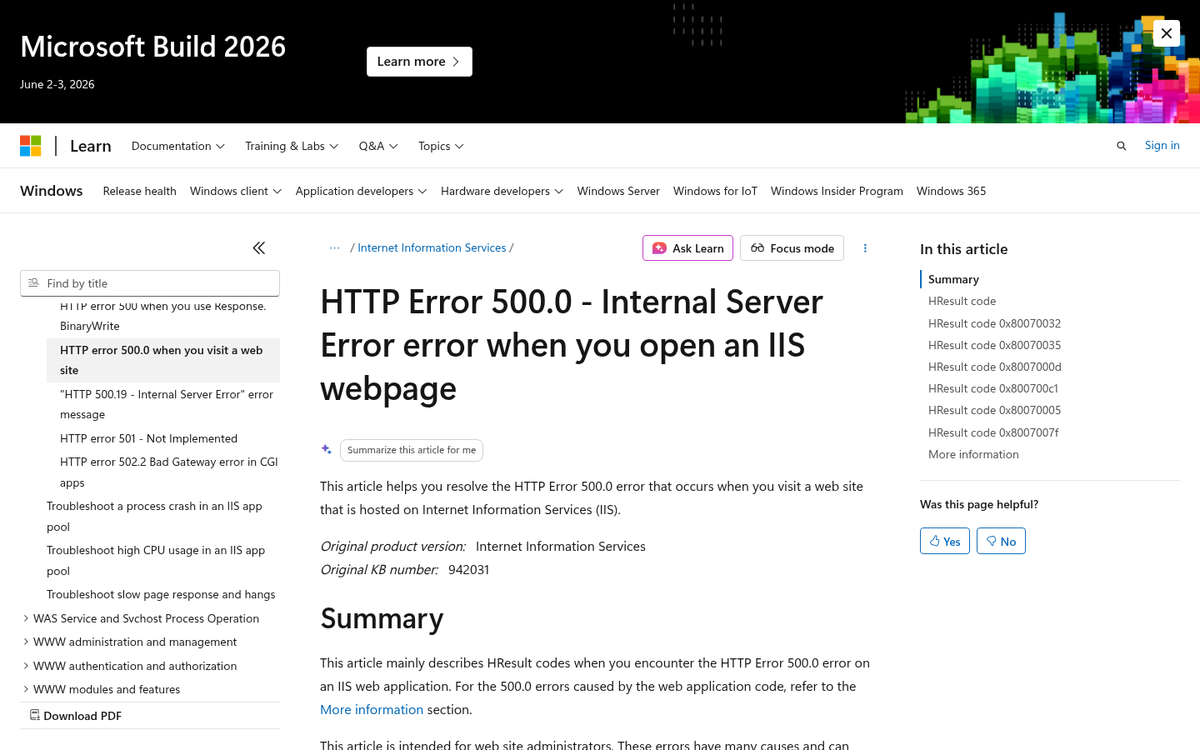
"Internal Server Error"? It's nothing more than "an error happened with the server." There's not necessarily much information with the error message itself. Sometimes the server configuration gives a little extra indicator of the culprit, usually when the server is running a Microsoft IIS platform. You might see "500.19 - Internal Server Error" or something of that sort. In this case, the .19 is an indicator of what actually caused the error.
User Solutions
If you're a user encountering this error on a website that otherwise works, there are a few options you can try. They don't always work, because the 500 error is usually a server error. But in the rare case that a client-side issue happens, you could fix it with one of these different methods.
- Try resetting your .htaccess file. Your .htaccess may have some new code that is breaking your website.
- If you're using WordPress, try resetting your permalinks. This fixes a lot of 500 and 404 errors.
- Comment out any new code you've added. It may be the culprit of the error.
- Disable any new plugins you've added. These may be the culprit of the error.
- Make sure that the URL for the page is correct. Sometimes, if you're trying to copy and paste a long URL, you can cut off some characters at the end. By attempting to reach a page that doesn't exist, you may trigger this 500 Internal Server Error. More likely you'll be redirected to a 404 page, but if that kind of generalized redirect doesn't exist on the server, this is the error you'll get.
- Try reloading the page. In some rare cases, it's a flaw in communications rather than a flaw with the server that causes the error you see. Use your favorite method to refresh the page, like your browser refresh button, pressing F5 on your keyboard, or entering the URL again.
- Try clearing your browser cache. Website caching typically puts files that it doesn't expect will change onto your computer with an expiration date. If a file isn't set to expire for 10 days, but the website changes them around, you won't load the website properly and it will error out. Sometimes a forced refresh will fix this, while other times you need to delete cached files. Ideally, however, the site owner will configure their caching to push updates to changed files regardless of cache expiration dates.
- Try deleting browser cookies. This is really just a good general tip for troubleshooting any Internet issue. Cookies will very, very rarely be the cause of an Internal Server Error, but most of the time you can just do it to eliminate it as the root cause. If it solves the issue, great!
- Try treating it as a 504 error instead. A 504 error is a bad gateway error that usually occurs when an intermediary server isn't responding properly. You can follow the steps for that error to troubleshoot it.
Unfortunately, as a user, virtually none of this will work. A 500 error is usually a server-side error, and that means there's not much you can do. If it's just one page on a site, try a cached version of it from the Wayback Machine or Google's cache. If it's an entire website, the whole thing is probably down and the site owner is going to need to help with the issue. You can use a tool like Down For Everyone Or Just Me to check if the site is down or if it's a problem on your end.
One thing you might consider is trying to contact the owners of the site, and that's also the case if the error is on a single page. They might not know about the issue, and you informing them can help them get to work on fixing it.
Steps as Site Owner
If you're the site owner and you've been notified that your site is presenting Internal Server Errors, you have some work to do. Unfortunately, until the issue is fixed, no one will be able to use your website. Business is dead in the water.
There are three primary root causes of the 500 Internal Server Error.
- Permissions. The majority of the time, the error causing the 500 to appear is incorrect permissions on a file or folder that is crucial to the functioning of your website. This is almost always caused by a script with incorrect permissions.
- PHP Timeouts. PHP scripts are very useful in web development, but they often need to call functions or data from outside sources. If you're relying on data from a third-party provider and their server is non-responsive, the script will time out while waiting for that server to respond. This causes it to report back that it couldn't access critical data, and the whole thing shuts down. This can be mitigated with better timeout rules or error handling, though that's not always possible with your scripts.
- .htaccess Errors. .htaccess file requires proper structure to function and is a core part of many server setups, including WordPress. An invalid or corrupted .htaccess file is a very common cause of 500 server errors.
So how do you diagnose and fix these errors?
The first and most important step is to check your server error logs - something the original setup advice often skips. But it's the fastest way to look closer at the problem. For Apache servers, you'll find logs at /var/log/apache2/error.log. For Nginx servers, check /var/log/nginx/error.log. If you're on a Windows server running IIS, logs are usually saved at C:inetpublogsLogFiles. These logs will usually give you a line number, file name, or error message that points directly to the cause.
The next thing you'll have to consider is whether you're running a content management system, like WordPress or another platform. If so, you'll be able to look into the steps for that CMS in order to fix the issue. I'll give you an example of that below.
If you're not using an off-the-shelf CMS, you'll probably want to talk to your web host. Most hosts have help documentation and live support available via phone or chat so you can troubleshoot and fix a 500 Internal Server Error.
If you're a developer working with a CGI script, you'll want to troubleshoot it first as this is usually caused by syntax errors. It will also need ownership from the correct user and group - this changes from server to server, so check if you have another active CGI script that works and compare its permissions.
Microsoft IIS Errors
When your server is running in a Microsoft IIS environment (IIS 7.0 and later), it produces more sub-status codes alongside the standard 500 error, giving a much clearer picture of what went wrong. Let's talk about what those codes mean:

- 500.0 - Module or ISAPI error occurred.
- 500.11 - Application is shutting down on the web server.
- 500.12 - Application is busy restarting on the web server.
- 500.13 - Web server is too busy.
- 500.15 - Direct requests for Global.asax are not allowed.
- 500.19 - Configuration data is invalid.
- 500.21 - Module not recognized.
- 500.22 - An ASP.NET httpModules configuration does not apply in Managed Pipeline mode.
- 500.23 - An ASP.NET httpHandlers configuration does not apply in Managed Pipeline mode.
- 500.24 - An ASP.NET impersonation configuration does not apply in Managed Pipeline mode.
- 500.50 - A rewrite error occurred during RQ_BEGIN_REQUEST notification handling. A configuration or inbound rule execution error occurred.
- 500.51 - A rewrite error occurred during GL_PRE_BEGIN_REQUEST notification handling. A global configuration or global rule execution error occurred.
- 500.52 - A rewrite error occurred during RQ_SEND_RESPONSE notification handling. An outbound rule execution occurred.
- 500.53 - A rewrite error occurred during RQ_RELEASE_REQUEST_STATE notification handling. An outbound rule execution error occurred. The rule is configured to be executed before the output user cache gets updated.
- 500.100 - Internal ASP error.
If your eyes glazed over reading that, don't worry. If you see one of these more specific sub-status codes, the best course of action is to pass the issue to a qualified IT professional or developer. You can also reference Microsoft's official IIS documentation for an overview of each sub-status code and its recommended resolution. IIS logs, found at C:inetpublogsLogFiles, will be your best bet here when trying to match up a code to a cause. If you're on a managed WordPress hosting plan, your host may handle these server-level issues on your behalf.
cPanel Issues
Most shared web server environments still use cPanel as the control panel for managing PHP versions and other server configurations. Running an outdated version of PHP is a fairly common cause of 500 errors, and that's also the case with WordPress, which requires PHP 8.0 or higher as of its latest minimum requirements. Running anything below the recommended version gives you 500 errors and, worse, leaves your site exposed to security vulnerabilities.
Let's look at how to update your PHP version in cPanel:
- Log in to your cPanel account.
- Find the MultiPHP Manager or PHP Version Selector in the Software section. The exact name may vary depending on your host's cPanel version.
- Select the domain you want to update and choose a supported PHP version from the list. As of 2026, PHP 8.2 or 8.3 is recommended for most WordPress installations.
- Click Apply to save the configuration.
If you don't see an option to change PHP versions, contact your web host. Some managed hosting environments handle PHP updates differently, and your host may need to make the change at the server level.
WordPress Error Fixing
If you're experiencing an Internal Server Error on a WordPress site, the first thing you need to do is check your server error logs (see the paths noted above) - this alone will tell you which file or plugin is causing the problem, saving you quite a bit of time.
If the logs don't immediately point to a culprit, the next step is to check for a corrupted or invalid .htaccess file. Log into your server via FTP or your host's file manager and find the .htaccess file in your root directory. Rename it - don't delete it! - and try to load your site. If it works, your .htaccess file was causing the Internal Server Error.
If .htaccess was to blame, generate a new one by going into your WordPress dashboard, navigating to Settings > Permalinks, and clicking Save Changes - this will automatically generate a fresh .htaccess file, and the old renamed one can be safely removed.
The second most common cause in WordPress is hitting the PHP memory limit - it will happen if the limit is set too low, if you have a resource-heavy plugin, or if a script is running a memory leak. You can test this by increasing the memory limit. Open your wp-config.php file and add the following line before the "That's all, stop editing!" comment:
- define('WP_MEMORY_LIMIT', '256M');
Save the file and test your site. If the error persists, the problem lies elsewhere, or your web host has set a hard cap on memory that overrides this setting. In that case, contact your host and ask them to increase the memory limit in their php.ini configuration. If you have direct access to php.ini, you can add memory_limit = 256M to the file yourself.
If increasing the memory limit resolved the error, you haven't fixed the problem yet - something is consuming excessive memory. Try deactivating your plugins one by one to find the offender, or review your server logs for any recurring memory-related warnings.
If the PHP memory limit didn't fix it, perform the standard WordPress diagnostic step of deactivating all plugins temporarily. You can do this via the WordPress dashboard, or by renaming the /wp-content/plugins/ folder via FTP if you can't access the dashboard. If your site loads correctly with all plugins deactivated, reactivate them one by one until you find the one causing the conflict, then remove or replace it. It can also help to find out what plugins a WordPress blog is using as a reference when troubleshooting conflicts.
If none of the above resolves the issue, you might have a corrupted core WordPress file. Download a fresh copy of WordPress from WordPress.org and replace the wp-admin and wp-includes folders via FTP - this will leave your content, themes, plugins, and settings intact while restoring any core files that may have been changed or corrupted.
If your site is still down after this, there may be something wrong at the server or hosting infrastructure level. Contact your web host and ask them to review server-level logs and check for any hardware or configuration problems on their end.
The 500 Internal Server Error is frustrating because it's so generic - it can stem from dozens of different causes. But with a methodical strategy, starting with your server logs and working through the most common culprits, you can usually track it down and get your site back online. If all else fails, your web host's support team and a developer are your best resources. Good luck!


2 responses
Thoughtful replies only - we moderate for spam, AI slop, and off-topic rants.
my "500" error spit out..... 'MIDDLEWARE_INVOCATION_FAILED' does that help with the definition of this?
Great detail, Michael! The 'MIDDLEWARE_INVOCATION_FAILED' message actually narrows things down quite a bit. This typically means something broke during the middleware layer processing your request - think authentication modules, request handlers, or server-side plugins. Check any recently updated middleware components or plugins first. Also, reviewing your server error logs around the same timestamp should reveal the more specific culprit causing that failure.