Key Takeaways
- Pinterest lacks a universal "top posts" feed; popularity must be researched using native tools and third-party platforms.
- Pinterest's Trends Tool at pinterest.com/trends compares up to 4 keywords, covering US, UK, and Canada over 12 months.
- A free Pinterest Business account unlocks analytics; focus on clicks and saves rather than impressions for meaningful insights.
- Tailwind's Pin Inspector analyzes up to 5,000 pins and can schedule top-performing content for ongoing recirculation.
- Google Analytics can identify which site pages receive Pinterest traffic, revealing high-performing pins even from other users.
Pinterest as a social network is quite valuable. But it's also tough to use- it's unlike anything most of us experience with social media marketing. There aren't the same traditional relationships or interactions we've come to expect. Pinterest does things its own way and it's up to us to adapt to use it the way it's meant to be used.
One thing you could be interested to see is a list of the top performing content on Pinterest- it's always good to see what's popular, what's trending and what you can emulate to get the most out of your own marketing. Right?
The Bad News
The bad news is that Pinterest doesn't hand you a clean, sortable feed of its most popular content. There's no universal "top posts" section and your home feed is customized to your interests based on boards you've followed and the Pinterest sorting algorithm. That said, Pinterest has improved its native tools over the years and there's quite a bit you can do with Pinterest's own features alongside a handful of third party tools. If you're looking to do more with Pinterest, see our guide on ways to share and promote blog posts on Pinterest or learn how to embed Pinterest buttons and boards on a blog.
Let's get started.
Pinterest Feeds
When you sign into Pinterest, you're presented with your customized home feed- this feed is a curated combination of content that fits your interests and it's pretty recent- it pulls from accounts you follow, boards you like and content like what you connect with.
There's nothing in the feed itself that explicitly tells you how popular any given piece of content is. However, you can find these patterns just from browsing it. If you think a pin or type of pin is popular, you can click it to view the pin. From there you'll see how many saves it has, who saved or promoted it and options to save it to one of your own boards or send it to others.

This isn't the most reliable way to gauge popularity at scale, of course. You're manually clicking through pins and can only see what's popular within your own interest bubble. That said, this is the curation you should be doing for your business. Carefully choose your interests and clean up your feed. When you see content that doesn't fit, click the dots beneath the pin and choose "hide" or "unfollow topic." The more refined your feed, the more helpful it can become as a signal for what your own audience wants to see.
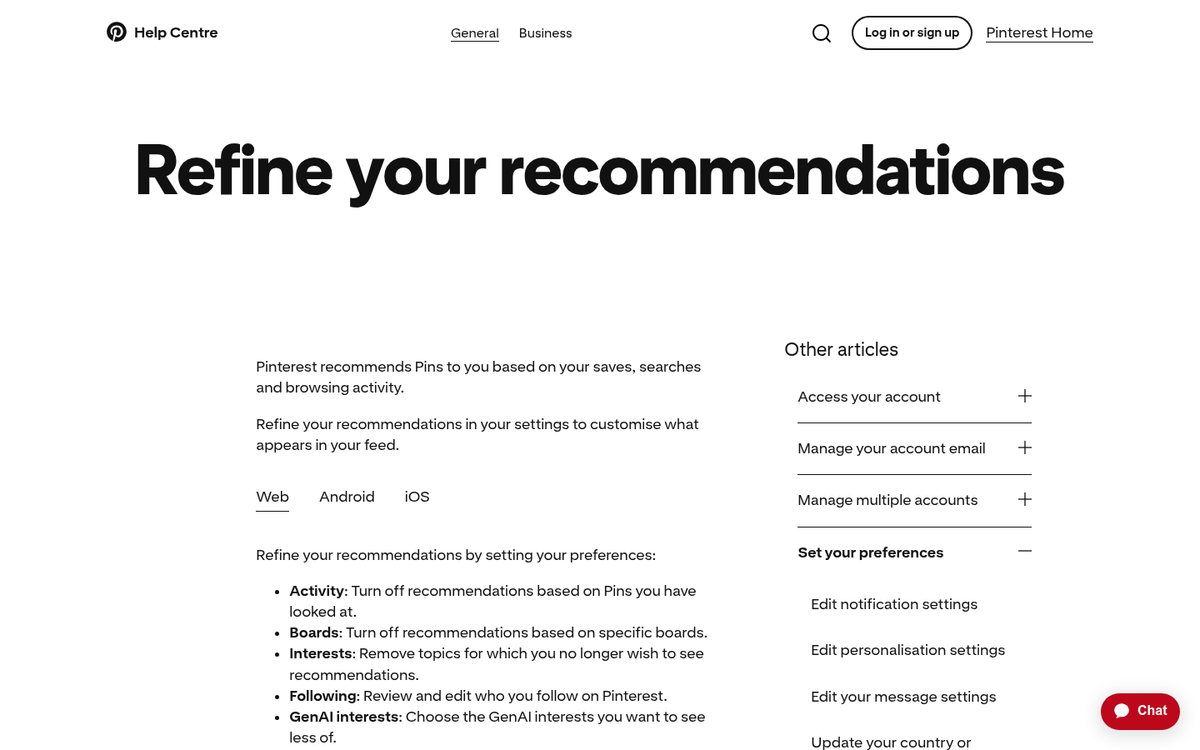
As you might expect, content that tends to do well on Pinterest skews heavily visual - top lists, DIY tips, recipes, home décor and anything designed to display well in a vertical format. Less visual content or content not formatted for Pinterest's display tends to underperform.
Pinterest Search and the Trends Tool
You know how one of the more common techniques to find keywords is to go to Google and play around with autocomplete? Pinterest has something similar. But it's come a long way.
Pinterest has a dedicated Trends Tool and it's legitimately helpful. You can access it at pinterest.com/trends and it shows real-time keyword search popularity across the US, UK and Canada and pulls data from the last 12 months. Pinterest indexes search volume on a scale of 0 to 100; 100 represents the peak search volume point for a given term. You can enter as many as 4 keywords at once to compare their popularity side by side on a trend graph which makes it a lightweight keyword research tool.
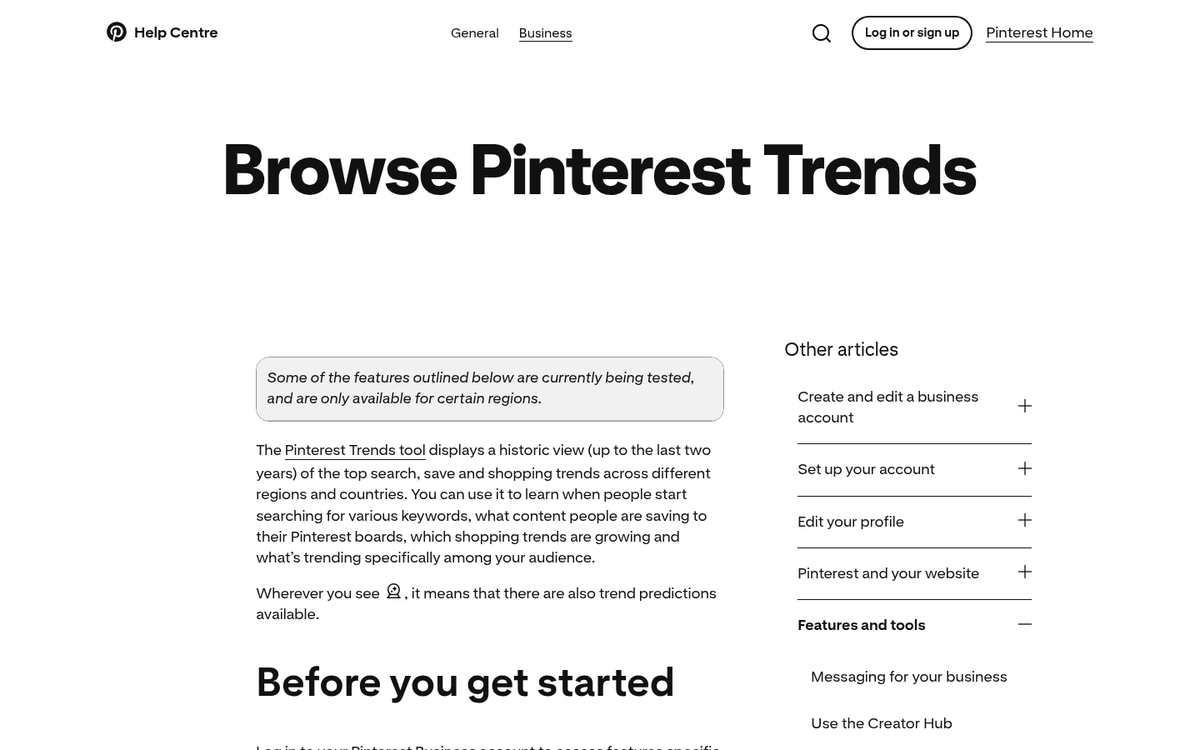
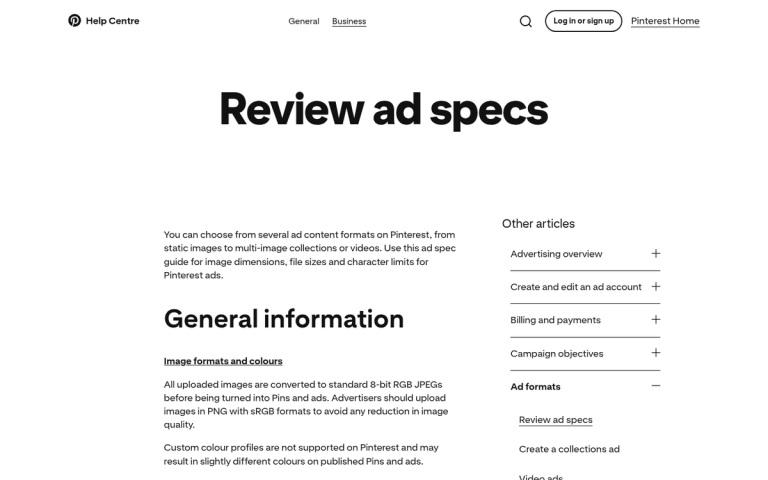
96% of top searches on Pinterest are unbranded which means people are looking for ideas and services- not businesses. That's actually good news for marketers, because it means there's a massive opportunity to capture organic discovery through keyword use in your pin titles and descriptions.
Across the top of the search screen you'll also see a series of refinement boxes with related keywords. These help narrow your search and are surfaced based on popularity. Combined with the Trends Tool, these give you a picture of what topics are gaining traction at any given time.
Pinterest Analytics
Pinterest has analytics. But there are a few things to know before getting started.
First, in order to access Pinterest analytics you'll have to upgrade your account to a Pinterest Business account- it's free, so there's no reason not to if you're using Pinterest for marketing. You'll also need to claim your website to unlock the full suite of data.
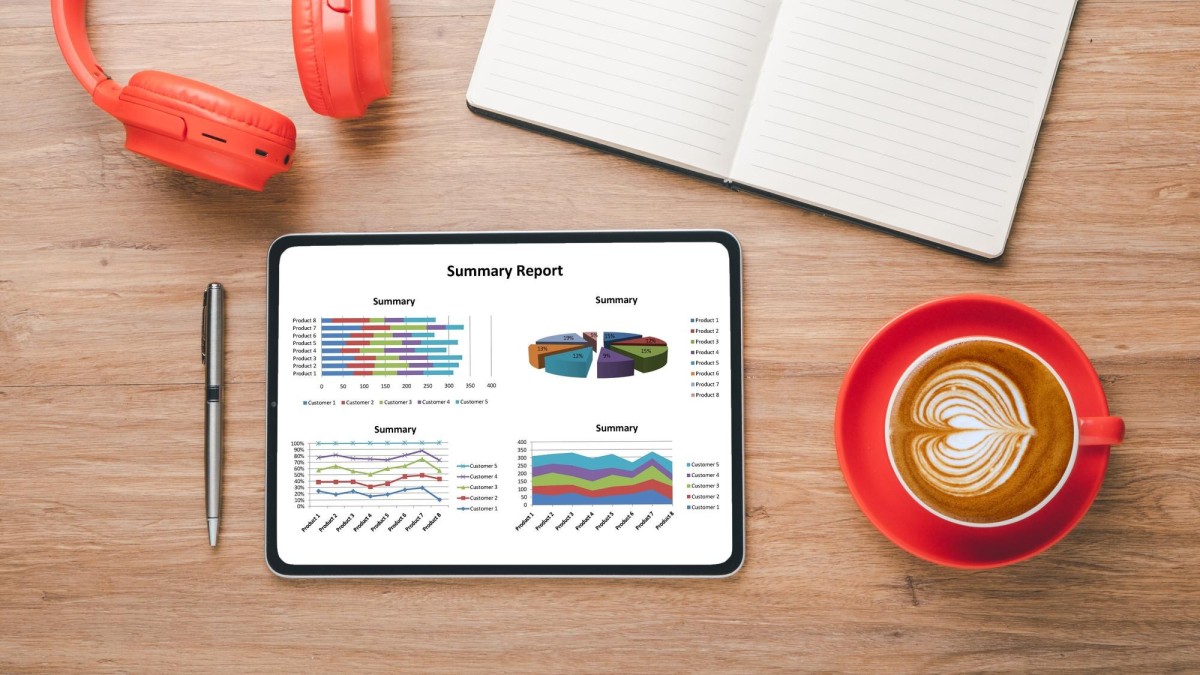
Once you're in, Pinterest Analytics gives you performance data like impressions, saves, link clicks and engagement rate. When looking over your pins, skip the impressions tab - impressions basically count how many times a pin might have appeared in someone's feed which tells you very little. Instead, focus on clicks and saves which are far more meaningful indicators of how well content is resonating.

One helpful feature for Business account holders is the ability to browse top pins among your engaged audience and followers from the past 90 days. That's especially helpful because it moves past large platform-wide patterns and tells you what's actually catching attention within your community.
Here's a helpful tip: the pins showing up in your analytics can include content from anyone that you've saved to your boards- it means you can pin content from other creators on topics you haven't covered. But watch your analytics to see if your audience engages with it and if they do, create your own version of that content to capture that interest.
The biggest limitation of native Pinterest analytics is that it only shows data for your own pins and boards- it won't show you pins of your website content created by other users and there's no easy way to surface what's trending across Pinterest as a whole. For that you'll want to layer in some third party tools.
Third Party Tools
Tailwind remains one of the most widely used Pinterest analytics and scheduling tools available- it gives you breakdowns of your followers, pins, repins and comments and calculates engagement scores and viral reach estimates based on their own models.
The Tailwind Pin Inspector analyzes as many as 5,000 of your recent pins and lets you filter by date, saves, comments and more. One of Tailwind's more helpful features is the ability to find your top performing pins and set them on a recirculation schedule keeping your best content alive and in front of new audiences over time.
There are a few other tools worth learning about:
- Tailwind Communities (formerly Tribes) lets you connect with others in your niche, share content, and see what's performing well across a broader pool of creators in your space - useful for spotting trends outside your own account.
- Google Analytics approaches the equation from the other direction. Rather than scanning Pinterest to find top pins, you can see which pages on your site are receiving the most traffic from Pinterest. You can often trace that traffic back to a specific pin, even one created by someone other than your team. This is one of the more underrated ways to understand what Pinterest content is actually driving results for your business.
- Pinterest's own Trends Tool, as mentioned above, has largely replaced the need for some of the older third party trend scrapers that used to fill this gap. Tools like ViralWoot and some older aggregators have faded or pivoted, and Pinterest's native tooling has matured enough to cover much of that ground.
On top of these tools, remember Google Image Search. Pinterest has long dominated image search results which means popular pins surface prominently in Google. Searching for topics in your niche and noting which Pinterest images appear at the top gives you a secondary signal for what's performing well on the platform.
One more thing worth keeping in mind: 85% of weekly Pinterest users have bought something based on pins they've seen from businesses and Pinterest users spend 80% more in retail than non-users.
My best advice for Pinterest is to basically watch and keep your eyes open. Use the Trends Tool, clean up your feed to keep your interests sharp and look at what earns saves instead of just impressions. You don't have to build an elaborate analytics stack to do well here - but the more intentional you are about what resonates, the better your results will be.