Key Takeaways
- Pinterest has over 550 million monthly active users in 2025, functioning as a high-intent visual search engine that drives significant traffic.
- Pinterest's official widget builder offers Save, Follow, Pin, Board, and Profile widgets, each requiring JavaScript loaded on your site.
- The Pin widget is best for embedding single posts, comparable to embedding Instagram or X posts, but save screenshots as backups.
- Third-party plugins like Social Warfare, Feed Them Social, and GS Pinterest Portfolio offer easier setup and broader customization options.
- Always check plugin update history before installing; outdated or rarely updated plugins can cause compatibility issues and security vulnerabilities.
Pinterest is a social network that is often overlooked when marketers talk about social media strategy. We like to focus on the big names - Facebook, Instagram, TikTok and YouTube - while Pinterest quietly continues to drive big traffic and conversions for businesses that take it seriously.
Pinterest has long carried a reputation as the domain of crafters, DIY enthusiasts, home decorators and fashion lovers - it was seen as an idea board for event planning, hobby inspiration and wedding mood boards - not the stomping ground of growth hackers and performance marketers. That perception has shifted considerably. Pinterest now has over 550 million monthly active users as of 2025 and its user base has diversified. The platform functions as a visual search engine as much as a social network and its users tend to be in a high-intent, discovery-oriented mindset - which makes them valuable for driving traffic and sales.
If you're operating a blog, you can probably take advantage of Pinterest. You can pin your content to boards, share it with others who curate content and generate an interesting amount of referral traffic - this isn't a post about how to market on Pinterest, though - for that, you can look here. Rather, this is about the other side of the coin: how can you link from your site to Pinterest?
There are a few ways you can integrate Pinterest on your site. Pinterest itself gives a few official options. But I've also included some third-party plugins toward the bottom in case you want more customizability or better thematic consistency across multiple social networks.
1. Add a Link to a Pin Board
The simplest and easiest way to use Pinterest on your site is to link to it. Find a pin board you like and copy the URL and make it a link.

Obviously this isn't a great option. A plain old hyperlink has no visual draw to it and you need a fairly strong call to action to get anyone to click it. Think of this as the baseline - everything else on this list is unequivocally better.
One thing worth doing here is checking that your site's meta data is configured for Pinterest's rich pins. Pinterest has moved toward automatically detecting structured data on pages, so if your site uses Schema.org markup or Open Graph tags (which most modern WordPress themes and SEO plugins manage automatically), you're likely already in good shape. Rich pins pull in extra details like post headlines, authors and descriptions, which makes your content more compelling when others share it on the platform.
2. Use the Save Button Widget
Pinterest has a widget builder you can find in their developer tools. There are a few different options available and I'll go through the ones that matter most as you might expect.
The Save Button widget is a simple button that, when clicked, saves the blog post or image to the user's Pinterest boards - this evolved from the old "Pin It" button and it remains one of the most effective ways to invite your readers to share your visual content on Pinterest. If you want your images to perform well, make sure you've sized your blog post images correctly for Pinterest before setting this up.

To set it up, head to the Pinterest widget builder. You can configure it to appear over one image, work across any image in your post, or use a custom image. You can make the button small or large, square or round and display it in different languages. Configure it to your liking - a live preview will update as you go - and then copy and paste the generated code into your site.
Important: Pinterest's JavaScript library needs to be loaded on your site for these widgets to work. If manually adding scripts to your template isn't something you're comfortable with, skip ahead to the plugin options starting at #7 on this list, as they manage this automatically.
3. Use the Follow Button Widget
The Follow Button widget is a compact button that links to your Pinterest profile and invites visitors to follow you. You can customize the label text up to 18 characters - it's quick to set up and paste anywhere on your page.

Personally, I don't love this option on its own - it's a small button that can look out of place on site designs and customizing it to match your branding will require looking into CSS. For most sites, a third-party social toolbar that works with multiple networks at once will look cleaner and perform better.
4. Use the Pin Widget
The Pin widget is an embedded version of a Pinterest post. To use it, you need the URL of the pin itself - which means you'll need to publish your post, pin it to Pinterest and then come back to edit your post and add the embed - it's a minor workflow wrinkle. But the result looks great.
The pin widget shows the image with a Save button overlaid on the description, the poster's profile and the latest save count. You can choose small, medium, or large sizes and optionally hide the description for a more image-forward presentation.
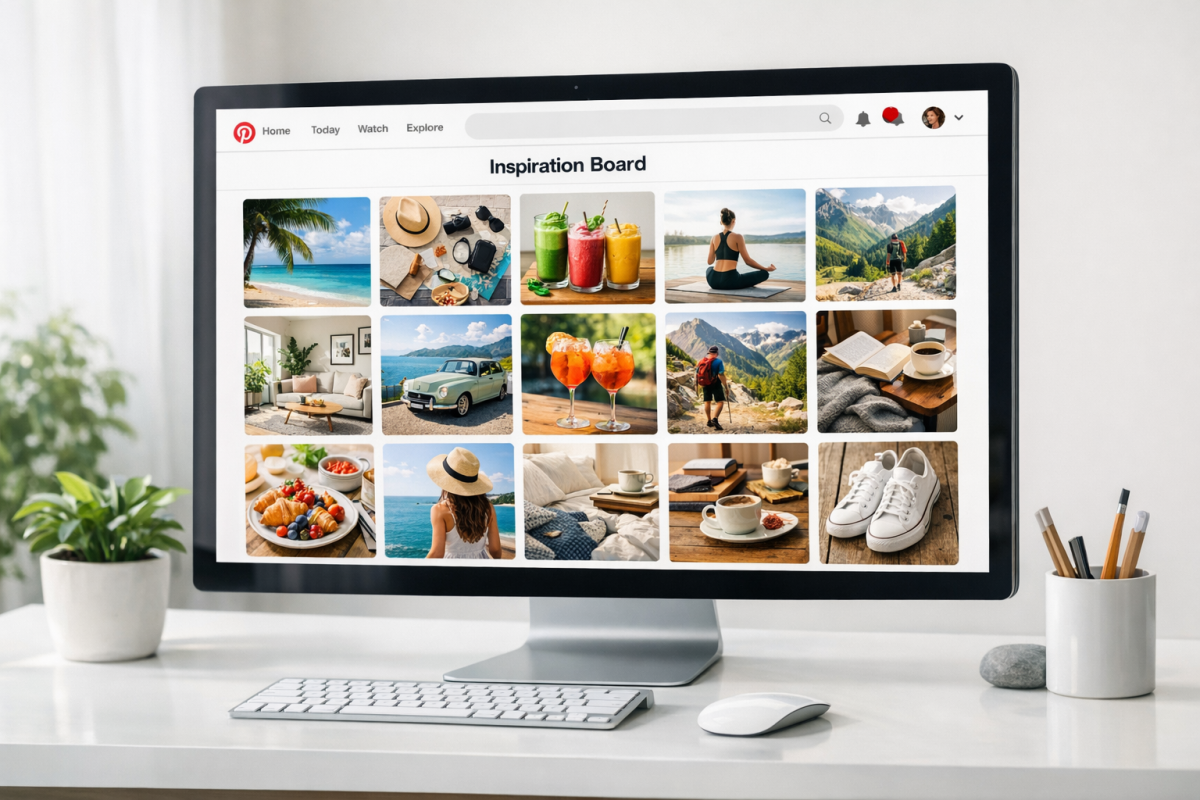
It's usually the best option if you want to show a single Pinterest post within your content - it's comparable in style and effort to embedding an Instagram post or an X (formerly Twitter) post.
One caveat: any time you embed pieces of content, save a screenshot as a backup. Pins get deleted, accounts get suspended and there's nothing more frustrating than reading an older post full of broken embeds.
5. Use the Board Widget
The Board widget is similar in concept to a Facebook Page feed or an Instagram feed embed - it pulls in recent content from a board you choose, instead of your entire profile. It's helpful because you can maintain a dedicated board for your best or most site-relevant content and embed just that, keeping things clean and purposeful.

To use it, paste the URL for your chosen board into the widget builder. Size options include a square irregular grid, a sidebar-friendly narrow column, a wide header-style layout and a custom size where you specify width and height manually. The custom option is flexible but be careful with it in responsive designs - test it across screen sizes before publishing.
6. Use the Profile Widget
The Profile widget works in the same way as the Board widget, but shows everything pinned across your entire account instead of one board - it's a good fit if your Pinterest presence is tightly curated and you want visitors to get a wider sense of everything you share.

It has the same size options as the Board widget and works equally well in sidebars, footers, or within post content depending on the size you choose. If you want to dig deeper into what's performing well on the platform, our guide to finding the most popular pins on Pinterest is worth a read.
7. Use Social Warfare
Social Warfare remains one of the more respected social sharing plugins in the WordPress ecosystem - it's fast, customizable and includes platform-specific features - like Pinterest image meta data settings that let you define how your content appears when saved to Pinterest. The free version includes Pinterest support alongside a few other networks.

One great feature is "share recovery," which lets you switch domains, move to a self-hosted install, or change plugins without losing your historical share counts. That continuity matters more than you know until you've lost your counts once.
Note that Social Warfare's development activity has slowed, so before installing it, check that it's been updated recently and confirmed compatible with your latest version of WordPress.
8. Use Feed Them Social
Feed Them Social is a well-known plugin for embedding social media feeds on WordPress sites - it supports multiple platforms like Pinterest and the Pinterest integration gives you a board feed, a latest pins feed pulling from your full account and a board-of-boards view that lets visitors browse all your boards at a glance.
That last option is especially helpful - it lets you present a clean, well-organized overview of your Pinterest presence without always worrying about whether the most recently pinned content looks good in the embed. Keep your boards well-maintained with strong cover images and it can become a legitimately interesting widget.
9. Use AccessPress Pinterest
AccessPress has a dedicated Pinterest plugin that simplifies the process of creating Pinterest widgets from your WordPress dashboard, instead of manually configuring them through the widget builder - it handles adding Pinterest's JavaScript to your site automatically, supports shortcodes for embedding content anywhere and includes a preview feature so you can see what things look like before going live.
The main limitation is that it's Pinterest-only. Single-platform plugins tend to be lower priority for updates and the fewer plugins you run, the less chance of conflicts. Check the plugin's update history before committing to it - a plugin that hasn't been updated in over a year on an actively developed platform is a potential liability.
10. Use GS Pinterest Portfolio
GS Pinterest Portfolio is a Pinterest-focused plugin built around displaying your pins in a responsive, grid-based layout - it's Gutenberg-compatible and handles responsive sizing automatically, which removes the guesswork around embedding content that looks right across different screen sizes.
You can configure the grid anywhere from 3 to 6 columns and set a maximum number of pins to display. The pro version unlocks extra layout themes and custom CSS options for tighter integration with your site's visual design - it's a good choice if you want a portfolio-style Pinterest showcase instead of a standard feed embed.