Key Takeaways
- UTM parameters are tracking codes added to URLs that pass data to Google Analytics about traffic sources, mediums, and campaigns.
- There are five UTM parameters; three are required (source, medium, campaign) and two are optional (term, content).
- UTM parameters are case-sensitive, so always use lowercase values to prevent data fragmentation in your analytics reporting.
- Google offers free URL builder tools for web, Google Ads (auto-tagging), and mobile app campaigns to generate UTM links easily.
- Common tracking uses include email newsletters, social media posts, and on-site advertising banners to identify top-performing traffic sources.
UTM parameters are something you've almost certainly seen, probably just about every day. The question is, do you know what they do and what they are? Here, look at two example links.
- http://www.pcgamer.com/overclockers-reach-an-insane-75-ghz-on-intel-core-i7-7740k/?utm_content=buffer217d8&utm_medium=social&utm_source=facebook&utm_campaign=buffer-maxpcfb
- http://www.pcgamer.com/overclockers-reach-an-insane-75-ghz-on-intel-core-i7-7740k/
Both links go to the same destination. For the first 80-something characters they're identical. Then you hit "?utm", which is the start of the UTM parameters. You can remove these from any link you see and the link will still work just fine.
So what do the parameters do? If you look at each parameter individually, it can tell you some information.
- utm_content=buffer217d8. This tells you that the content of the link came from Buffer. It's likely that PC Gamer's social media team uses Buffer to curate posts.
- utm_medium=social. This tells you that the link came from a social source. If I shared the link to you in email and you clicked it, PC Gamer's internal analytics would show that it originated from the social media link, not from an email link.
- utm_source=facebook. This tells you that the source of the visit is from Facebook. The same link, identical in every way except this parameter, could come from any social network. If this parameter was twitter, it would show the traffic coming from Twitter.
- utm_campaign=buffer-maxpcfb. This shows the specific campaign the link came from. In this case, the link was pulled not from PC Gamer's profile, but from the Maximum PC profile. This shows that it came from MaxPC's FB, or Facebook profile, posted via Buffer.
One important note: UTM parameters are case-sensitive. "Facebook" and "facebook" would show up as two separate traffic sources in your analytics, which gives you data fragmentation. Best practice is to always use lowercase across all your UTM values to keep your reporting clean and steady.
All of this is information the average user never needs to see or know. There's no reason for the average user to care about this extra goofiness at the end of their URLs. They just click through and view the content, none the wiser about what's going on in the URL.
For PC Gamer this is a wealth of information, and each parameter gives data to Google Analytics, so they can see how each campaign is working and how well it's funneling traffic.
The History of UTM
So what IS a UTM parameter, anyway? Why is it called that, past the obvious "it has UTM in the URL"?
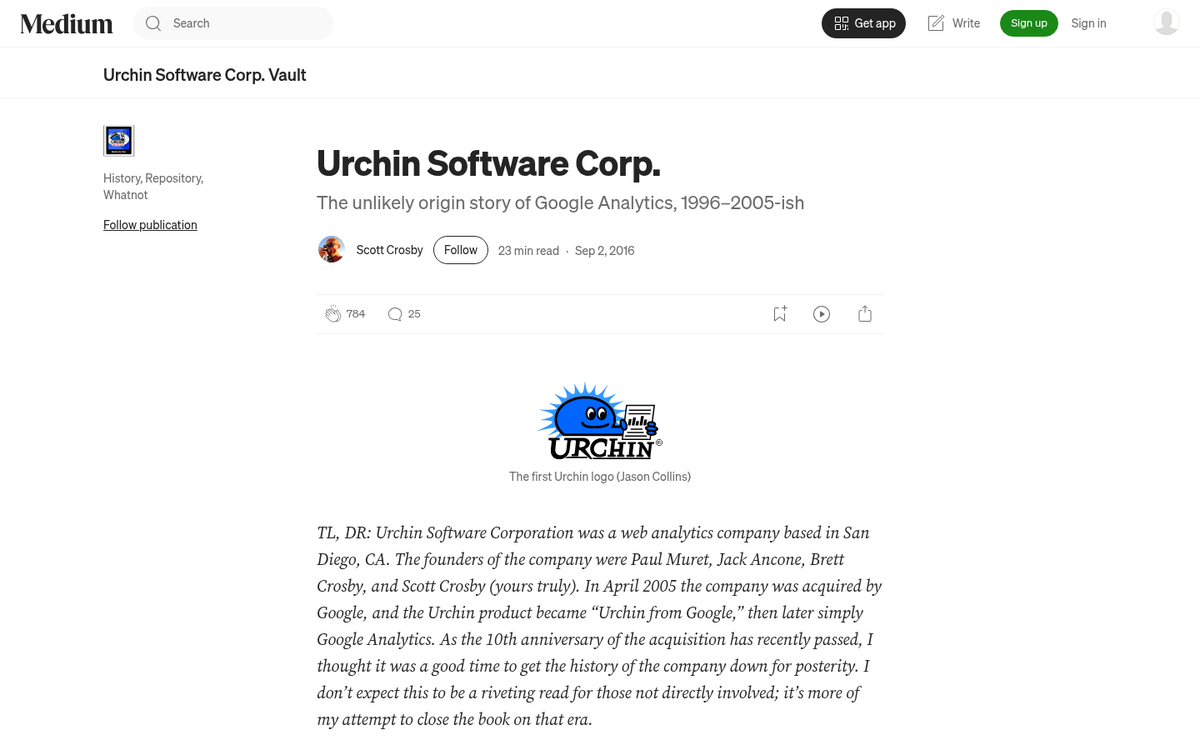
UTM is actually an acronym that stands for Urchin Tracking Module. Urchin was a small software company that created and helped pioneer the field of web analytics. Google, always seeing the wave of the future in the Internet, acquired Urchin in 2005 and revamped it as Google Analytics. The name "UTM" stuck around even after the acquisition, and it remains the standard term used by marketers.
UTM parameters are used to pass along data when a user clicks a link and it's recorded in Google Analytics. Rather than "a user clicked a link to go from page A to page B", it gives more information - it says "that link originated on Facebook, even if the user clicked it via email." It says "that link was part of one specific ad campaign." It helps you as a marketer categorize data so you can look at it later and see the general shape of your marketing presence.
Here's an example of UTM parameters used differently. Say you have a landing page to promote your product. There are three different calls to action on that page. One is up near the top, for users who immediately know what they want and are ready to convert. One is halfway down the page, after an explainer video and bullet points. The third is all the way down the page, after the fine print and pricing information.
All three of the links lead from the same page A - the landing page - to the same page B, the product page. A user clicking one and a user clicking another will appear the same in Google Analytics. So how do you know which call to action is driving the most traffic?
By attaching UTM parameters to each URL, you can suddenly separate them. All of them may have the same UTM Source, the same UTM Campaign, and the same UTM Medium. But different UTM Content, and each one shows up differently, so you can see that oh, interesting, your mid-page call to action gets 3x as many clicks as the other two. You can then figure out why, maybe remove extra information and reposition other calls to action, to adjust performance.
Types of UTM Parameters
There are a total of five UTM parameters, though you only actually need to use three. You can use all five if you want, but you have to use three of them, and each one has a different job, so depending on your situation, you might want to use them all.
1: utm_source. This one is required - it lets you find the source of your traffic, like "facebook," "newsletter," or "google." Remember to use lowercase to stay away from data fragmentation. Generally, a more specific source is better.
2: utm_medium. This one is required. Different from Source, it lets you find the medium that carries the link. You might use "post," "cpc," "email," or "social" as your medium. If you were running Facebook ads, just to give you an example, you might make the Source "facebook" and the Medium "cpc" or "paid-social."
3: utm_campaign. This one is required - it lets you give a name to a campaign that the link belongs to. If you have three links on a landing page, they might share the same campaign name because they all promote the same product. If you're promoting different products on Facebook, they might all have the same Source and Medium. But different campaigns.

4: utm_term. This one is not required. But it can be helpful in some situations. Generally, this parameter is used to find keywords or search queries for paid advertising. If you're running identical ads targeting three different search terms, all three ads would have the same source, medium, and campaign. But different terms so you can tell them apart.
5: utm_content. This one is not required. But it can be helpful in some situations. The recommended use for UTM Content is for split testing - it's also the recommended use case for the three-links-one-landing-page scenario. You don't have to adapt different parameters for the situation; you can just use Content to specify that it's for the top-banner, the mid-link, and the footer-link, or what have you.
It should be noted that because UTM parameters are part of the URL, you can't use spaces when formatting them. You have to use either a dash or a hyphen to take the place of a space, or not use a space at all if you don't mind having harder to read tags.
You are also not required to use sensible words and phrases. You could have utm_source=a51b22, if you want - it makes it more difficult for the average user to parse your URL and determine what information is being referenced. However, it also makes it more difficult for you to interpret your Google Analytics results. You would have to know what a51b22 means, or have a reference document on hand, which can get messy and gets in the way of quick, accurate reporting.
Creating UTM Parameters
You don't need to just come up with parameters on the fly and make sure they fit the right categories. Google helpfully has a URL builder available to fill out a form and generate a link. Here are the main ways you can do this.
The first way is through Google Ads. If you're running ads through Google Ads, you can enable auto-tagging. Auto-tagging is slightly different from UTM Parameters, though it captures the same data. When you enable auto-tagging, the URL a user sees will have a GCLID added to the end of it. Your URL might look like www.example.com/?gclid=123xyz. The parameter ties directly into Google's systems and captures the relevant data without needing to have 3-5 parameters tacked on to the end of the URL.
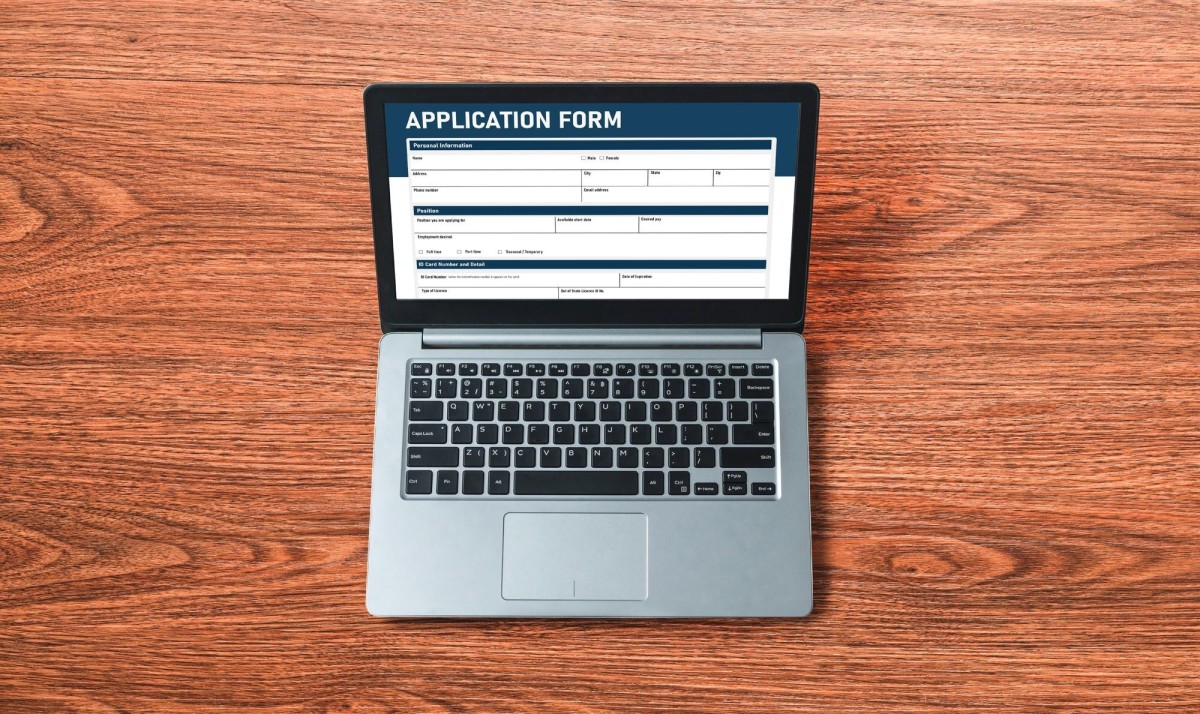
The second strategy is for web use - ads that aren't run through Google Ads, email marketing, and just about every general use - it's the standard Campaign URL Builder, available through Google's official tools. With this, you can fill out campaign information and have a link generated. You plug in the base URL, the source, medium, name, term, and content if applicable, and a finalized link will be generated.
The third strategy of creating UTM links was built for mobile usage through the Google Play Store - it's a little different - you have to choose which integrated ad network you're using, or add data for a custom network. You enter your application ID, the source of your campaign, and the standard parameters, and you're given the URL to use. When you generate this link, you also receive a QR code you can save and use for your marketing, which can be helpful for app marketing.
Ideas for Tracking with UTM
There are as many ways to use UTM parameters to track traffic as there are links under your command. Here are some ideas you can use to monitor your traffic, or adapt to fit your situation.

- Track links in your email newsletters to see where users go. Each link in your newsletter should have tags. For all of them, Medium should be "email," Source should be "newsletter" - or the name of that specific mailing list, if you have more than one - and Campaign should be something to identify that newsletter send. When you have more than one link in the newsletter, use Content to specify which link is which, so you can track what people click in the email. Don't forget to add parameters to links in your email signature too, if one is configured! If you don't already have one set up, you can create an automatic email newsletter from your blog posts to make this process easier.
- If you use site-wide advertising, you might do some configuration to figure out which blog posts and pages are sending the most traffic to your landing page. Use the Medium field for "display-banner" or "sidebar" or "exit-intent." Use Source for the page on your site that the traffic comes from, and use Campaign and Content to specify which part of the ad campaign it is and which split-tested ad is doing the work.
- Track which links on social media are sending traffic to your site. For each link you post, customize the parameters. Use "social" for the Medium and the name of the network (in lowercase) for Source. Use Campaign to specify which ad campaign or content promotion strategy you're using, and Content to specify which particular post is sending the traffic.
Again, these are just ideas; you can use the parameters for anything you want, and you can track all kinds of information about the traffic flowing between pages, between sites, and between networks. Just remember to keep all your parameter values lowercase and steady - Databox has said that inconsistent naming conventions are one of the most common UTM mistakes marketers make, a finding backed up by input from over 50 marketing pros. And keep in mind that UTM data lives in Google Analytics, so you won't find this data in platform-native tools like Facebook or LinkedIn Insights.