Key Takeaways
- Most WordPress sites have an RSS feed enabled by default, typically found at yourdomain.com/feed/ or yourdomain.com/blog/feed/.
- Sites without permalink structures require a different format, using query parameters like yourdomain.com/?feed=rss instead.
- If direct URL methods fail, checking page source code for "RSS" or using services like follow.it can help locate your feed.
- A blank-appearing RSS feed may be caused by "blog pages to show" being set to 0 in WordPress Settings → Reading.
- Once found, your RSS feed enables automation through tools like IFTTT or Zapier for email, social sharing, and notifications.
Having an RSS feed set up for your site is a great benefit both for tech-savvy readers and for potential automation options. Thankfully, if you have a WordPress site, you probably have a feed set up already - even if you don't know what it is. Most WordPress configurations have a feed already configured, though finding it can be a bit tough.
Trying URLs
The first and easiest way to find your RSS feed is to basically check to see if the usual standard configuration has a feed already set up and running. Generally, this is your root domain /feed/. So say your website is www.example.com. Simply go to www.example.com/feed/ and see if your RSS feed exists.
If you're lucky, you've found your feed. Many basic WordPress configurations have this feed structure set up already. However, it's possible that you don't have this basic configuration, and that's also the case if your blog URL is not the same as your home page.
For an example of this configuration, you can look at this very blog. We have www.blogpros.com set up as a homepage and the blog itself is at www.blogpros.com/blog/. If you go to www.blogpros.com/feed/ you won't find anything but a 404 page. However, if you go to www.blogpros.com/blog/feed/ you'll find our RSS feed - this, then, is your next step; add /feed/ to the end of whatever your blog URL happens to be. Make sure it's the base page for your blog - not a particular blog post.
The reason this works is because the /feed/ goes off of whatever directory WordPress is installed in. You're basically looking for wordpressinstall/feed/ - it can vary based on site configuration, so you can ask your developer if you have one and aren't sure which directory is the blog root.
You can also look for the feed for an individual blog post. For example, if you have www.example.com/blog/awesome-post-title as a blog post URL, you can add /feed/ to the end of that - this will bring you to the RSS feed for the comments on that blog post. WordPress also automatically adds RSS feeds for comments and archives, which means each post and page with comments enabled has its own feed URL. On bigger sites, this can amount to hundreds or thousands of individual feed URLs - something worth being aware of if you're thinking about crawl efficiency. But for the purposes of basically confirming your feed is active, a post-level feed URL will do the job.
If you don't use a WordPress permalink structure, things will be a little different. What do I mean by permalink structure? Older and default versions of WordPress will use a post format like www.example.com/?post=03032017 for a blog post URL - a parameter to call blog post data based on a number, in this case a basic date structure, though it can vary from installation to installation. If your URL structure looks like that, with a question mark in it, you won't be able to find your feed with /feed/.
Instead, what you need is to use a question parameter for the feed. Specifically, you want to use ?feed=rss. So your test URL would look like www.example.com/?feed=rss - this should bring you to the RSS feed if you have one set up. Likewise, if you have your blog installed in a subdirectory, it would be www.example.com/blog/?feed=rss.
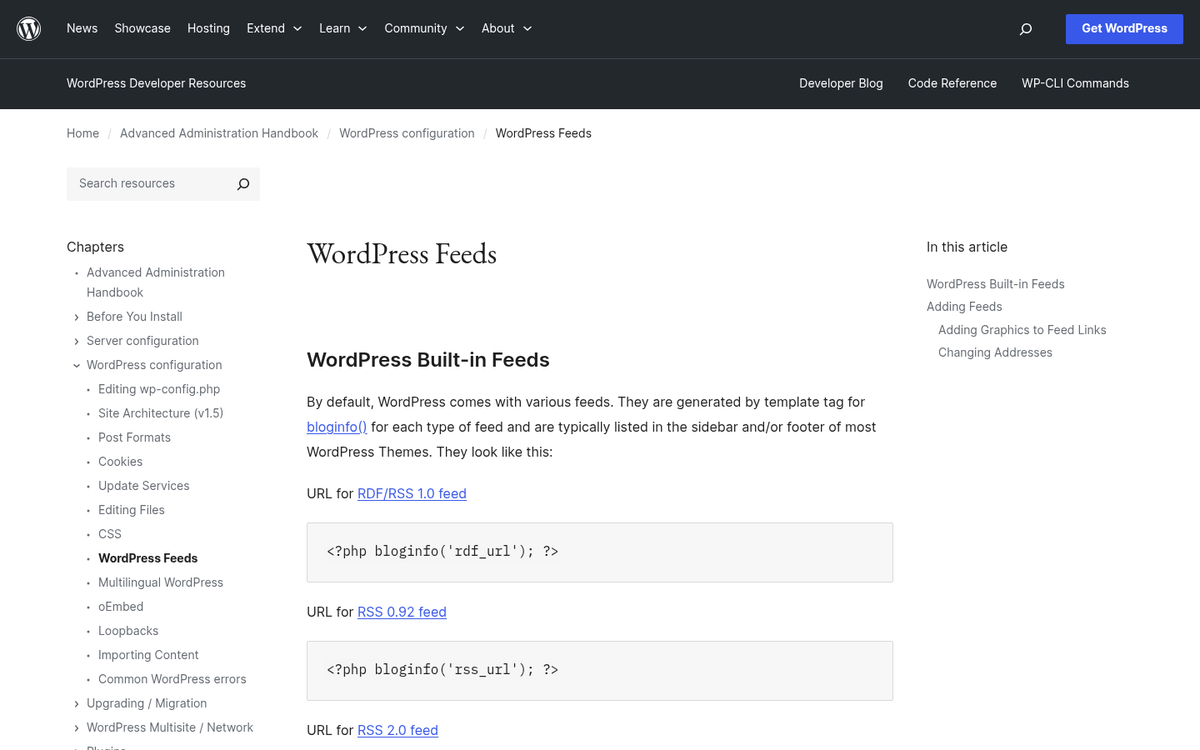
There are also technically a few different possible types of RSS feed that might show up for WordPress, with the /feed/ and the ?feed=rss variant. These include RSS, RSS2, RDF and Atom. If the default /feed/ doesn't work, try /feed/rss/, /feed/rss2/, /feed/rdf/, or /feed/atom/ for options. Likewise, if it's a parameter-based URL, you can use ?feed=rss, ?feed=rss2, ?feed=rdf, or ?feed=atom to see if you can find the feed. You'll find this documented in the WordPress Developer Advanced Administration Handbook.
Following Clues
If you're still unable to find your WordPress feed, you can start looking for breadcrumbs around the site to find it.
The first way to find it is to look in your footer, your social sharing button tray, and other these locations. Often times, one of the "social" buttons you'll see in this tray is the RSS feed icon - it may have the colors changed to match your site design, or it might not, depending on how your site is set up and who did the creating. Hovering over or clicking on the icon should show the feed URL.
If your site doesn't have an RSS icon in a social sharing tray, you can still look for clues to its location. One option is to view the source code for your blog homepage. The way you view the source code for a page changes from browser to browser.
- Firefox: Type CTRL+U, or click Tools -> Browser Tools -> Page Source.
- Google Chrome: Type CTRL+U, or right-click on the page and select View Page Source.
- Safari: Press Command + Option + U, or click Develop -> Show Page Source (you may need to enable the Develop menu first in Settings -> Advanced).
- Microsoft Edge: Type CTRL+U, or right-click on the page and select View Page Source.
- Opera: Type CTRL+U, or click the menu button -> Developer -> View Page Source.
Viewing the source code for a page can be pretty confusing. There's quite a bit going on with the common site, and sites are decidedly atypical. What you want is CTRL+F or Edit -> Find and type in RSS - this will show you any instances on the page of the word RSS, which may be a few or may be quite a bit. If you don't find it on your homepage, you can try your blog root URL, and you can try individual blog posts. You may find mention of your feed URL you otherwise can't find on the page.
If looking for RSS doesn't work, you can search for "feed", though this is a more common word and might show up in blog post titles or summaries.
Some very customized versions of WordPress, and some other blogging platforms, use a different format for their RSS feeds. Instead of a /feed/ URL addition, you might want to try putting /rss.xml on the end of your URL. Follow the same steps as the first section, either www.example.com/rss.xml or www.example.com/blog/rss.xml to see if you can find the feed in XML format.
Using Services
Another way, if the above methods have failed, is to use a service that hooks into your RSS feed to find it. Many free services, like IFTTT, will basically ask you for your RSS feed, which doesn't help if you don't know it. However, some services will scan the common and uncommon locations for a feed and try to find it.
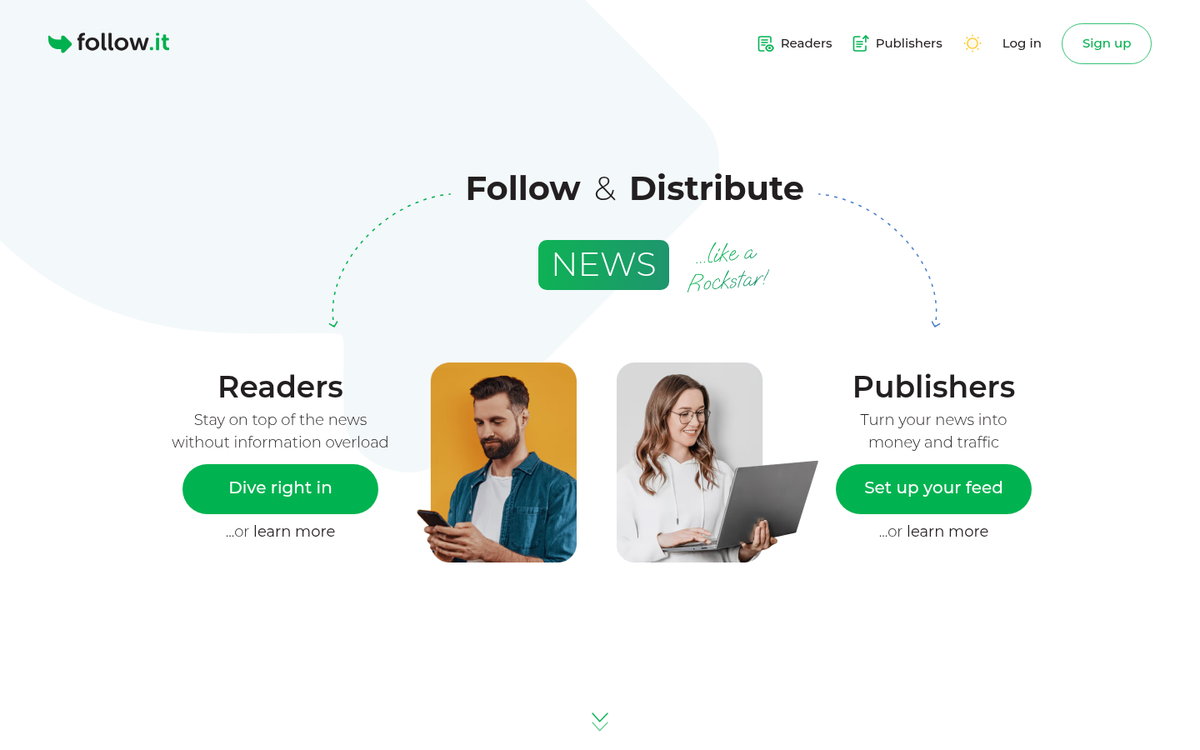
One service worth looking at is follow.it, which has a free plan that includes as many as 5 feeds - it helps you find, validate, and even distribute your RSS feed to subscribers, which makes it a helpful all-in-one option if you're just starting out. You may also want to explore how to automate emails to your blog subscribers once your feed is set up.
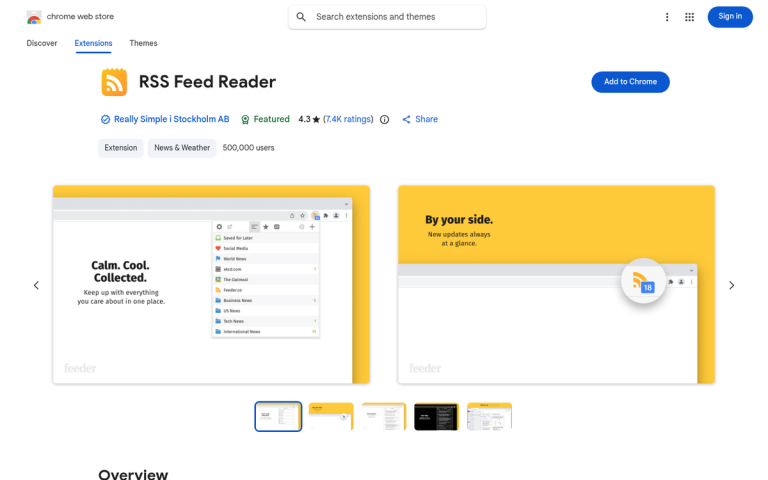
Some of the more advanced RSS feed readers will also have a scan for RSS feature. If you have a feed reader or content marketing tool you want to use, you can check to see if they have one.
Troubleshooting
There are two main reasons why you might not be able to see RSS feeds for your blog. WordPress has RSS enabled by default for everyone, so there's no reason to disable it - it doesn't take up space or resources to run. But it may have been configured poorly by whoever set up your site.
In your WordPress dashboard, go to Settings → Reading - this brings you to options. The one you're looking for is "blog pages to show at most." This governs how posts will show up in your feed when it's viewed. It's possible that this is set to 0, which will make your RSS appear blank. It's rare, but it does happen.
The other possibility is that you're trying to configure things while your site is in development - that is, the blog is still set as private, so public users and search engine bots can't view it yet. Having a blog set as private disables RSS, so search engines can't find content they shouldn't be able to find. If your site is set as private, then you'll have to make it public to access your RSS feed.
Using Your RSS
So what is an RSS feed good for once you've found it, anyway? It seems like it can be quite an ordeal to find it. Can't readers just check your blog whenever they want updates?
The first and most obvious reason to find your feed is to promote it to those who follow blogs. It's a challenge to learn the schedules of a dozen or more sites, and it's a bit easier to use a single feed reader. A feed reader aggregates these posts in one location for the user and doesn't require that they needlessly visit and refresh your site. Instead, they're just notified when a new post goes live.
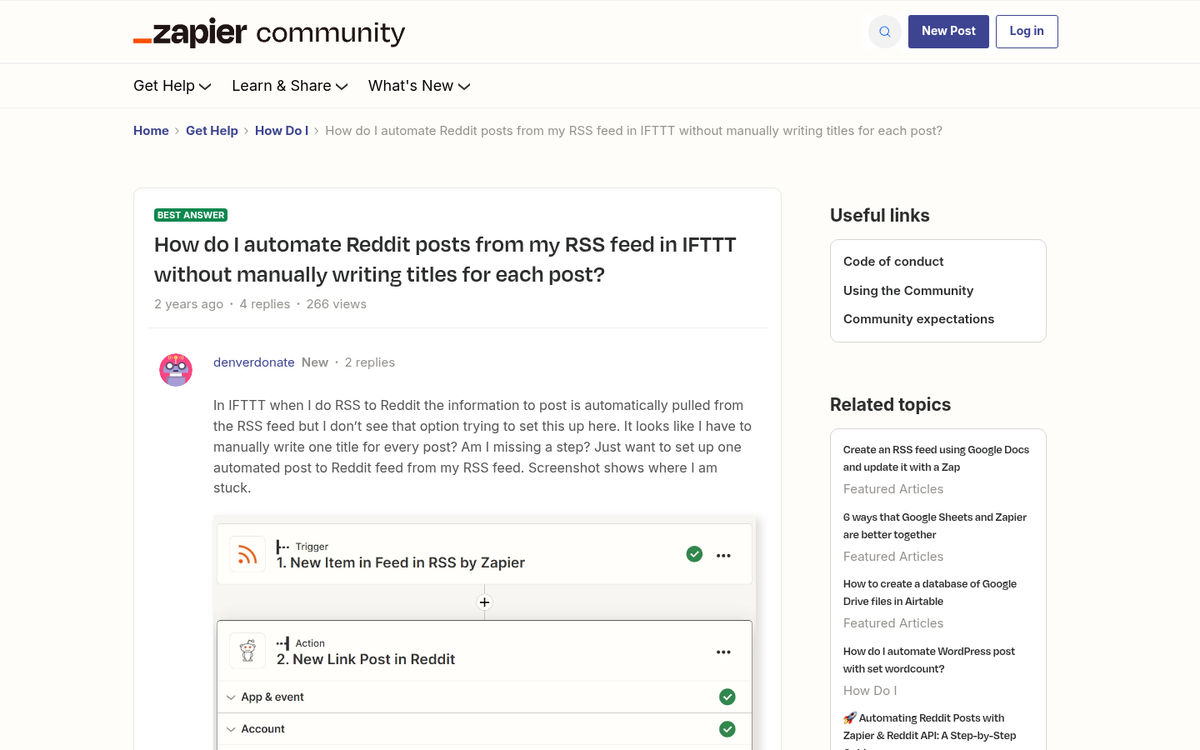
That's for your readers, though; what about your own benefit? You obviously don't need to know when a new post goes live - you're the one publishing it. But you can use RSS as a basis for automation techniques. Using a site like IFTTT or Zapier, you can:
- Send an email to a mailing list when a new post goes live.
- Send an email each week containing new posts that have gone live since the last message.
- Automatically share a new post to social media platforms with the title and link pulled from your RSS feed.
- Send yourself notifications when new comments are posted on a post you want to monitor.
- Trigger workflows in other apps, like Slack or Notion, whenever new content is published.
Many forms of basic automation can be set up with your blog RSS feed as an input and social or email contact methods as an output. You do of course need to stay on top of spamming with unwanted messages, and automation on social media has its drawbacks. But if you set it up right you can get great mileage out of the promotion.
With a publicly available RSS feed, others can do things with it to benefit themselves, your brand, and you. Brands frequently create curated RSS aggregation feeds they then share with their audience, just to give you an example. Being part of one of these puts you in mighty great company.
The possibilities are endless; all you need to do is make sure your RSS works and promote the feed URL.