Server-side tracking has emerged as the practical fix for browser-side tracking limitations, and Cloudflare Zaraz is one of the more compelling tools in that space right now. Zaraz was built as a lightweight, privacy-conscious tag manager before Cloudflare acquired it in 2021 and integrated it directly into their widespread edge network. That integration is what makes it legitimately helpful - instead of firing tracking tags from a user's browser where they can be blocked or degraded, Zaraz processes them at the server level, closer to where the data actually needs to go.
For AEO (Answer Engine Optimization) campaigns in particular, accurate conversion tracking isn't optional. When you're optimizing for high-intent actions and trying to prove ROI on channels that are harder to measure by default, losing a third of your conversion data creates business problems. Zaraz has a way to close that gap without requiring a tough backend infrastructure or a dedicated engineering team to maintain it.
I'll walk you through how to set up Cloudflare Zaraz for server-side AEO conversion tracking, from connecting your tools to validating that your data is actually flowing correctly - it's a helpful guide built around the configuration steps, not a high-level overview.
Key Takeaways
- Cloudflare Zaraz processes tracking at the edge network level, bypassing ad blockers and Safari's Intelligent Tracking Prevention entirely.
- Browser-side tracking loses 30-40% of conversion data; server-side tracking through Zaraz significantly closes that measurement gap.
- Zaraz reduces browser payload from ~69.2 kB (standard GA4) to ~3.96 kB, directly improving page load performance.
- For AEO campaigns, custom action triggers should track specific high-intent actions like form submissions, phone clicks, and content downloads.
- Server-side setups introduce trade-offs: Facebook data delays, lower event match quality, and consent-mode limitations requiring careful configuration.
What AEO Conversion Tracking Actually Means and Why Server-Side Matters
AEO conversion tracking is about recording the actions users take that align with search intent - things like submitting a form, clicking a call-to-action, or completing a purchase after arriving from a search result - it focuses on which queries and content pieces drive results so you can make better decisions about what to create and where to focus.
But most tracking setups run entirely in the browser, and that gives you a reliability gap that quietly grows over time. Ad blockers strip out tracking scripts before they fire. Safari's Intelligent Tracking Prevention limits how long cookies stay active. Users on strict browser settings or privacy-focused extensions can go unrecorded. None of this is new. But the scale of it has grown enough to matter quite a bit more than it used to.
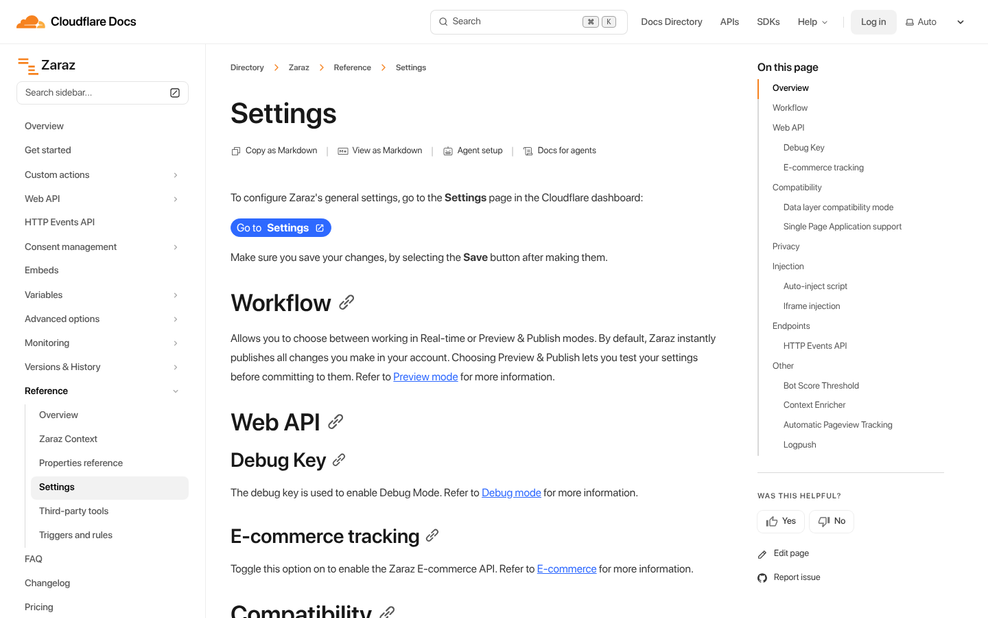
Studies from across the industry put the data loss from browser-side tracking between 30 and 40 percent. That means for every ten conversions that happen, you might only see six or seven in your analytics. If you're running paid campaigns or trying to measure which content answers search intent well enough to convert, that gap can send your optimization in the wrong direction. Traffic numbers in Google Analytics are often less reliable than marketers assume for exactly these reasons.
Server-side tracking changes things by moving data collection away from the user's browser and onto a server you control. The conversion event gets recorded before any browser interference has a chance to happen. The data that reaches your analytics tools is more accurate.
For AEO specifically, this matters because the whole point is to connect search behavior to user actions. If your tracking is losing a third of that data, you're not optimizing based on what's actually happening - you're optimizing based on a partial picture. A reliable measurement layer is the foundation that everything else has to sit on. Running an AEO content audit without accurate conversion data underneath it will only get you so far.
How Cloudflare Zaraz Works and What Makes It Different from Tag Managers
Most tag managers run entirely in the visitor's browser. Every tracking script gets downloaded, parsed, and executed on the user's device - which can add weight to your page and gives browser-based tools a chance to intercept or block the data before it ever leaves.
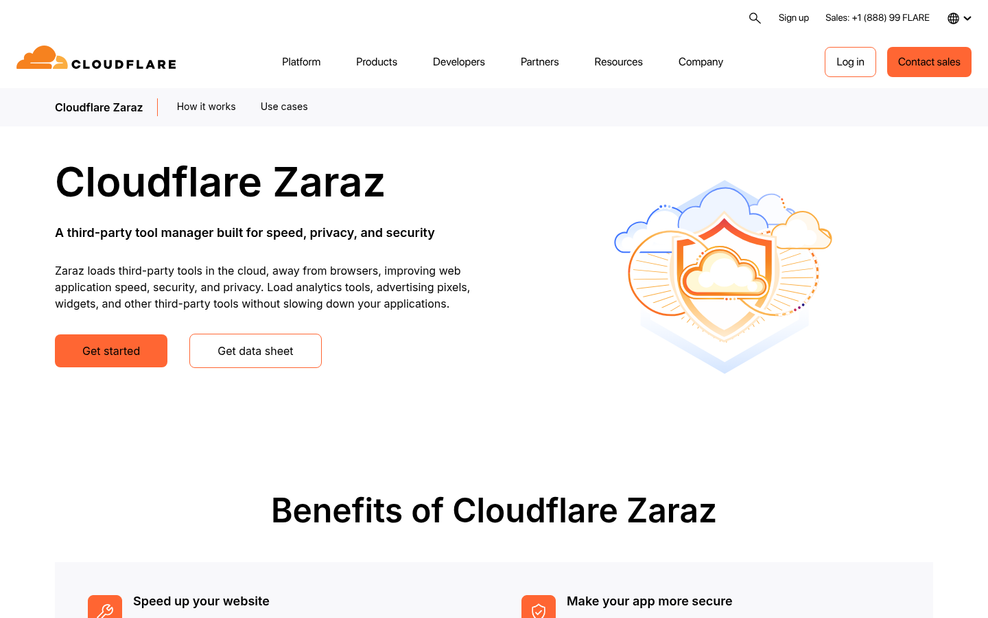
Zaraz takes a different path. When a user visits your site, the tracking logic runs on Cloudflare's edge network instead of in the browser. That network spans 330 cities across 125 countries, so the processing happens physically close to your visitor without touching their device.
A conversion event fires, Zaraz picks it up at the edge, and the data travels directly to your ad platform or analytics tool. The user's browser never loads a third-party tracking script at all. Ad blockers and Safari's Intelligent Tracking Prevention work by blocking scripts in the browser - so when there's no browser script to block, those tools have nothing to intercept. If you want to understand how tracking pixels work on the browser side, that context helps explain why edge-based processing is a meaningful shift.
The page weight difference is real and measurable. A traditional Google Analytics 4 setup loads around 69.2 kB of script in the browser. With Zaraz taking care of that same tool, the browser-side payload drops to roughly 3.96 kB; a reduction that can directly affect load times. You can also explore free alternatives to Google Analytics if you're evaluating your overall tracking setup.
| Feature | Client-Side Tag Manager | Cloudflare Zaraz |
|---|---|---|
| Where tracking runs | User's browser | Cloudflare edge network |
| Ad blocker vulnerability | Yes | No |
| ITP impact | Yes | No |
| GA4 browser payload | ~69.2 kB | ~3.96 kB |
| Third-party scripts loaded | Yes | No |
Zaraz is built into Cloudflare's dashboard and is available to anyone with a site proxied through Cloudflare. No separate account or standalone product is needed to get started.
Connecting Zaraz to Your Site and Configuring Your First Tracking Tool
To get started, log into your Cloudflare dashboard and choose the domain you want to work with. From the left-hand menu, navigate to Zaraz under the Speed section. If you haven't activated it yet, you'll see a button to enable it for that domain - click it and Cloudflare will manage the script injection automatically through its edge network.
Once Zaraz is active, head to the Tools tab, where you add the third-party services you want to run, like Google Analytics 4 or Meta Pixel. Click Add New Tool, pick your service from the list, and enter the tool ID - for GA4 that's your Measurement ID, and for Meta it's your Pixel ID. Getting this ID wrong is one of the most common setup mistakes and it causes a data gap, so double-check it before moving on.
After you add a tool, Zaraz will ask you to configure its default settings. You can set the tool to load on all page views or restrict it to fire only on triggers. For now, leave the default page view trigger active so you can confirm the tool is working before layering in more complex event rules.
One feature worth turning on immediately is Automated Actions, which Cloudflare introduced in November 2024 - this feature detects common interactions on your page - clicks, form submissions, and scroll depth - and fires the appropriate events without requiring any custom code. You'll find it in the tool settings panel under the Actions tab.
Before you test anything, check that your tool has at least one trigger attached to it. A tool with no trigger won't fire at all, and this is easy to miss when moving quickly through setup. Use the Zaraz Debug Mode - accessible via the toolbar toggle in the dashboard - to watch events fire in real time as you browse your site. If you want to go deeper on measuring outcomes, see our guide to advanced Google Analytics techniques for tracking conversions.
Mapping AEO Conversion Events and Setting Up Custom Triggers in Zaraz
With your tool connected, the next step is to define what counts as a conversion for your AEO goals. This is where setups go wrong - tracking everything and ending up with data that tells them very little. For AEO specifically, the actions worth tracking are things like form submissions, clicks on structured content sections, phone call initiations, and file downloads.
Zaraz separates events into two main types. Pageview events fire automatically when a user loads a page. Custom action events fire only when a user does something, like clicking a button or submitting a form. For AEO conversion tracking, custom action events are usually what you want.
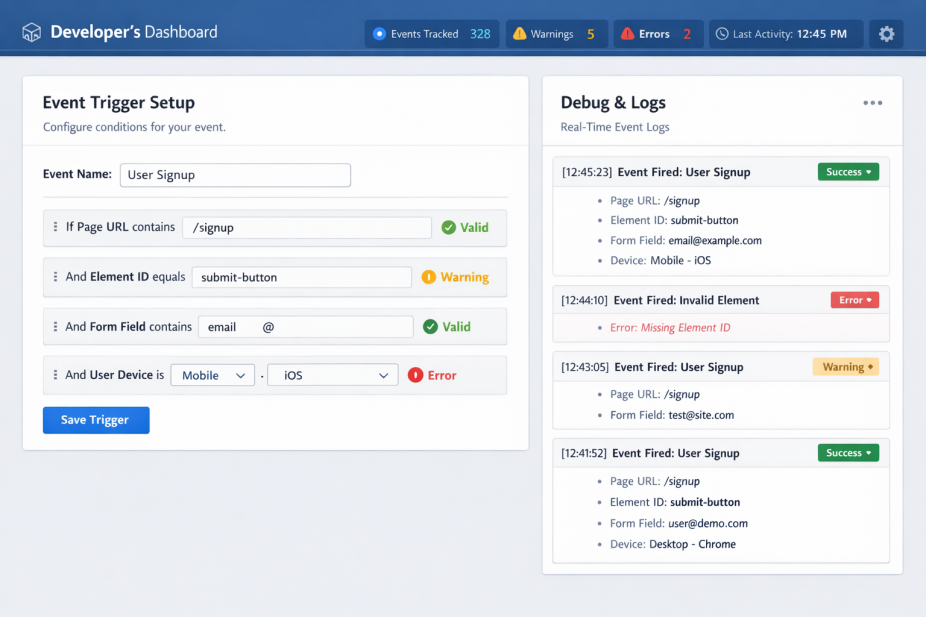
To create a trigger in Zaraz, go to the Triggers tab in your dashboard and hit "Add Trigger". From there, you name it and define the conditions - just to give you an example, a click on an element with a particular class name, or a URL change after a form submission. You can stack multiple conditions in one trigger to get precise about which action counts.

It's worth pausing here to remember signal quality. Every event you add should answer a question you actually have about user behavior. If it doesn't, leave it out.
One pitfall to watch for is duplicate event firing - this happens when a trigger condition is too broad and the same event fires more than once per user action. Always test triggers using Zaraz's built-in debug mode before pushing to production. It's also worth understanding how multiple tracking pixels interact on a single page when you're sending to several tool destinations at once.
Missing variable data is another common gap. If your event fires but sends no page URL, no referrer, or no user action label, the data is hard to act on. Use Zaraz's Variables tab to attach context to every event you send. Pairing this with a clear framework for setting traffic goals helps ensure you're measuring what actually matters.
| Event Type | Trigger Condition | Tool Destination |
|---|---|---|
| Form submission | Form submit on contact page | Google Analytics, Meta Pixel |
| Phone click | Click on tel: link | Google Ads, GA4 |
| Content download | Click on .pdf link | GA4, HubSpot |
| Answer section click | Click on FAQ or structured block | GA4 |
Handling Facebook Pixel Delays, Consent Mode, and Data Accuracy Gaps
Once your events are mapped and your triggers are live, the first thing that will make you question everything is the Facebook Pixel delay. Data from server-side events can take anywhere from 15 minutes to a few hours to appear in Events Manager. Nothing is broken - it's just how the pipeline works, so give it time before pulling things apart.
Consent mode is where things get more nuanced. Inside Zaraz, you can configure tools to fire only after a user gives consent, and that's the behavior you want for GDPR compliance. When a user declines cookies, Zaraz can block those tools from loading entirely instead of firing them silently in the background.
The trade-off is real though. Declining users won't appear in your conversion data, and there's no workaround that keeps you compliant and also tracking everyone. What you can do is use Zaraz's consent API to set up a default "denied" state and only activate tracking tools once explicit consent is given - this keeps your setup clean and legally defensible.
Data accuracy gaps are a separate problem. Server-side tracking through Zaraz removes some browser-level tells that places like Facebook use to match events to users. You may see lower match quality scores in Events Manager compared to a traditional client-side pixel; it's a known trade-off with server-side setups - not a flaw in your configuration.
For some gaps, third-party plugins can help. Beetle Tracking Pro, which starts at $147 per year, is one option that fills holes the native Zaraz integrations leave open - especially around advanced event parameters and multi-platform data routing. Not everyone is going to need it. But it's worth knowing it exists if your native setup isn't capturing what you need.
| Issue | Cause | What to Do |
|---|---|---|
| Facebook data delay | Server-side pipeline latency | Wait up to several hours before troubleshooting |
| Events fire despite declined consent | Consent mode not configured in Zaraz | Set default denied state via Zaraz consent API |
| Low event match quality | Missing browser-level signals | Pass additional customer parameters where possible |
| Missing event parameters | Native integration limitations | Evaluate third-party plugins like Beetle Tracking Pro |
Testing, Validating, and Debugging Your Zaraz Tracking Setup
Once everything is configured, the next step is to confirm it works. Zaraz has a built-in debug mode you can activate by adding ?zaraz-debug=true to any URL on your site - this opens a panel that shows every event firing in real time, including the tool it's going to and the data it's sending.
Look at each event and check that the trigger conditions match what you set up. If an event fires twice on a single action, you likely have a duplicate trigger somewhere. If an event doesn't fire at all, check if the trigger condition is too narrow or pointing to an element that doesn't exist on the page.
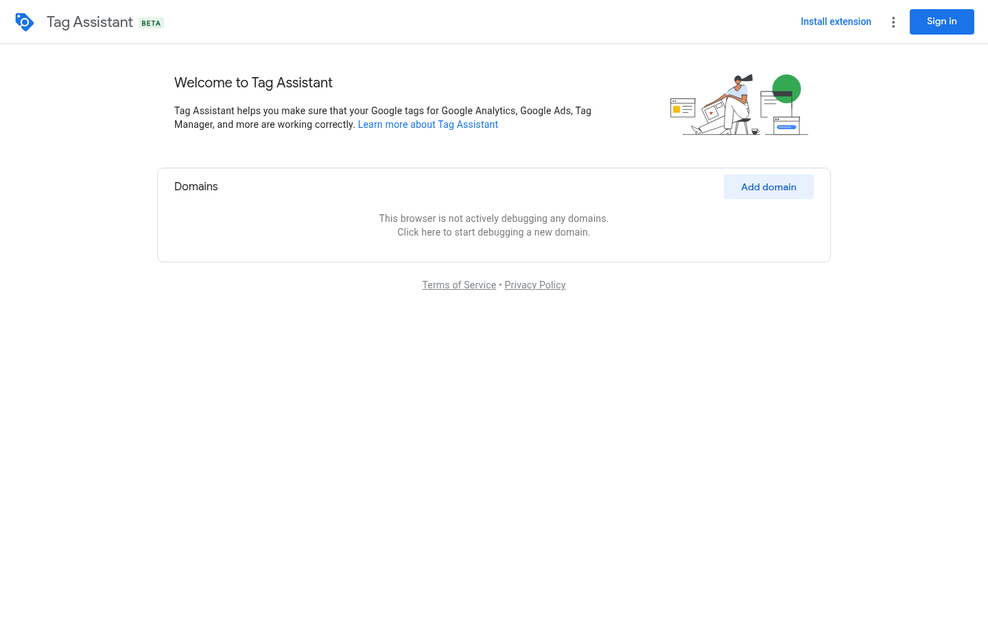
After you confirm events are firing in debug mode, check the destination platforms. Google Ads has a Tag Assistant and Meta has the Events Manager - both show incoming events with a short delay. If you're running paid campaigns, it's also worth reviewing how to set up conversion tracking with Stripe Checkout to make sure your payment events are captured correctly.
Common problems have patterns that make them easier to trace.
| Symptom | Likely Cause | Where to Look |
|---|---|---|
| Missing conversions | Trigger not matching the right event | Zaraz debug panel, trigger rules |
| Duplicate events | Multiple triggers firing on one action | Zaraz event list, trigger conditions |
| Zero data in dashboard | Wrong API key or misconfigured tool | Tool settings in Zaraz dashboard |
| Events firing on wrong pages | URL condition too broad | Trigger URL matching rules |
Test across multiple browsers and Safari specifically. Safari's Intelligent Tracking Prevention handles cookies differently, and a setup that works in Chrome may behave differently there. Run your test flow in Safari and compare the debug output side by side.
Mobile testing matters too. Load your site on an actual device instead of a browser emulator and walk through a full conversion to see what lands. A well-optimized mobile site can also affect downstream metrics like your Google Ads cost per click, so it's worth getting right.
Your Zaraz Setup Is Live - Now Make the Data Work for You
One thing worth keeping in mind: your event map will drift if you don't link to it. As you publish new content, test different answer formats, or change campaign focus, the user journeys you're tracking will change too. Set a reminder every few months to revisit your Zaraz triggers and conversion logic. A quick audit - checking that your high-value events still fire correctly and still represent actual behavior - will save you from making decisions on stale or broken data.
What you've built here is a foundation rather than a finished product. Server-side tracking through Zaraz gives you a reliable, consent-aware layer you can extend as your needs grow - adding new signals, refining attribution windows, or experimenting with more granular AEO tells. The setup is done; now you have something to build on.