





For such a popular program, Google Analytics has a number of issues that can crop up. Some of them are common, some of them are rare. Some of them are flaws in the way Google processes data. Some of them are user error. Some of them are user intent. They're all potential reasons why your traffic is inaccurate or missing on some or all of your website. Here's a selection of reasons why.
Key Takeaways
- Missing tracking code on new pages means Google Analytics records zero data for those pages.
- Ad blockers, consent banners, and browser privacy tools can cause GA4 to miss 15-55% of traffic.
- Duplicate tracking tags inflate data, while poorly positioned code causes visits to go completely unrecorded.
- GA4 doesn't apply conversion tracking retroactively, so late setup means missing all historical conversion data.
- By default, GA4 only retains event-level data for two months; extend retention to 14 months immediately.
Your Page Isn't Tagged

If you post a bunch of new pages and you know people are visiting them, but you don't see a corresponding rise in your Google Analytics data, this is one possible reason. You simply didn't add the right tracking code to those pages. In order for Google to record data about a page, that page needs to execute a bit of Javascript. If that Javascript isn't present, Google can't record any data.
The fix: Implement the GA4 tracking code on those pages, either directly or via Google Tag Manager, which makes site-wide deployment significantly easier and less error-prone.
Your Analytics Code is Broken

Copy and paste is not infallible. Sometimes when you paste the code into your pages and save it, you accidentally introduce a stray character where none should be. Sometimes you don't actually select all of the code, so your Javascript ends before it's supposed to. Errors happen.
The fix: Simply re-apply the code and verify it's firing correctly using the GA4 DebugView, found directly inside your GA4 property under Admin. You can also use the Google Tag Assistant browser extension to confirm your tag is firing properly on any given page.
Your Code is Positioned Poorly

Your GA4 tracking snippet should be placed in the <head> section of your page. Some people, aware of page load times, try to move scripts lower in the page. The problem is that the tracking code can then load after a user has already seen and left the page, meaning their visit isn't tracked at all.
The fix: Place the code in your <head> section. If you're using Google Tag Manager, this problem largely takes care of itself as long as the GTM snippet is correctly installed. If you're also running ads, keep in mind that using multiple tracking pixels on a page can sometimes complicate how scripts load and fire.
Your Code is Duplicated

Do your Google Analytics numbers look unusually high? Perhaps exactly twice what they should be? GA4 doesn't prevent you from firing the same tag multiple times on a single page. If your tracking code exists in a site-wide header template and also gets dropped in individually on specific pages, you'll end up with duplicate data. This inflates your counts and skews your results significantly.
The fix: Audit your pages for duplicate tags using Tag Assistant or GA4's DebugView. If you're managing tags through Google Tag Manager, check your triggers carefully to make sure no tag is firing more than once per page load. If you suspect something more unusual is affecting your numbers, it's also worth learning how to stop fake traffic in Google Analytics as another potential cause of inflated data.
Ad Blockers and Privacy Tools Are Hiding Your Traffic

This one has gotten considerably worse over the years and deserves serious attention in 2026. Research from Orbit Media studying 33 accounts across 60 comparisons found that sites without a cookie consent banner were missing around 11-16% of their traffic data. Sites that showed a consent banner and gave users the option to decline? Missing upwards of 20-55% of data depending on how the banner was configured and how many users opted out.
A separate analysis from Towards Data Science found GA4 missing somewhere between 15-25% of actual user data on average. Browser-level tracking restrictions compound the problem further - Safari's Intelligent Tracking Prevention, Firefox's Enhanced Tracking Protection, and similar features built into Edge all interfere with cookie-based tracking by default, without the user having to do anything at all.
The fix: There's no perfect solution, but there are ways to reduce the gap. Server-side tagging routes your analytics through your own server rather than the client's browser, which bypasses many ad blockers and browser restrictions. Consent Mode v2, now essentially required in the EU and increasingly important elsewhere, allows GA4 to model conversions and behavior for users who decline cookies rather than recording nothing at all. Neither approach fully closes the gap, but both meaningfully reduce it. If you're also concerned about how traffic gaps affect revenue decisions, it's worth understanding how to diagnose a slow steady decline in sales before drawing conclusions from incomplete data.
Your Users Have Javascript Disabled

GA4 still runs on Javascript. A small segment of users either disable Javascript manually or use extensions like uBlock Origin or NoScript that block it selectively. If the script doesn't execute, the visit doesn't get recorded.
The fix: There's no real fix here. This audience segment is small but real, and they simply won't appear in your data. The more meaningful concern in 2026 is ad blockers and consent refusals as described above, which affect a far larger portion of traffic.
Wait - that URL is already used. Let me recheck.
Your Users Have Javascript Disabled
GA4 still runs on Javascript. A small segment of users either disable Javascript manually or use extensions like uBlock Origin or NoScript that block it selectively. If the script doesn't execute, the visit doesn't get recorded.
The fix: There's no real fix here. This audience segment is small but real, and they simply won't appear in your data. The more meaningful concern in 2026 is ad blockers and consent refusals as described above, which affect a far larger portion of traffic. If you're also noticing gaps between your analytics and actual server-side errors causing lost visits, that's worth investigating separately.
Your Goals or Conversions Were Set Up Too Late

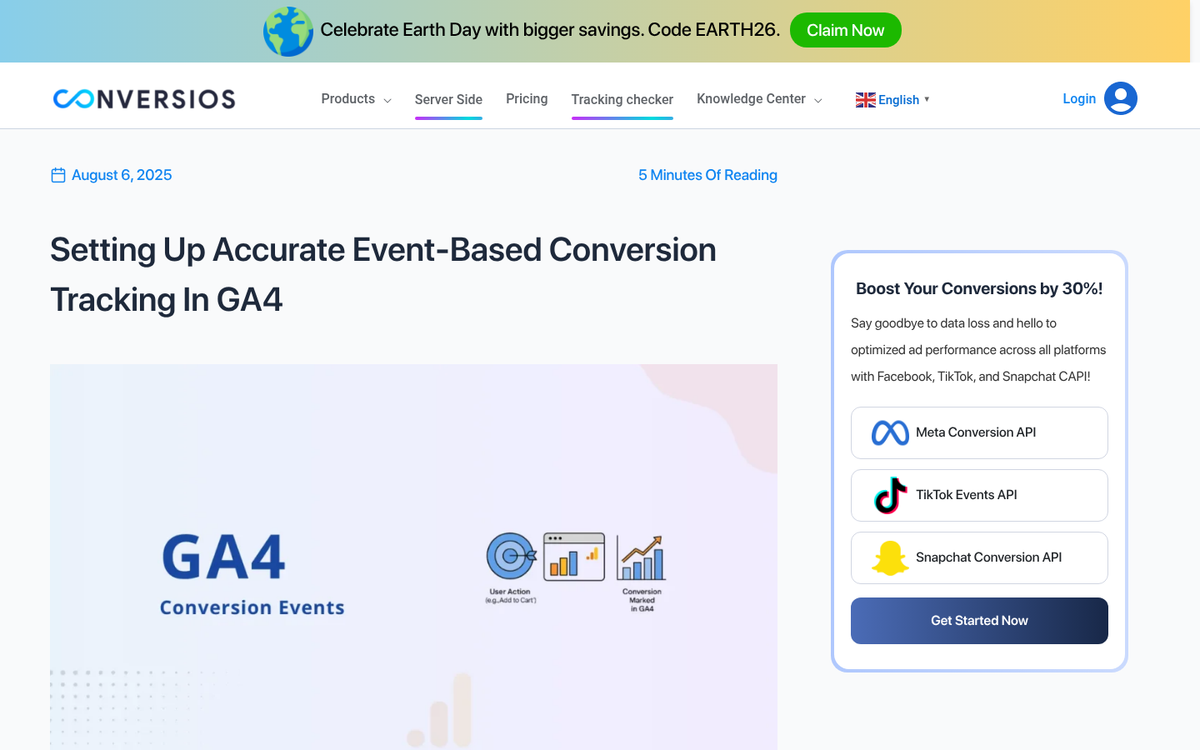
If you're wondering why a particular conversion event shows little to no data, consider when you set it up. GA4 does not retroactively apply conversion tracking to historical events. If you mark an event as a conversion today, you will only see conversion data from today onward, even if that event has been firing for months.
The fix: Set up your conversion events as early as possible. If you need historical context, you can look at raw event data in the GA4 Explore section and filter by the event name - you may find the underlying event has been recorded even if it wasn't marked as a conversion at the time. If you notice a sudden drop in conversions, timing issues like this are often the culprit.
Your Data Is Too New

You installed Google Analytics literally minutes ago, and it's not showing any traffic. You've refreshed a dozen times. What gives?
Standard GA4 reports are not real time. It's completely normal to wait 24-48 hours for data to fully appear in your standard reports. GA4 does have a real-time report that shows activity in the last 30 minutes, which is useful for confirming your tag is firing, but your main reports will lag behind.
The fix: Use the real-time report to verify the tag is working, then give your standard reports 24-48 hours to populate before assuming something is broken. If you're also noticing a drop in traffic in Google Analytics, that's a separate issue worth investigating on its own.
Your Data Retention Settings Are Too Short
This one catches a lot of people off guard. By default, GA4 only retains user-level and event-level data for two months. That means if you're trying to run an Explore report looking back further than two months, you may find your data simply isn't there anymore.
The fix: Go to Admin > Data Settings > Data Retention and extend the retention period to 14 months, which is the maximum currently available. Do this as early as possible after setting up your property, because you cannot recover data that has already been deleted under the shorter retention window.
Your Volume is Too High
If you've been tracking data independently and consistently find that Google Analytics is coming up short, you might be running into GA4's data thresholds. At high traffic volumes, GA4 applies sampling and thresholds to certain reports, meaning you're looking at a projection rather than exact numbers. This is most noticeable in Explore reports and can lead to meaningfully inaccurate reporting at scale.
The fix: Google Analytics 4 offers a higher data threshold through Google Analytics 360, the enterprise paid tier. Alternatively, supplement or replace GA4 with a server-side analytics solution like Plausible, Fathom, or a dedicated data warehouse setup if accuracy at high volume is a priority.


1 response
Thoughtful replies only - we moderate for spam, AI slop, and off-topic rants.
Check your website home page (Source Code..you can check the course code via keyboard button CTRL+U) and find google tracking ID e.g. "UA-101238345-1". if this code is not found in source code. Kindly again get the tracking code from Google Analytics then paste in header.php file of your website before the closing the code . the again refresh the page and google will track your traffic easily.. Thanks https://uploads.disquscdn.com/images/efbad327f0f4eae5fe747323d71d041e8bba62f1b27c26da40841efad1be16c6.png