





Key Takeaways
- Social sharing plugins can severely hurt performance; some like Shareaholic set 12 cookies and make requests to 30 different domains.
- Lazy loading prioritizes essential page elements first, deferring non-essential scripts and content to improve perceived load times significantly.
- Using SharedCount.com API consolidates social share count requests into just two API calls, dramatically reducing performance overhead.
- Page speed is a confirmed Google ranking factor, with Core Web Vitals metrics like LCP, INP, and CLS now formally measured.
- Key speed improvements include quality hosting, lightweight themes, CDN usage, caching, Brotli compression, and removing bloated plugins.
Our blog - this very blog you're reading right this second - loads very fast. If you're interested in seeing just how fast, you can use a tool like GTmetrix or Google PageSpeed Insights to test it yourself.
One thing most sites on the Internet, ours included, have in common is the presence of social sharing buttons. For this blog, we have sharing options integrated directly into our posts so there's always an easy way to share content as you're reading it. Keeping those buttons visible and accessible matters - people are far more likely to share something when the option is right in front of them.
Our social sharing buttons are clean and minimal by design. There's a well-documented psychological principle at work here: people are more likely to share content when they can see that others already have. Displaying share counts - even modest ones - gives social proof that drives more engagement. The trick is doing this without killing your page speed; it's where sites get it wrong.
So, this site has social sharing integrated cleanly alongside fast load speeds. One thing you'll see on sites is that these two goals are usually in direct conflict. Social sharing plugins can be fairly heavy. In benchmark testing, some plugins like Shareaholic have been found to set 12 cookies and make requests to 30 different domains - a staggering performance and privacy hit for what is basically a row of buttons.
Page load time is a confirmed search ranking factor. Google has been explicit about this for years, and with the rollout of Core Web Vitals as a formal ranking signal, it's more measurable and consequential than ever before. Metrics like Largest Contentful Paint (LCP), Interaction to Next Paint (INP), and Cumulative Layout Shift (CLS) are now part of how Google evaluates the quality of a page experience. Studies show that users abandon pages that take more than 2-3 seconds to load.
There are two main culprits slowing down the load speed of your site. One is having your content load up front, before the page can be displayed. The other is loading too many scripts which slow down your site, and that's also the case if the page can't be displayed until those scripts finish executing.
Lazy loading is the helpful answer to both of these problems, and it's worth covering in detail.
Lazy Loading Content
If you imagine each website ingredient as a dog and the completed page as the finish line, you get to draw an interesting picture. Some "dogs" like the main content of the site, the images, and some of the bigger scripts are slow dogs that take a while to get from start to finish. Other elements, like small scripts, text, and CSS information, are all very fast dogs; they get from start to finish very quickly.
This race is complicated. Some dogs need other dogs to finish before they can start. Other dogs can start whenever, and some of them don't start immediately. Lazy loading is a way of telling the slowest dogs - dogs that don't need to finish before other dogs can start - that they can start later.
Okay, so the metaphor got a little out of hand. The point is, elements on a page can be classified into two main categories: "essential" and "non-essential." If the non-essential elements fail to load, that's fine. The page still works. Most scripts fall into this category. If your analytics code doesn't execute immediately, you as a reader don't notice. The page still loads. That code was invisible to you anyway.
Ads work the same way. Very few sites block page loading if an ad doesn't load; it's why ad blockers work well - they prevent non-essential elements from loading. But the page as a whole still renders. Automatically injecting ads into WordPress posts is one way to manage this more efficiently.
Essential elements are a different story. They're the framework of the site, the text of a blog post, the CSS that formats it all. If one of them doesn't load, the site either looks broken or doesn't render at all.
Lazy loading is the idea that you want the essential elements to load immediately - as fast as possible - so the page is active and visible as soon as it physically can be. Everything else can wait. Only once the main page framework and content is loaded does the rest follow, mostly in the background, so it's not delaying the user experience.
The good news is that lazy loading for images is now a native HTML feature. Adding loading="lazy" to your image tags is all it takes for modern browsers to manage this automatically, with no JavaScript. WordPress has applied this attribute to images by default since version 5.5. For more advanced deferred loading of scripts and third-party embeds, plugins like WP Rocket manage this automatically without requiring you to touch any code. Keep in mind, though, that lazy loading certain elements like comment systems isn't always SEO friendly.
Utilizing Faster Scripts
As mentioned before, scripts can be among the slowest loading elements of your page, depending on how they're coded and what they need to do. Analytics scripts from tools like Google Analytics 4 or Plausible are usually small and fast. They don't need to make external API calls that stall the page render. You can defer them easily, and their impact on load times is minimal.
Social sharing scripts are a different story. The performance difference between a well-built and a poorly-built social sharing plugin is significant. In controlled benchmark testing on a clean WordPress installation, a base load time of roughly 0.36 seconds ballooned with certain plugins. The worst offenders were those making separate API calls to each social network individually - hitting all five native service endpoints, just to give you an example, results in five separate API queries every time share counts are updated. That piles up fast.
The better strategy is to use a plugin that consolidates those requests. Using the SharedCount.com API, for example, lets a plugin fetch all share counts with just two API calls total - which WPBeginner identifies as the optimal setup for WordPress performance; it's the architectural choice that separates fast social sharing from slow social sharing.
If you're looking for a social sharing plugin for WordPress, Easy Social Share Buttons is one of the most widely used options available, with over 600,000 active installs. Starting with version 10.6, it introduced High-Performance Share Counter Storage, which caches share counts server-side instead of pinging social networks on every page load. It makes a real-world performance difference, but it's not free. For a site where speed and share counts matter, it's worth the investment.
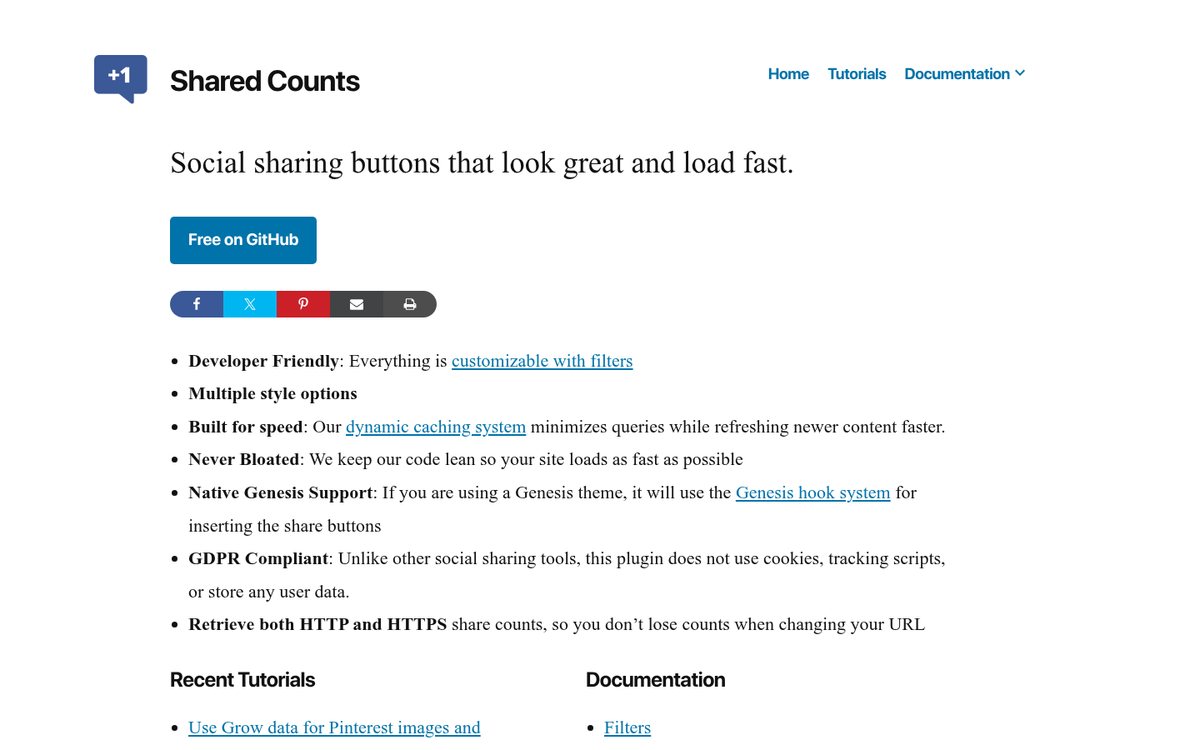
If you want something leaner and free, the Shared Counts plugin is worth a look - it's lightweight, privacy-conscious, and uses SharedCount.com for consolidated API requests. You'll need at least WordPress 4.6 and PHP 5.6, with a latest stable release of version 1.4.1. It won't have every bell and whistle. But what it does, it does efficiently.
What you want to stay away from are bloated plugins like Shareaholic, which in independent testing was found to set 12 cookies and make requests to 30 different domains on a single page load; it's not a social sharing plugin - it's a tracking apparatus that also happens to display share buttons.
Making a Faster Website
Numerous studies have examined the correlation between page speed and search ranking. The relationship is real. But it's worth adding some nuance. Page speed is not the sole reason a site ranks lower - slower sites usually have other underlying problems too. But Google's Core Web Vitals have made page experience a more concrete and measurable part of ranking, so dismissing speed as a minor factor is no longer accurate.
In addition to lazy loading, there are a few other methods you can use to speed up your site. Let's cover the most important ones.
Choose quality hosting. High quality hosting is an absolute must for any site that cares about performance. DNS lookup and server response time (measured as Time to First Byte, or TTFB) happen before a single ingredient of your page loads. A sluggish host gives you a ceiling on how fast your site can ever be, regardless of how well everything else is optimized. Managed WordPress hosts like Kinsta, WP Engine, or Cloudways are purpose-built for WordPress performance and worth consideration. Free hosting is a non-starter - beyond the performance problems, Google has historically applied penalties to sites on known spammy free hosting platforms.
Shared hosting is workable for low-traffic sites. But it comes with dangers. You're sharing hardware and IP ranges with other sites, and if those neighbors behave poorly, you can get caught in the collateral damage of blacklists or spam filters. As your traffic grows, moving to a VPS or managed hosting can become increasingly worthwhile.
Pick a quick-loading theme, or have one built. The theme is the foundation everything else is built upon, and a bloated theme creates drag that no amount of plugin optimization can overcome. The Genesis Framework was long considered the gold standard for fast WordPress themes, though the community has evolved considerably. Lightweight themes like GeneratePress and Kadence are now widely regarded as top performers - they are actively developed, score excellently on Core Web Vitals benchmarks, and have strong compatibility with popular page builders. GeneratePress in particular is famous for its minimal footprint and clean code.
Distribute loading of scripts and images with a CDN. A CDN (Content Delivery Network) serves your static assets - images, CSS, JavaScript - from servers geographically close to each visitor, to cut back on latency. Cloudflare is the most widely used option and has a very capable free tier that works for most WordPress sites. For more demanding setups, Amazon CloudFront, BunnyCDN, and KeyCDN are all strong options. A CDN cuts back on the load on your origin server and meaningfully helps with load times for visitors who aren't close to where your server is physically located.
Identify and replace or remove slow-loading plugins. The P3 Plugin Performance Profiler that used to be the favorite tool for this is no longer actively maintained and is not recommended for current WordPress versions. Instead, you can use Query Monitor, which is actively maintained and gives you a look into database queries, HTTP requests, and script load times broken down by plugin. New Relic and the performance tab in WP Rocket's dashboard are also helpful for identifying which plugins are adding the most overhead. The process is the same: find the worst offenders, decide if they're essential, and either replace them with lighter alternatives or remove them entirely.
Use Gzip or Brotli compression for your site files. Compression cuts back on the size of files transferred between your server and the user's browser, which speeds up load times meaningfully. Gzip is typically straightforward to enable via your .htaccess file or through your hosting control panel. Brotli is a newer compression format that achieves better compression ratios than Gzip and is supported by all modern browsers - quality hosts now enable it by default. Caching and performance plugins like WP Rocket and LiteSpeed Cache can also manage compression configuration without requiring manual file edits.
Set up proper caching to speed up load times. Caching stores static versions of your pages so repeat visitors don't trigger a full server-side rebuild of the page on every visit. WP Super Cache remains a functional free option. But WP Rocket has become the dominant premium choice for good reason - it handles page caching, browser caching, GZIP compression, lazy loading, database optimization, and CDN integration from a single, well-maintained interface. LiteSpeed Cache is a free alternative if your host runs LiteSpeed servers, and it rivals WP Rocket in features.
Clean out your WordPress database. WordPress accumulates a surprising amount of dead weight over time: post revisions, auto-drafts, trashed content, expired transients, orphaned metadata, and spam comments all bloat the database and can slow down query times on large sites. WP-Optimize is a well-maintained plugin that handles database cleanup cleanly, and it lets you choose what to remove. Advanced DB Cleaner is another option for sites with more complex cleanup needs. Running a cleanup every few months keeps the database lean and queries fast.


2 responses
Thoughtful replies only - we moderate for spam, AI slop, and off-topic rants.
I purchased Ultimate Social based on this recommendation but then lost all my previous share counts (594 shares so I really wanted to keep that), and as it turns out, Ultimate Social provides zero support and there are no forums or contact emails available to try to troubleshoot this. It did speed up page load time considerably, but unfortunately I can't get back the share count and it's not even showing new shares. Very disappointing as I spent money on the plugin! Buyer beware!
Hi Michelle! Did you ever switch from HTTP to HTTPS (installing SSL)? If so, I believe there's a feature in Ultimate Social to recover your old share counts. What were those previous shares on, Facebook? It could be that the plugin isn't fully set up yet and you have some more work to do to display those. Share counts are displayed from the social network APIs, so as long as it's set up properly and configured, it should show all of them. If it's showing 0 shares, then there may be a plugin conflict or something wrong with your setup. They do provide support on Code Canyon, though it can take a bit for them to respond.
Also check out this post on setting up Facebook shares on your blog. If you have not done this step, it is most likely why your Facebook posts aren't appearing yet: https://support.wpsmarter.com/article/24-facebook-counts