Images are an important vector for search engine optimization, but they're left out all too often. Many people don't think of images as important. After all, Google doesn't really know what's in them, right? At best, most webmasters throw in alt text and call it a day.
The reality in 2026 is that Google Images drives 22% of all web searches, with visual search growing 30% annually. Images now account for over 30% of all Google search results page real estate. That's not a side channel - that's a major traffic source most of your competitors are ignoring. There's a lot more you can do to optimize images themselves, and optimize your site for more image search traffic. Let's take a look.
Key Takeaways
- Google Images drives 22% of all web searches, yet most competitors ignore it, making it less competitive than traditional organic SEO.
- Descriptive filenames and alt text give Google critical context about images, improving both image and overall page SEO signals.
- Images must be at least 1,200px wide with a max-image-preview:large meta tag to qualify for Google Discover traffic.
- WebP should be your default image format, offering 25-35% smaller file sizes than JPEG with no visible quality loss.
- CDN-hosted images must serve under your own domain, or Google may not associate them with your site in its index.
Recognize Value
The first thing you need to do is recognize that image search has real, measurable value. You can pull in a surprising amount of traffic, and it's often easier to do than ranking in normal organic search results. The reason is simple: most people still don't know or care about image search as a traffic source. It's treated as incidental. Therefore, in most niches, image search isn't nearly as competitive as traditional organic SEO.
One SEO practitioner reported a 30% traffic bump via Google Images across websites optimized over a six-month period. That kind of lift from a largely ignored channel is hard to pass up.
It also doesn't matter so much if you're in the top 1-2 spots versus somewhere in the top 20. One page of image search results, above the fold, can display 10-20 images depending on the device. As long as you're in that upper grid, you'll capture the majority of the traffic you're after.
Use Descriptive Filenames
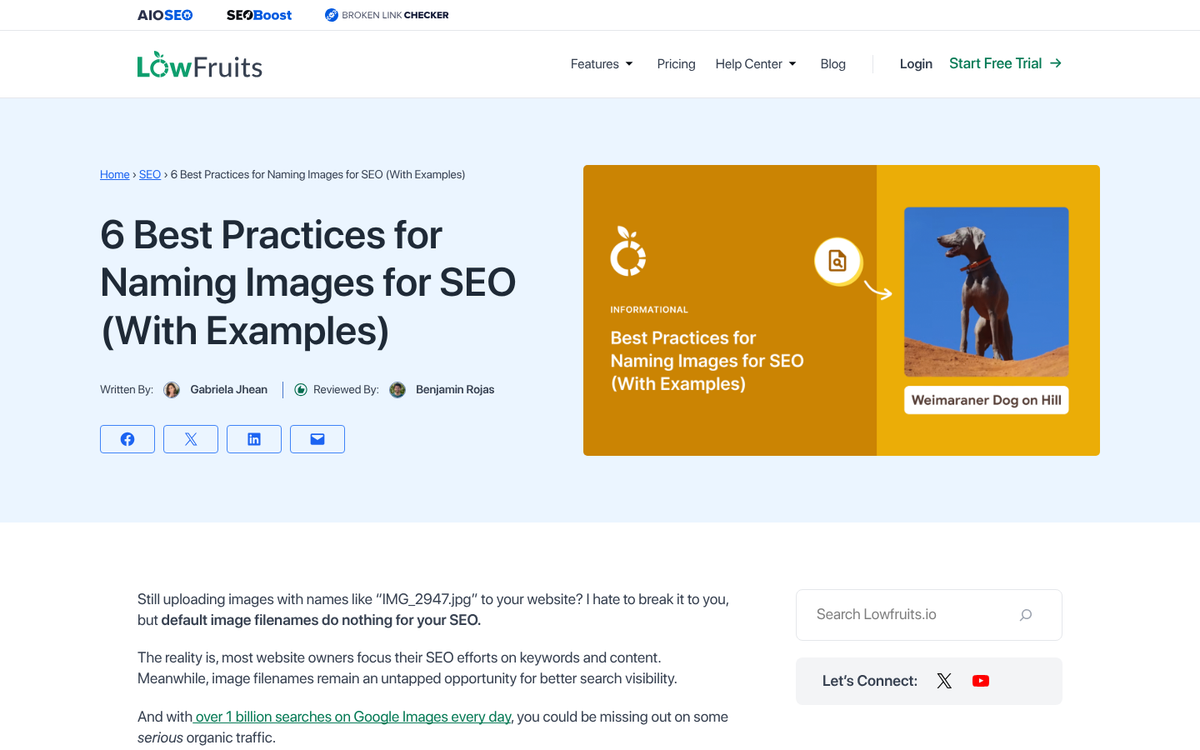
One of the pieces of context that Google uses to understand an image is the filename. For example, if you take a picture with a camera, you might end up with something named DCIM0000194.jpg. That tells Google absolutely nothing about what's in the image.
Now, what if you took a picture of a dog? You could label it dog.jpg, and that's a start. But you can go further. How about brown_dog.jpg? Or, even better, adult_golden_retriever.jpg? The more specific you are in your filename, the better off you're going to be.
Accurate, descriptive filenames give Google useful context both for image SEO and for your page SEO as a whole. The filename is part of the page's content signals, so treat it accordingly.
Use Descriptive Alt Text

Alt text, or alternate text, is the textual description of the image. This is not a caption. The purpose of alt text is to describe what's in the image for users who can't see it - whether that's due to a slow connection, a broken image, or a screen reader used by someone with a visual impairment.
Alt tags are like any other text on your site in that they are readable and understandable to Google. That means you need to follow the usual rules for copy on the web. No keyword stuffing. Just describe your image in plain English. Be specific where it helps - model numbers for products, for example, are a great inclusion. Avoid using alt tags for minor decorative images like background flourishes or dividers. If you're unsure about broader on-page formatting decisions, it's also worth considering whether to use H1, H2, or H3 tags in your blog posts.
Captions are entirely optional. If you can add genuine value with a caption, it's worth doing. If not, don't force it.
Optimize for Google Discover
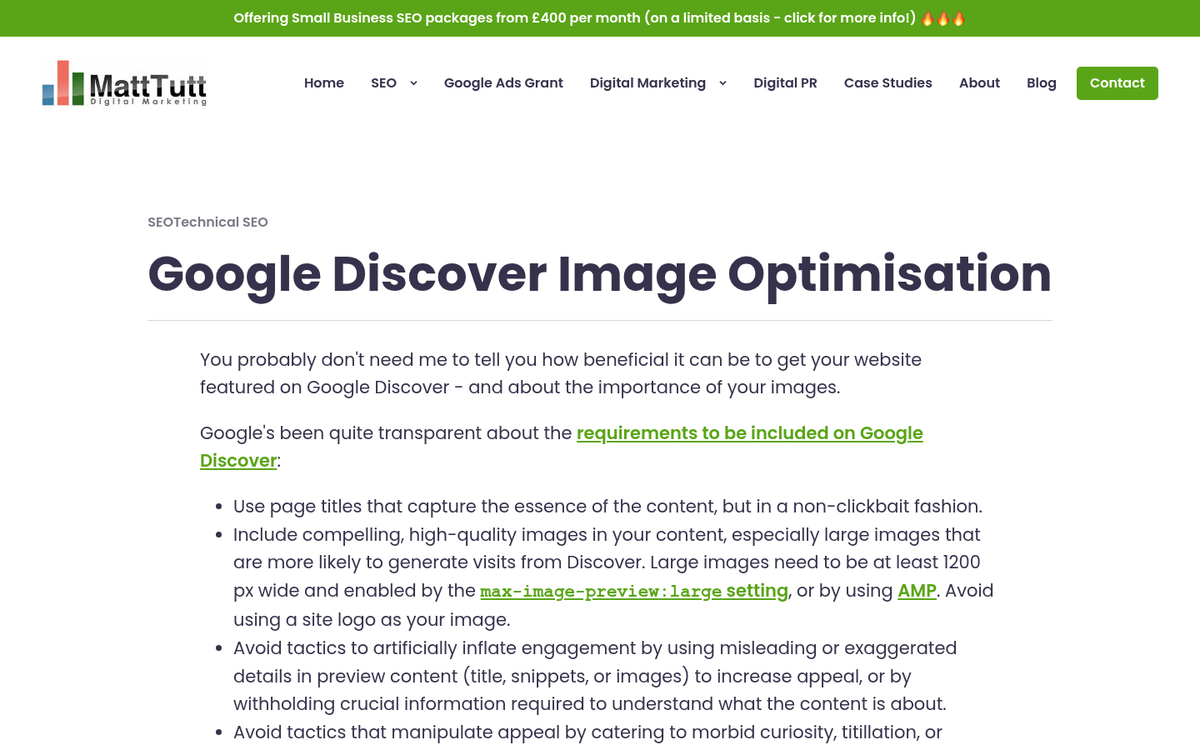
This is something a lot of image SEO guides from even a few years ago completely missed. Google Discover has become a significant source of passive traffic, and images play a central role in whether your content gets surfaced there.
To be eligible for large image previews in Discover, your images need to be at least 1,200 pixels wide. You also need to include the max-image-preview:large robots meta tag in your page's header. Without this, Google will either show a small thumbnail or skip your content entirely in Discover feeds.
This is a low-effort, high-reward change that most sites still haven't implemented. Don't be one of them. If you're also managing your site's ability to handle traffic spikes, making sure your infrastructure is ready before optimizing for Discover is worth prioritizing.
Use Plenty of Images
This tip applies to eCommerce sites especially, but works across the board. If you have a product to sell, take multiple photos: front, sides, angles, detail shots, in-use context shots, and so on. When optimizing alt text and filenames, include specific identifying information. BMW_coupe_leather_interior is a good specific name for a focused interior shot.
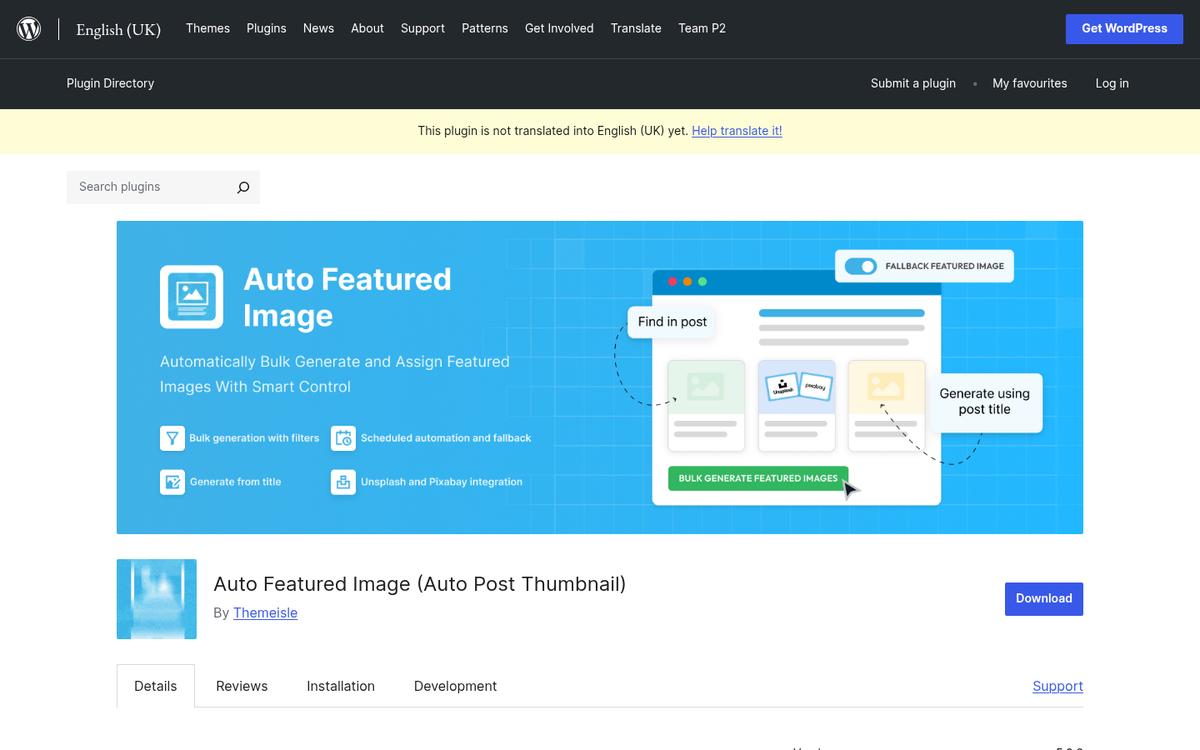
For blog posts, I like to average one image every 500-1,000 words depending on context. If the post covers something inherently visual, lean into it. A thumbnail gallery embed can work well if you have a lot to share. You can also get free images for your WordPress posts with a plugin to keep things moving quickly. The more relevant images you have, the more entry points you create in image search, and properly hosting your blog images ensures they load reliably for every visitor.
Use the Right File Format - Including WebP
In 2026, the old conversation about JPG vs. PNG vs. GIF is only part of the story. WebP is now the format you should default to in most cases.
WebP delivers 25-35% smaller file sizes than JPEG with no visible quality loss. It also supports transparency (like PNG) and animation (like GIF), making it a genuinely versatile format. All major browsers fully support it, and most modern CMS platforms - including WordPress - will either convert to WebP automatically or have plugins that handle it for you.
Here's a quick breakdown of when to use each format:
- WebP - Your new default for photos, illustrations, and most web images. Smaller, faster, widely supported.
- JPG - Still fine for photos if WebP isn't an option, but WebP should be the preference.
- PNG - Use when you need lossless quality or transparency and WebP isn't available.
- GIF - Largely outdated. Use WebP or short MP4/WebM video for animation instead.
- AVIF - An emerging format with even better compression than WebP, but browser support is still catching up.
One rule that hasn't changed: never use code alone to scale down a large image. It may display smaller, but it still takes just as long to load. Resize and compress images before uploading them. If you're sizing images for specific platforms, it's worth checking how to size blog post images for Pinterest as well, since dimensions matter there too.
Shrink Image File Size

Google uses page load times as a ranking factor, and Core Web Vitals - particularly Largest Contentful Paint (LCP) - are directly tied to how fast your images load. Images are almost always the heaviest element on a page, so this matters.
Image compression is the solution. If your CMS doesn't handle it automatically, you need to. WordPress does compress images by default, and plugins like Imagify or ShortPixel go further. If you're curious about what other plugins a site is running, you can find out what plugins a WordPress blog is using fairly easily. Shopify handles compression on its end as well. But don't assume your platform is doing enough - verify it.
Good news: compression doesn't necessarily mean a loss of quality. Most modern compression eliminates tiny, imperceptible color variations that the human eye can't detect at screen resolution anyway. Your images will look the same and load significantly faster. Faster load times also matter if you're on a shared web server handling high traffic.
Tools worth using:
- TinyPNG - Simple drag-and-drop compression for PNG and JPG
- Squoosh (by Google) - Free, browser-based, supports WebP and AVIF conversion
- Adobe Photoshop / Lightroom - Export for web with compression controls
- ShortPixel / Imagify - WordPress plugins that handle bulk compression automatically
Make Images Appropriately Sized
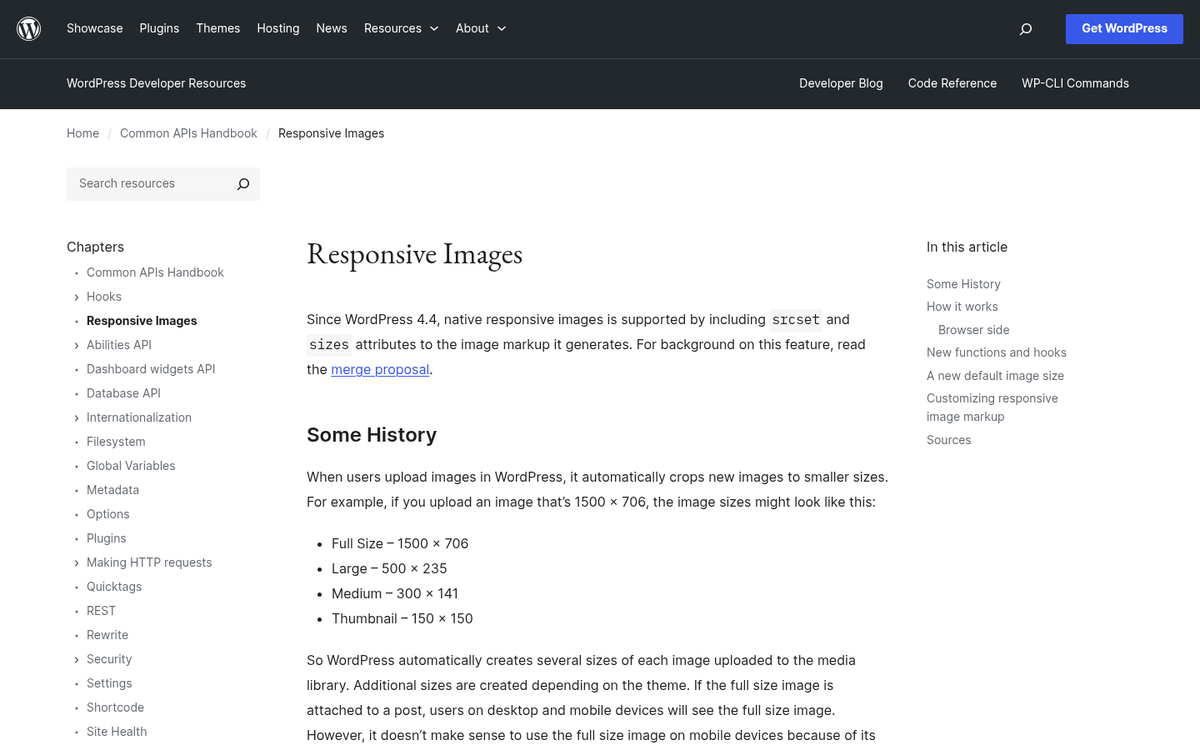
High resolution images are great for users, but there's one significant problem: they take much longer to load. Even on a fast connection, oversized images slow things down - especially on mobile.
The right approach is to serve correctly sized images for the context. A featured image displayed at 800px wide should never be a 4,000px wide file just because you have the original. Use responsive image techniques - the srcset attribute in HTML - to serve appropriately sized versions depending on the device.
For images you want users to be able to view in full detail, embed a smaller version in the page and link to the full-resolution file. That way the page loads fast and users who want the detail can still get it. If your site runs on WordPress, you may also want to keep other page elements loading efficiently to avoid compounding slowdowns.
Consider a CDN - Carefully

A CDN (content delivery network) hosts your media files across a distributed network of servers, serving content from whichever location is physically closest to the user. This can meaningfully reduce load times, especially for a globally distributed audience.
However, CDNs come with an important SEO caveat for images. If your images are served from a CDN subdomain rather than your own domain, those images may not be associated with your site in Google's index. Anyone clicking through from Google Images may not land on your site. Make sure your CDN is configured to serve images under your own domain, not a generic CDN URL.
Modern CDNs like Cloudflare (which has a generous free tier), CloudFront, or Bunny.net can be set up correctly to avoid this issue. If you're not sure whether your setup is working correctly from an SEO standpoint, check how your images appear in Google Search Console. You can also explore a complete list of free CDNs for your blog to find the right option for your needs.
Fill In All Available Image Metadata
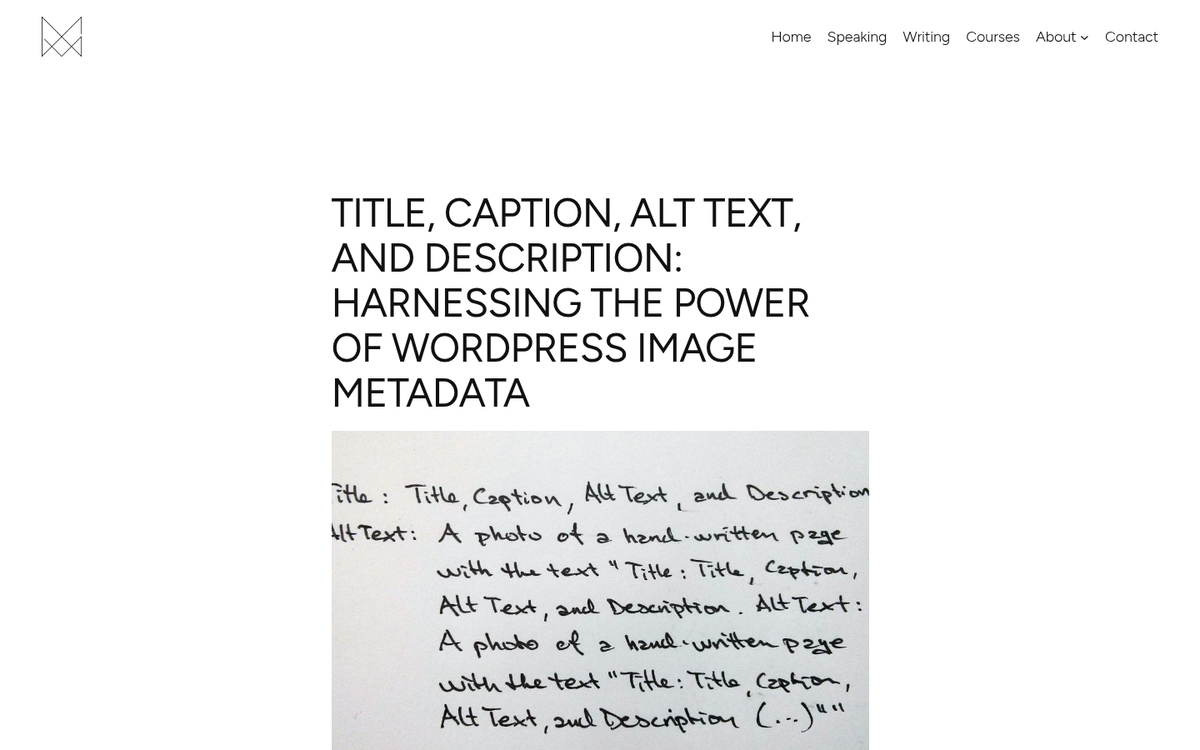
WordPress and most modern CMS platforms give you several metadata fields when you upload an image. Use them.
- Title - Appears as hover text in some browsers. Should be descriptive and relevant.
- Caption - Appears beneath the image. Use it when it adds genuine context or value.
- Alt text - The most important field for both accessibility and SEO. Describe the image clearly and specifically.
- Description - Internal metadata within the CMS. Not publicly visible, but useful for your own organization and can be picked up by some themes and plugins.
Don't skip these fields. They take seconds to fill in and they compound over time across hundreds of images.
Use Structured Data for Images
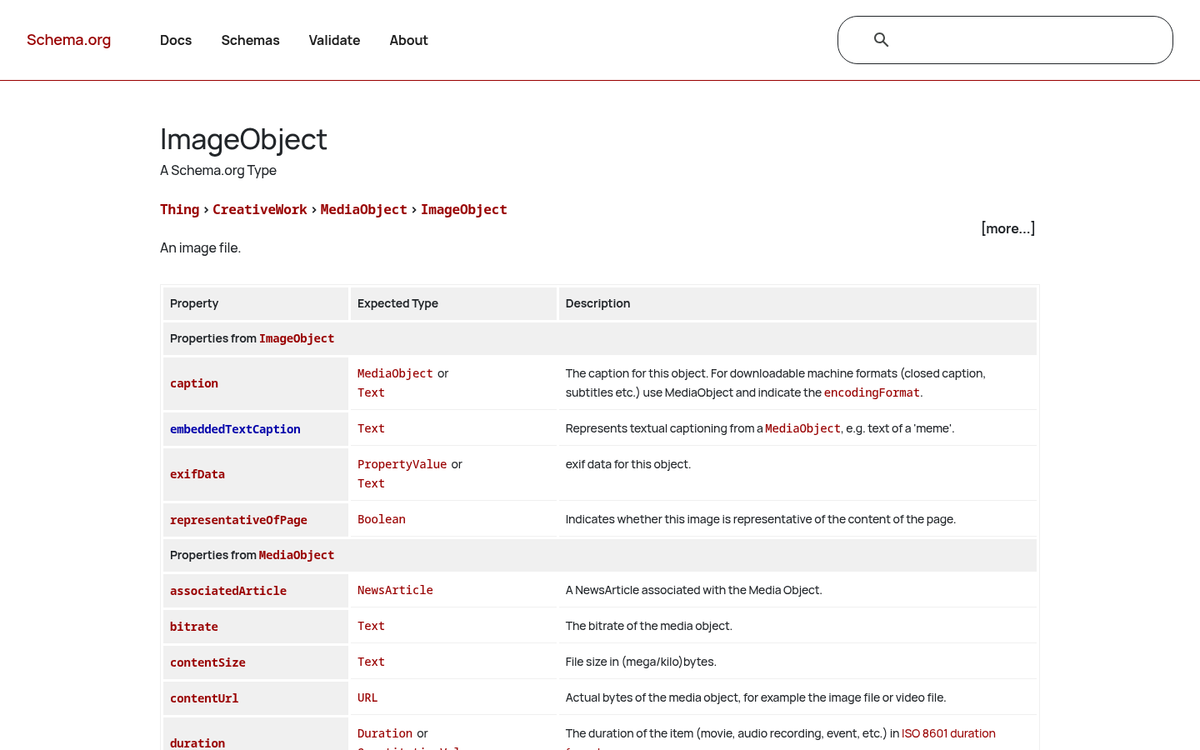
One thing that wasn't common practice a few years ago but is increasingly important in 2026: image structured data. Using schema markup - particularly ImageObject within your page's structured data - gives Google explicit, machine-readable information about your images.
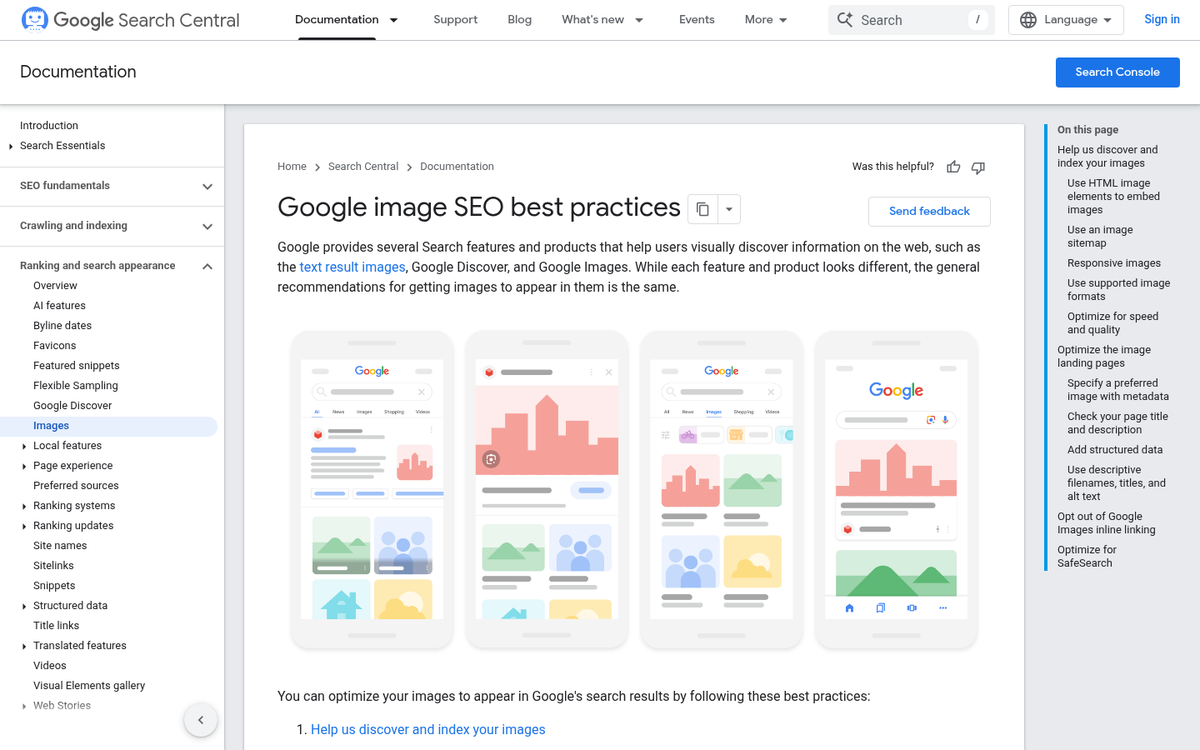
For recipe sites, product pages, article pages, and video content especially, properly marked-up images are more likely to appear in rich results and image carousels. Google's documentation on image best practices has expanded significantly, and structured data is now part of the official guidance.
After all is said and done, you should find your images showing up more consistently for relevant queries in Google Image Search and Google Discover. With visual search growing 30% annually and images accounting for nearly a third of all Google results page real estate, this is not a channel to sleep on. It's one of the highest-ROI, lowest-competition areas of SEO left - but only if you actually do the work.