Key Takeaways
- Always back up theme files before editing, using managed host tools or a plugin like UpdraftPlus.
- Use a child theme to safely override footer.php without changes being wiped during parent theme updates.
- Footer content may be injected via functions.php or action hooks, not just footer.php, requiring broader searching.
- AI tools like ChatGPT or Claude can explain PHP code and recommend safe edits without requiring developer knowledge.
- Obfuscated code in themes is a serious red flag; consider abandoning such themes for trusted WordPress.org alternatives.
WordPress footers can clutter your site's design, expose unnecessary information, and in some cases, signal to automated bots and scanners that your site is running WordPress - making it a potential target for exploit attempts. While WordPress itself has become more protected over the years, advertising your platform unnecessarily is still worth avoiding - and that's especially true now that AI-powered vulnerability scanners have made automated attacks faster and more refined than ever.
Of course, security isn't the only reason to remove or edit your footer. The most common motivation is basically wanting to remove spammy backlinks injected by theme developers, or to make your footer match your intended site design without unwanted branding or credits cluttering the bottom of every page.
Unfortunately, there's no easy toggle to remove footer content. You'll need to do a bit of digging. Here are the most helpful methods, ordered from easiest to most advanced.
Before You Begin: Back Everything Up
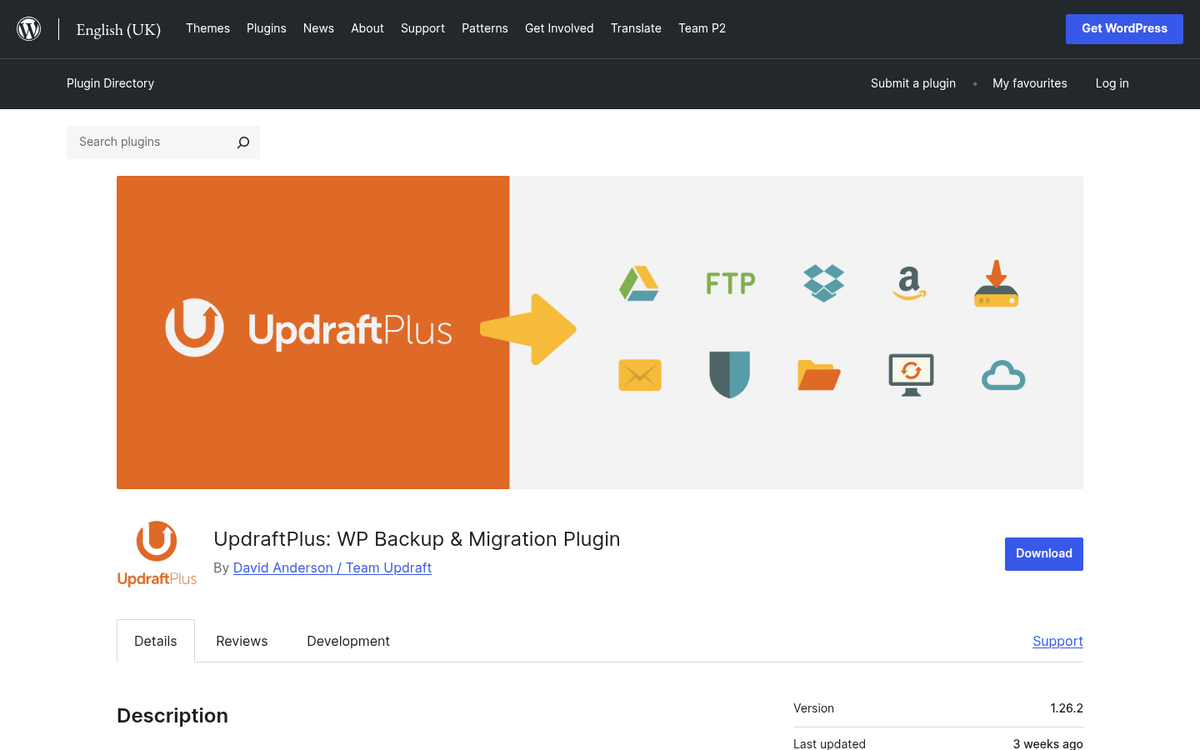
Regardless of which strategy you use, always back up your theme files before making any edits. If something breaks, you'll want to be able to restore your site quickly. Most managed WordPress hosts (like WP Engine, Kinsta, or Cloudways) give you one-click backups. You can also use a plugin like UpdraftPlus to back up your site files and database before starting.
Use a Child Theme
If you're not already using a child theme, now is the time to start. A child theme inherits the styles and functionality of its parent theme but lets you override files - like footer.php - without your changes being wiped out every time the parent theme updates. This is now considered standard best practice and is strongly recommended over editing parent theme files. If you're customizing the look of your site, you may also want to read about styling a WordPress blog theme to match your site.
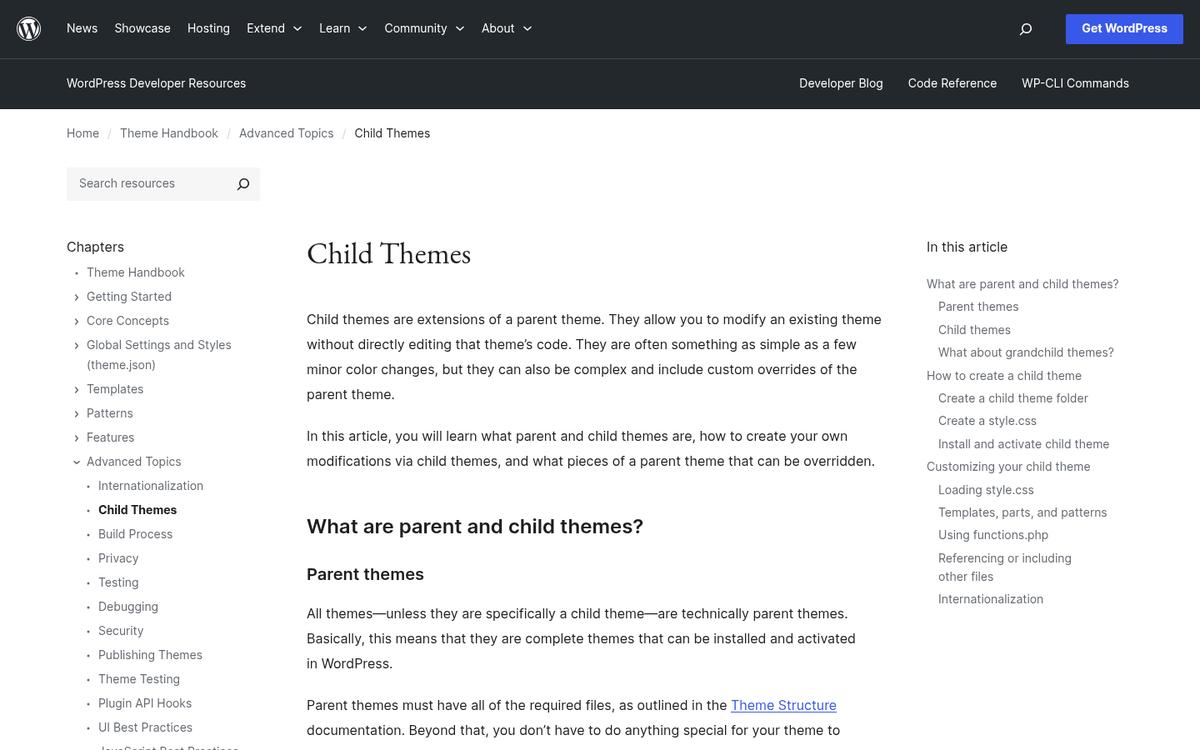
To create a child theme, create a new folder in your /wp-content/themes/ directory, add a style.css file with a Template: header pointing to the parent theme, and add a basic functions.php that enqueues the parent theme's styles. Then copy only the files you want to override - like footer.php - into the child theme folder and edit those copies freely.
The Basic Dashboard Method
This is the simplest strategy and the right place to start. In your WordPress dashboard, navigate to Appearance → Theme File Editor (formerly called the Theme Editor). From the file list on the right, find and open footer.php. You can directly remove or edit any unwanted credits, backlinks, or "Powered by WordPress" lines here.
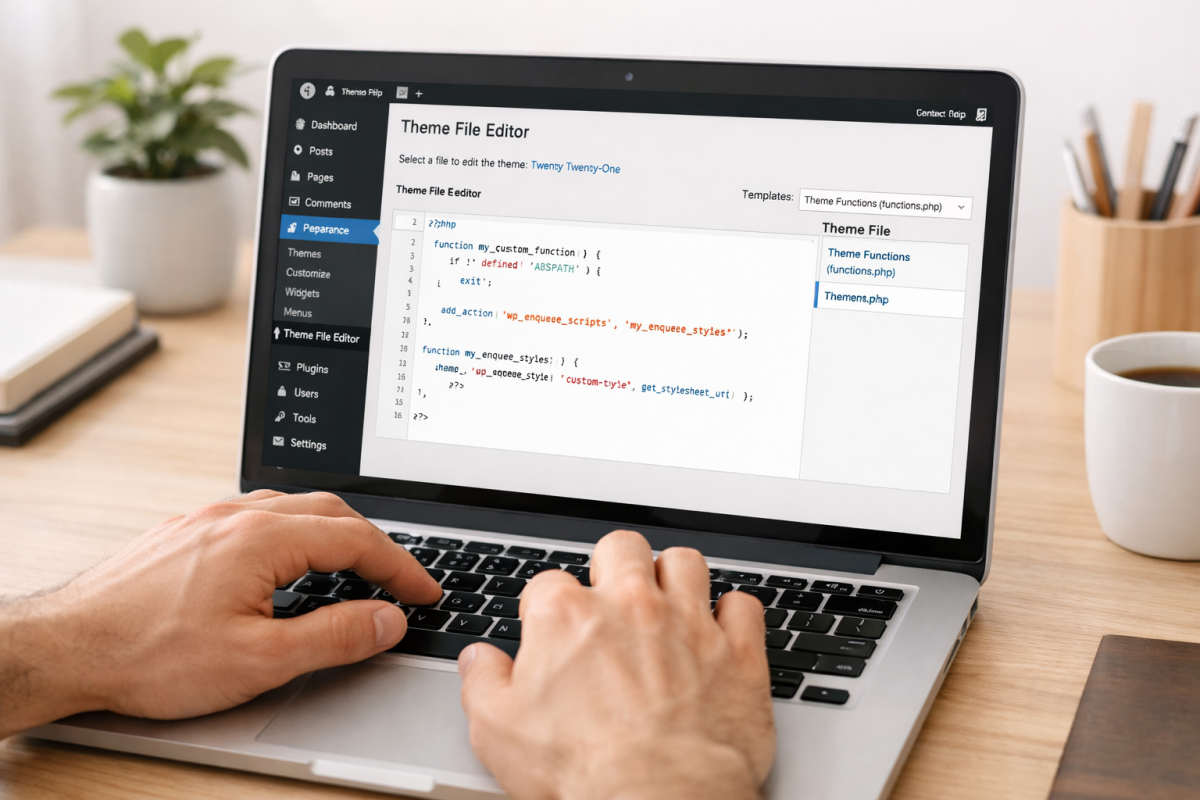
Remember that if you're editing the parent theme directly, your changes will be overwritten the next time the theme updates; it's another reason to use a child theme as mentioned above.
Note: As of WordPress 6.x, some block-based themes (Full Site Editing themes) no longer use a traditional footer.php file. Instead, the footer is managed through the Site Editor (Appearance → Editor); you can visually edit footer blocks without touching any PHP at all. If you're using a block theme, start there. If you're still getting familiar with your setup, it may also be worth knowing what plugins you should install on a new WordPress site to keep everything running smoothly.
Check Your footer.php File Directly
If you can't access or save the file through the dashboard, download it via FTP or your hosting file manager (most hosts give you one through cPanel or a similar interface). Open it in a code editor and search (Ctrl+F) for the text appearing in your footer - like "Powered by," "Coded by," or the theme author's name - and remove or edit those lines.
For code editors, modern recommendations include Visual Studio Code (free, Windows/Mac/Linux, with PHP support), Sublime Text, or Nova for Mac users. These have replaced older tools like Notepad++ and Dreamweaver as the favorite options for most developers. Avoid opening PHP files in Microsoft Word or any rich-text editor, as these will corrupt your files. If you want to stay focused while editing, check out these distraction-free writing and editing tools that can help streamline your workflow.
When saving, make sure your file encoding is set to UTF-8 without BOM. The BOM (Byte Order Mark) can cause a white screen or headers-already-sent errors in WordPress. Most modern editors manage this correctly by default, but it's worth confirming in your editor's settings.
Check functions.php for Footer References
Some themes inject footer content through functions.php instead of footer.php. Open this file and search for terms like footer_output, footer_content, wp_footer, or the plaintext phrases you see in your footer. You may find something like:
$footer_content.= 'Powered by WordPress & Coded by Theme Author X';
In this case, don't delete the entire line - doing so will cause a PHP error because other code still references the variable. Instead, remove only the text between the quote marks, leaving it as an empty string:
$footer_content.= '';
This way the code still runs and returns what it expects, it just outputs nothing. If you run into bigger issues after editing theme files, it may help to know how to diagnose and fix an internal server error before things get out of hand.
Check Related and Hook Files
More complex themes may inject footer content via WordPress action hooks in files other than footer.php or functions.php. Look for add_action calls that reference footer-related functions, including ones hooking into wp_footer or a custom hook. Searching the entire theme folder for the plaintext footer phrases is the most reliable way to track these down.
If your host's file manager doesn't support full-text search across files, download the entire theme folder and open it in Visual Studio Code, which lets you search across all files in a folder simultaneously with Ctrl+Shift+F. If you're also dealing with automatically injected content in your WordPress posts, the same approach can help you locate the responsible hooks.
Using AI Tools to Decode and Edit Footer Code
This is a significant change since older versions of this guide were written. In 2026, you don't need to be a developer to understand or modify PHP code. AI coding assistants like ChatGPT, GitHub Copilot, or Claude can read your PHP files, explain what each section does, and recommend the precise edits needed to remove footer content - all in plain English.
Simply paste the relevant section of your footer.php or functions.php into one of these tools and ask something like: "What does this code do and how do I remove the footer credit text without breaking anything?" This has dramatically lowered the barrier to making safe, targeted edits without needing to know PHP. If you're also exploring other plugins and tools for your site, check out our list of tools for advanced bloggers to find more options worth considering.
Check for Obfuscated Code
Occasionally you'll see obfuscated code - intentionally scrambled PHP designed to prevent easy editing - it looks something like this:
eval(base64_decode('Yhpb2cl9tZd34g3R3RXRlBfZ2ZnVuV0X2ZvbKCl='));
The eval and base64_decode functions tell PHP to decrypt and run the hidden code at runtime, which makes it invisible to a simple text search. You can decode it manually using a base64 decoder, or paste it into an AI assistant and ask it to break down and explain the code.

However, the more important point here is this: if you find obfuscated code in a theme, treat it as a red flag and seriously consider abandoning the theme. Legitimate theme developers have no reason to hide their code. Obfuscated code in WordPress themes has historically been used to inject hidden spam links, create admin backdoors, harvest credentials, or run malicious scripts on your server - this has only become a bigger concern as automated tools have made it easier to deploy and manage compromised themes at scale.
There are well-maintained, honest free themes available directly through the WordPress.org theme directory, which are reviewed for malicious code before listing. Stick to those, or invest in a respected premium theme from an established provider like StudioPress, Elegant Themes, or similar established developers.
Premium Theme Upgrades
If you're using a free version of a theme and the developer has made footer removal deliberately difficult, it's worth considering purchasing the premium version. Most premium themes either remove the footer credit entirely or make it trivially easy to customize. Premium themes also usually have active support, regular security updates, and full site editor compatibility - all increasingly important things in 2026. It's also a good time to consider what plugins your WordPress blog is using to make sure everything stays compatible.
If none of the above methods work and you'd rather not switch themes or pay for an upgrade, consider reaching out to the theme developer. Many are responsive and may either help you remove the footer or point you toward the right file to edit. While you're making site improvements, it's also worth reviewing how much it costs to make your site mobile friendly to ensure your visitors have the best experience possible.