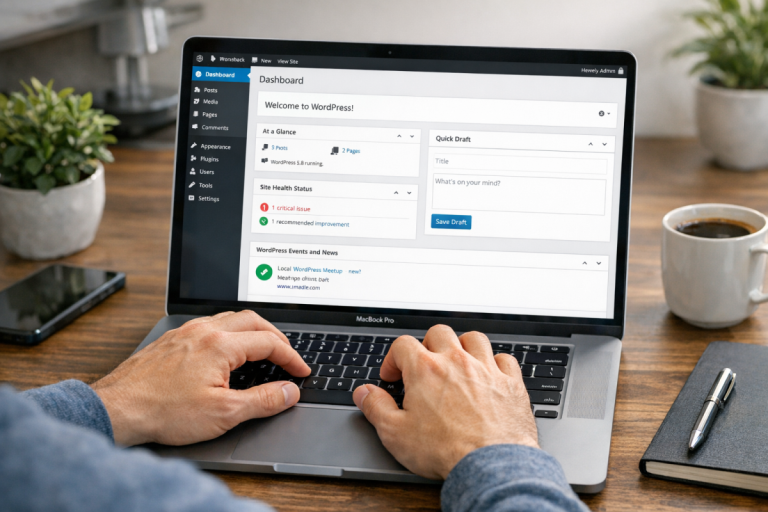
WordPress is a phenomenal platform, and that fact is proven every day by the millions of blogs, business sites, and eCommerce stores running on it. It's widely open to customization and can be altered on a fundamental level by skilled developers and a massive ecosystem of plugins. It's just got one persistent problem: it can get slow fast. Some themes help, but many just pile on top of an already heavy foundation. Combine that with a stack of popular plugins and you have pages loading in seconds instead of milliseconds - and in 2026, that's a death sentence for your rankings.
Thankfully, speeding up your WordPress site is a massive part of optimizing for incoming traffic. Google's Core Web Vitals are now firmly baked into ranking signals, meaning a slow site isn't just a bad user experience - it's actively costing you positions. A site passes Core Web Vitals when LCP is under 2.5 seconds, INP is under 200 milliseconds, and CLS is below 0.1. The tweaks, changes, plugins, and patches below will help you hit those marks and rank better across the board.
Key Takeaways
- Google's Core Web Vitals are ranking signals; sites must hit LCP under 2.5s, INP under 200ms, and CLS below 0.1.
- Choosing WordPress-optimized hosting like Kinsta or WP Engine directly improves load speed, since 53% of visitors abandon slow sites.
- Caching plugins like NitroPack, WP Rocket, or LiteSpeed Cache dramatically reduce server load by serving pre-built static pages.
- Compressing images, converting to WebP or AVIF, and adding descriptive alt text improves performance and Google Image Search visibility.
- Outdated or unused plugins are both a performance liability and a security risk; inactive installed plugins can still pose threats.
Pick Solid Hosting
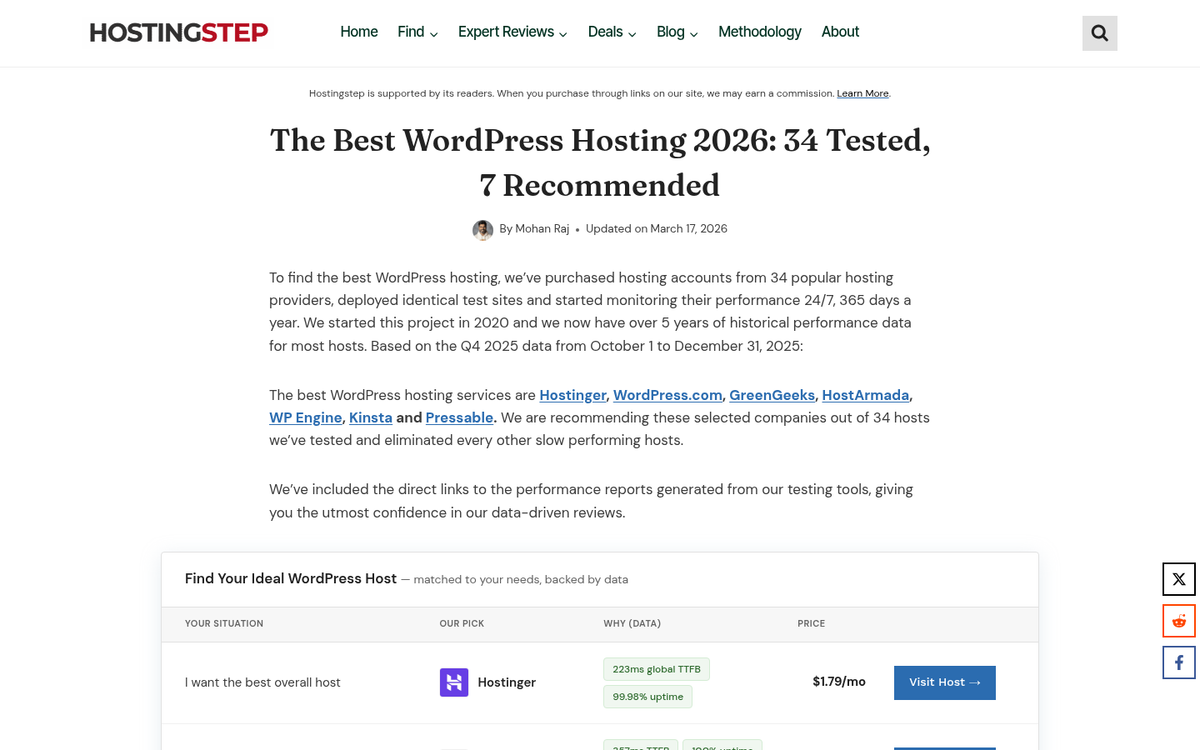
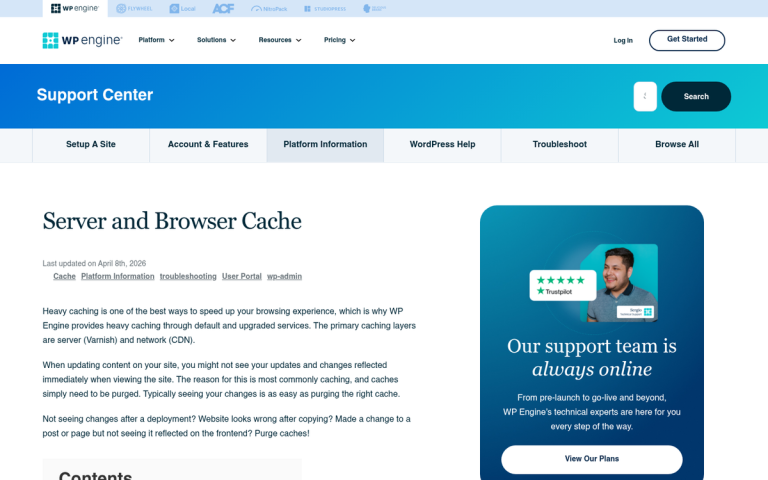
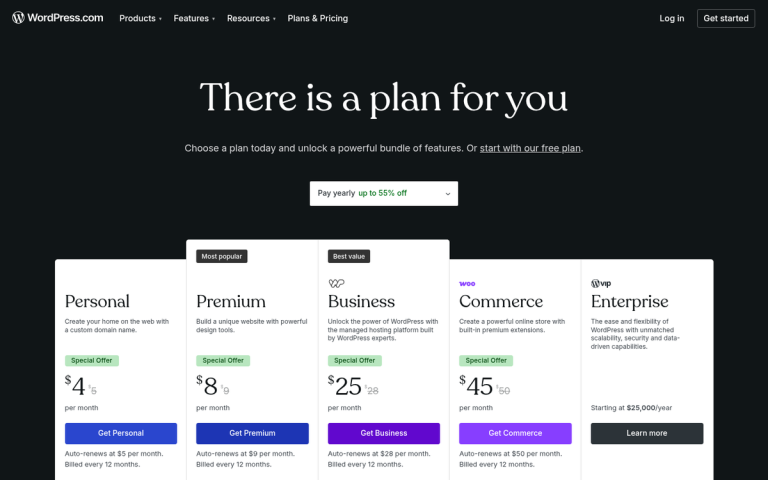
Your web host has a surprising and direct effect on both your site load speed and your SEO, and those two are more tightly connected than ever. A faster site load is a confirmed search ranking factor, and with Core Web Vitals in play, the stakes are higher than they were even a few years ago. A good WordPress-optimized web host - think Kinsta, WP Engine, or Cloudways - will be configured specifically to serve WordPress quickly and reliably. Cheap shared hosting might save you a few bucks a month, but you'll pay for it with bloated load times and frustrated visitors. Remember, 53% of visitors will abandon a site if it takes more than 3 seconds to load. Your hosting is where that battle starts, and choosing one of the fastest SEO hosting packages can make a real difference.
Pick an Optimized Theme
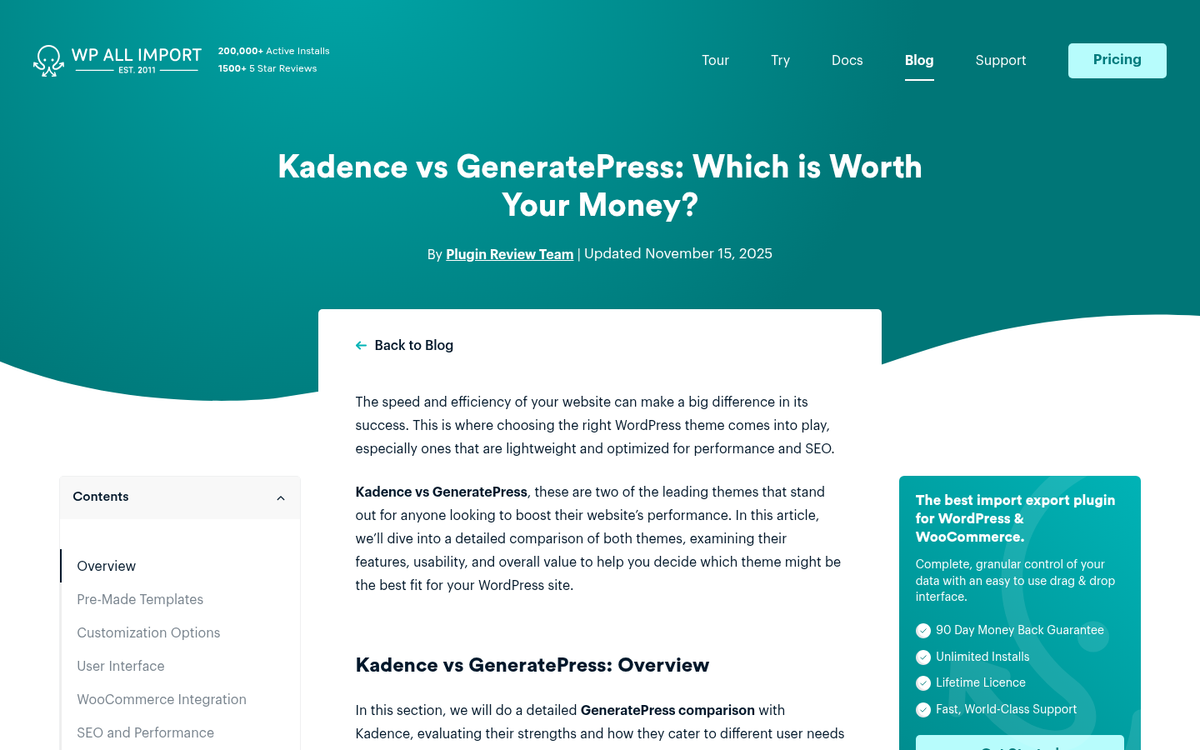
Many WordPress themes advertise themselves as SEO-friendly because novice site owners are looking for that label, but marketing copy doesn't equal performance. In 2026, a good theme needs to be lightweight, mobile-responsive, and Core Web Vitals-friendly right out of the box. This matters more than ever given that mobile now accounts for 55% of all WordPress site traffic, yet only 45% of WordPress sites use fully responsive themes. Look at frameworks like GeneratePress, Kadence, or Blocksy - they're fast, flexible, and play well with modern page builders and plugins. Your theme is your foundation; don't let it be the thing dragging you down.
Use a WP Cache Plugin
Part of why WordPress can be slow to load is that it's heavily based on PHP, which in turn relies on database calls that require a round-trip to your server every time a page loads. A caching plugin dramatically reduces that overhead by serving pre-built static versions of your pages instead. Based on real-world data from over 2 million sites, NitroPack leads Core Web Vitals pass rates at 54%, followed by WP Fastest Cache at 51%, WP Rocket at 50%, and LiteSpeed Cache at 48%. Any of these are solid choices depending on your hosting environment - WP Rocket remains the most user-friendly premium option, while LiteSpeed Cache is hard to beat if your host runs LiteSpeed servers.
Contract a CDN for Media

A Content Delivery Network, or CDN, is a globally distributed network of servers that hosts your static assets and delivers them from whichever location is closest to your visitor. When someone loads your page, instead of every image, script, and stylesheet making a round-trip to your origin server, those assets are served from a nearby edge node. This cuts load times significantly, especially for international audiences. Cloudflare remains the dominant player here and offers a generous free tier. Many managed WordPress hosts now include CDN functionality built in, so check out our list of free CDNs for WordPress before adding another layer.
Use Sensible Permalinks
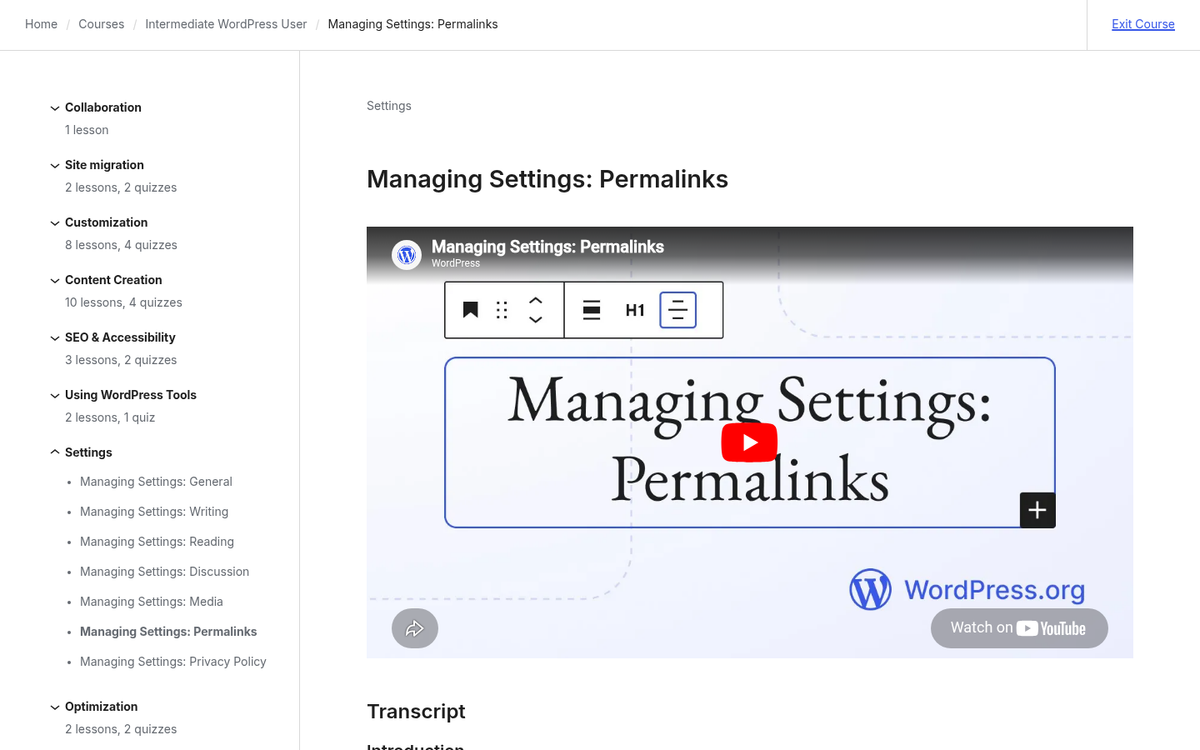
By default, WordPress makes your URLs end in a ?p=#### referencing the post number. This isn't SEO-friendly. In your WordPress settings, click the permalinks section and change the structure to something readable and keyword-relevant. It's generally best practice to use the post name, or a combination of category and post name, depending on your site structure. Clean, descriptive URLs are easier for both search engines and humans to understand - don't overlook this simple win when creating SEO-friendly blog posts.
Use Yoast SEO or a Comparable Plugin
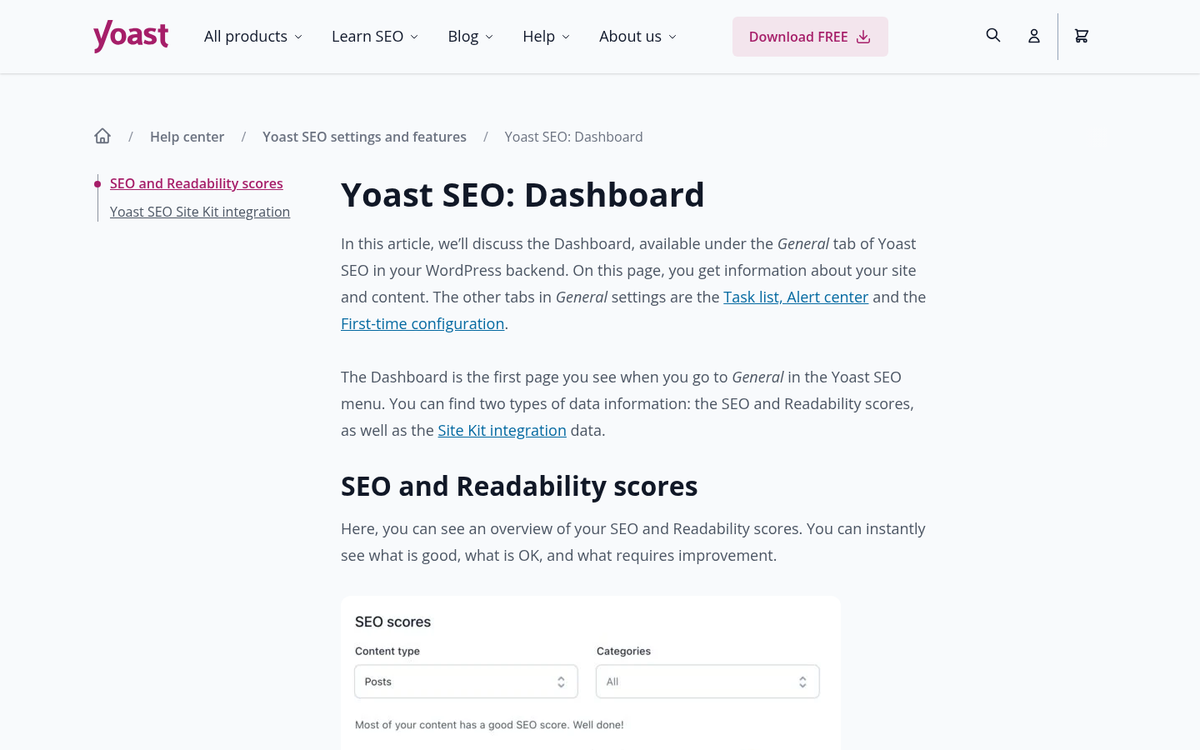
Yoast's SEO plugin remains one of the most robust and widely used options available, with over 450 million downloads making it the most installed SEO plugin in the WordPress ecosystem. With it, you can enable canonical URLs to avoid duplicate content, automate page meta titles and descriptions, control noindex and nofollow settings for specific pages, generate XML sitemaps, and add structured data markup automatically. That last point matters more in 2026 than ever - WordPress sites using structured data are 43% more likely to rank higher in search results, according to Moz. If you want an alternative, Rank Math has become a serious competitor with a strong free tier and built-in schema controls worth exploring.
Optimize Images and Image Alt Text

Image optimization remains one of the highest-leverage things you can do for WordPress performance. Tools like ShortPixel, Imagify, and Smush can compress images automatically on upload, reducing file size without a visible drop in quality. In 2026, you should also be converting images to next-gen formats like WebP or AVIF - both are now widely supported and significantly smaller than traditional JPEGs and PNGs. While you're at it, always specify descriptive alt text for every image you use. It's a chance to surface in Google's image search, and it's another opportunity to reinforce your target keywords.
Lazy Load Images and Videos

WordPress has had native lazy loading built in since version 5.5, so if you're on a modern install, your images should already be deferring load until they're about to enter the viewport. That said, it's worth confirming this is active and extending the behavior to iframes and embedded videos as well. Lazy loading prevents below-the-fold media from blocking your initial page render, which directly improves your LCP score - one of the three Core Web Vitals metrics Google uses as a ranking signal.
Manage Your Comments Setup

WordPress's native comment system has improved over the years, but Gravatar still introduces external HTTP requests that can add to your load time. If comments are important to your site, consider whether the native system works for your needs or whether a third-party solution fits better. Whatever you use, make sure it's loading efficiently and not blocking your page render. If comments aren't a priority for your site, don't be afraid to disable them entirely - fewer moving parts means a leaner, faster page. You might also explore ad-free alternatives to Disqus if you want a lightweight option that won't weigh down your site.
Limit Post Revision Storage
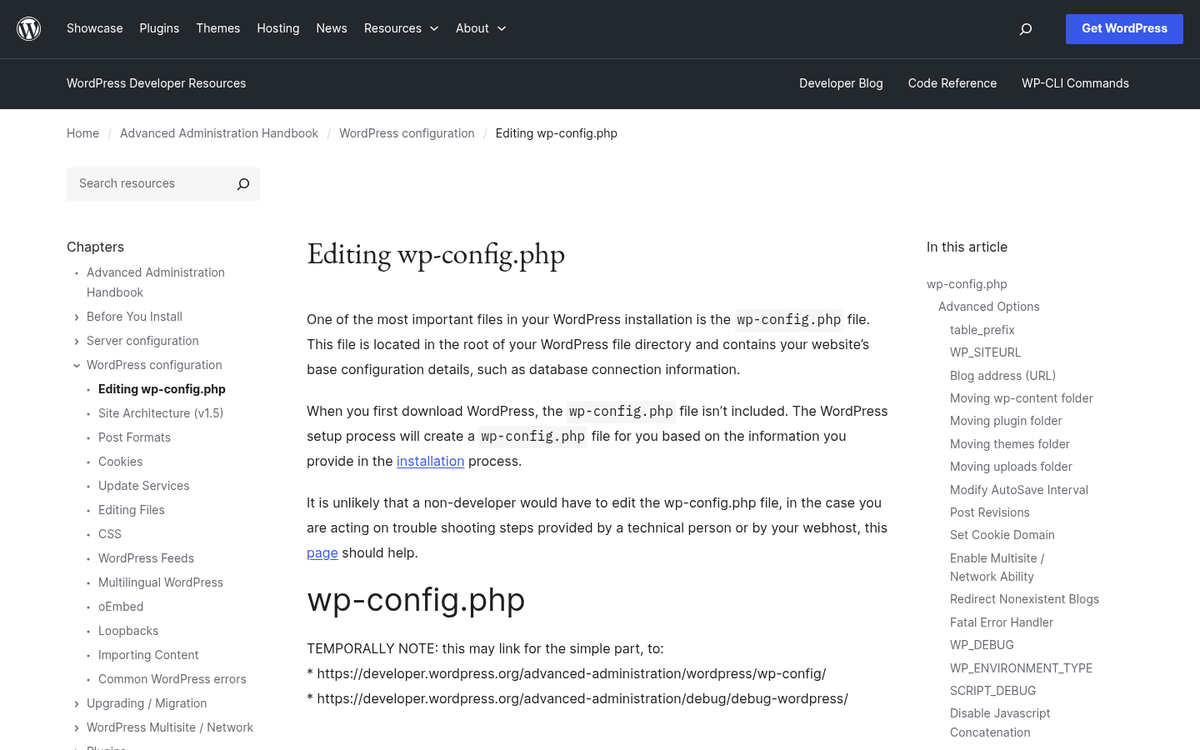
WordPress saves drafts automatically and stores a new revision every time you manually save as well. By default, WordPress will store those revisions indefinitely, which bloats your database over time and adds unnecessary overhead. You can limit the number of stored revisions by adding a simple line to your wp-config.php file, or use a plugin like WP-Optimize to periodically clean up revision clutter, spam comments, and transient data. A leaner database means faster queries and a snappier site.
Set Expires Headers and Leverage Browser Caching
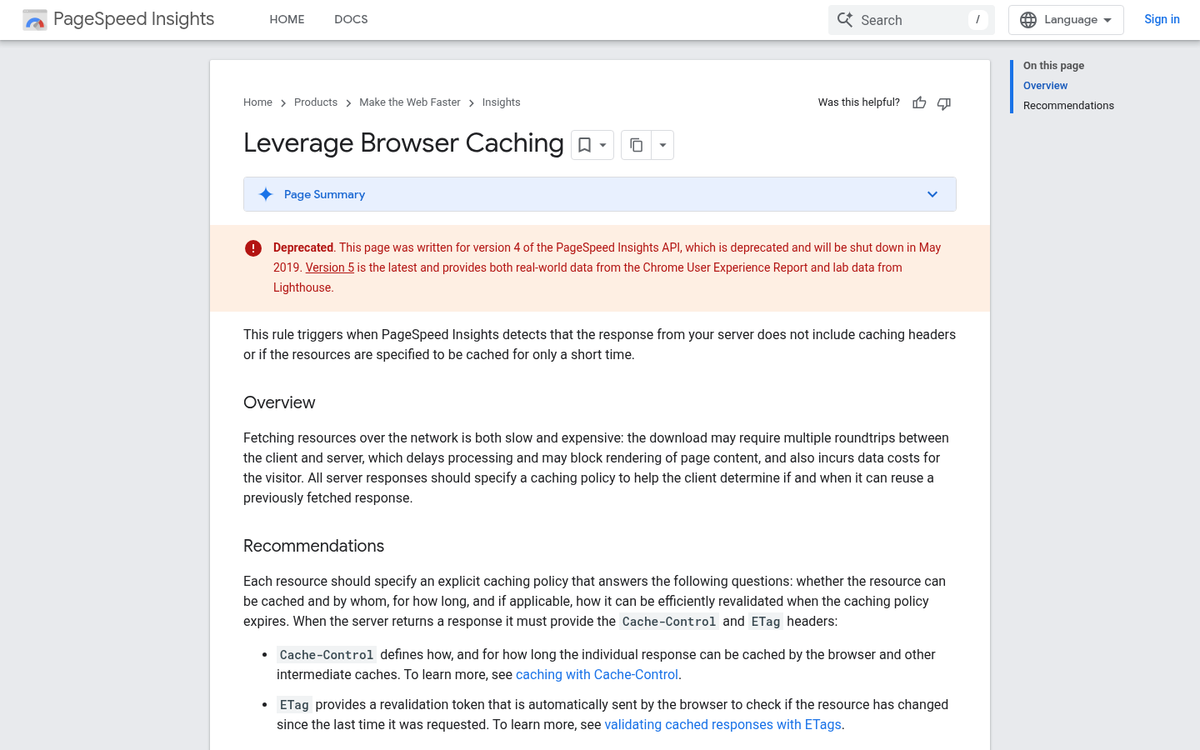
Expires headers tell a visitor's browser how long to cache your static assets locally, reducing repeat requests to your server on return visits. This is typically handled through your .htaccess file or your hosting control panel, and most caching plugins will manage it for you automatically. It's a small tweak with a meaningful impact on performance scores, and it's one of the items that tools like Google PageSpeed Insights and GTmetrix will flag if it's missing.
Audit Plugins Periodically

Every few months, run through your plugin list and ask yourself a few honest questions:
- Do I actively use this plugin?
- Is this plugin necessary for recording analytics data?
- Is this plugin necessary for my theme to function?
- Is this plugin necessary for my site to function at all?
- Is this plugin actively maintained and up to date?
If a plugin is outdated, update it or replace it. If it's unused or redundant, remove it. Abandoned plugins are both a performance liability and a security risk. Remember - a deactivated plugin doesn't load, but an inactive-but-installed one can still pose a threat. When in doubt, delete it.
Keep WordPress and Security Updated
Security might not feel like an SEO issue, but it absolutely becomes one the moment your site is compromised. WordPress's popularity makes it a constant target - any discovered vulnerability can be exploited at scale before a patch is widely applied. Keep your WordPress core, themes, and plugins updated consistently. Enable automatic updates for minor releases at minimum. And make sure you have a reliable backup solution in place so that if something does go wrong, you're not starting from scratch. A hacked or blacklisted site loses its rankings fast, and recovering them takes far longer than the few minutes it takes to stay current.