





Key Takeaways
- Keep tags on your WordPress blog - they help readers find content and support SEO when used correctly.
- Use 3-6 tags per post, maximum 10; over-tagging creates duplicate archive pages and hurts SEO rankings.
- Tags power useful features like word clouds and related posts sections, keeping readers engaged longer on your site.
- Avoid synonym tags like "DIY" and "do it yourself" - they create duplicate content and confuse Google's algorithm.
- Each tag should have at least 3-4 posts behind it; tags referencing only one post aren't worth keeping.
When it comes to correctly organizing your WordPress site, there's a lot to know. You have the basics - what site you want to have, how many posts a week you want to write, if you're offering paid services or just content, if you want advertising, how to correctly use images, how to create author profiles, how to make your site look more desirable, how to use AI tools for content creation, how to...
The list could go on and on, as you probably know. The difficulty is there because a website has to be very flexible in its strategy and very consistent in its organization if it wants to be successful.
What that means is that the best websites, those that continue to be read and favorited by readers around the world, have a strategy applied to design and content and also strictly stick to the rules laid down by search engines like Google.
WordPress tags - the topic you're here to learn about - are a strategy of categorization that's loved by readers and search engines.
For those who can't sit still long enough to read a full post, the quick answer to this post's main question is no, don't kill the tags on your WordPress blog.
The why comes below.
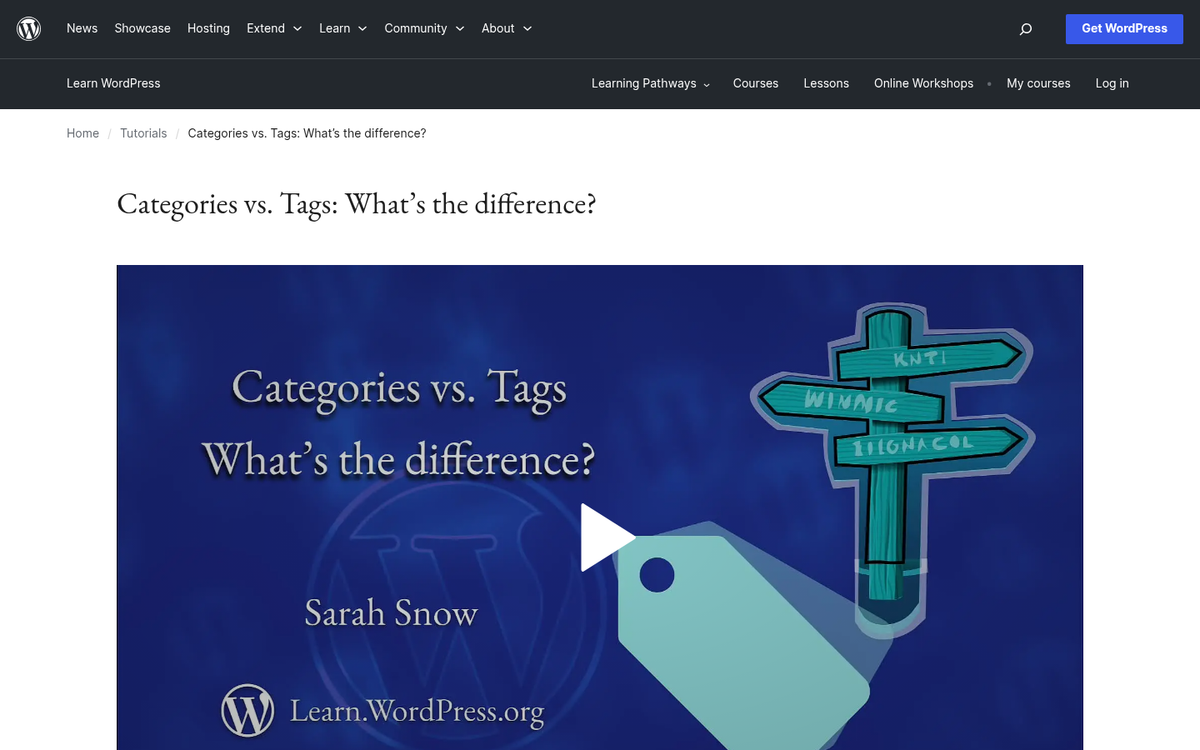
Categories vs. Tags
With tags it's best to first distinguish why they are different from categories - it's actually easy, if you know the concepts.
An online blog implies a website that frequently posts new articles - it doesn't matter what they're on, who wrote them, or why. Each post has a title, body text, hyperlinks to sources, and pictures. If you go to publishing sites like The Atlantic, Vox, or any large news outlet, you'll see this exact basic model.
By default, a blog lists posts on a website chronologically. The post you published most recently appears first. But the post you published years ago appears last - a perfectly valid way to organize content. But it's not the only way you'll want to go about it.
WordPress introduced the category and tag model, which has been adopted by other content management systems (CMS), in order to better organize your content in multiple ways.
Categories
Categories are, most traditionally, what you see along the top navigation bar of a website. They represent bigger, overarching sections of content. A recommended rule of thumb is to keep your total number of categories between 5 to 10 - this keeps your site organized and prevents readers and search engines from getting lost in an overly fragmented structure.
The point of categories is to mark each post within at least one general topic, so readers and search engines know what the post is about. You can mark a post with more than one category, though it's best practice to assign each post a primary category. Keeping things well-structured can also help you optimize your blog in Google Search Console more effectively.
Tags
Tags are a more specific way of indicating what the content is about. Unlike categories, tags are usually found at the very end of the post, before the comments, in a little line separated by commas. If the category is DIY and the post is about building a home, common tags could be "painting, tools, construction, wood, drywall, etc."
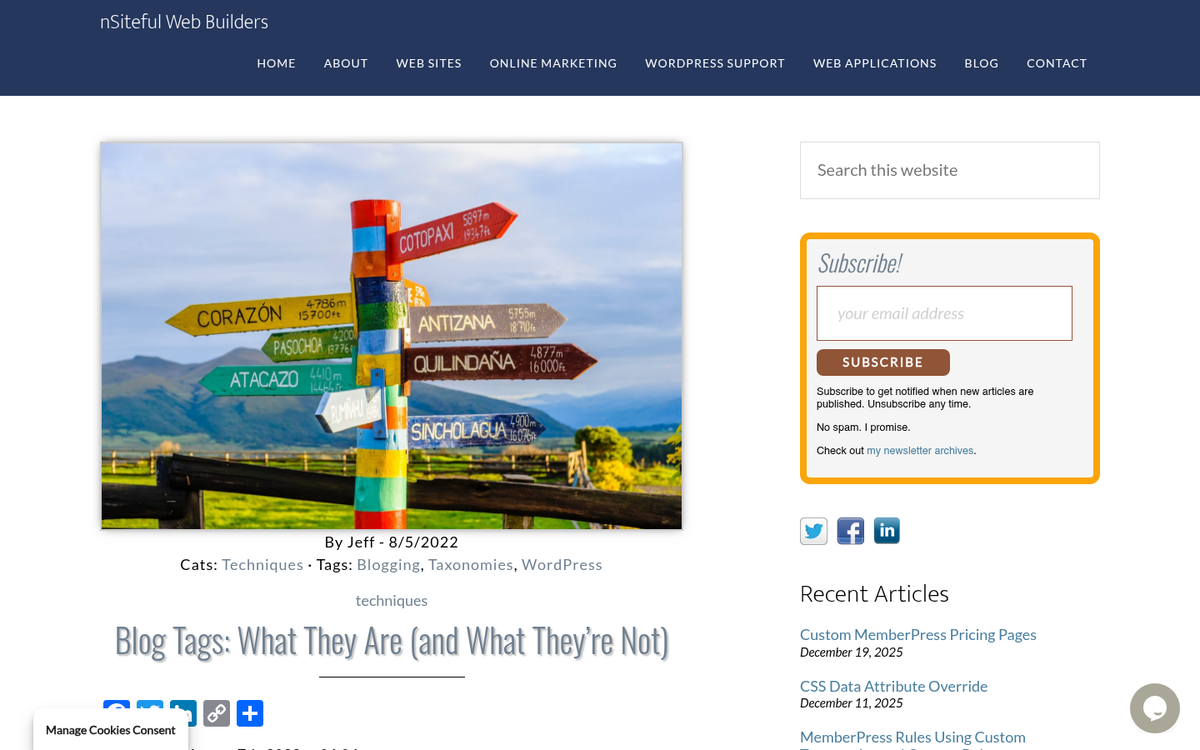
These have to be very specific to the post, so if painting is not mentioned in that post, you wouldn't use that tag. You manually enter tags for every post, further defining what subject the post addresses. You can use as many tags as you want, though some blogs incorrectly use this freedom by adding upwards of 30 tags per post - which is not recommended.
Today, you can use 3-6 tags per post, or as high as 10 if there are a handful of specific words you want the post to be linked to. Anything past that starts working against you.
Why Tags are Necessary
The reason you came to this post was to figure out if tags are even necessary. On the surface they look like an extra step at the end of every post, one that WordPress does not require you to enter.
You can post content without tags. You won't get any penalties, and you might save yourself a minute or two. However, tags are majorly helpful to readers. They can also be used for SEO, which I'll get into a little later.
Reader Orientation

There are a lot of strategies for keeping a reader involved with your website. Most of them have nothing to do with tags. But there's a lot you can do with tags if you just know how.
Word Clouds
A word cloud is that jumble of words in varying sizes that you see on the front page, or subsequent post pages, of blogs. These take the style associated with an infographic and basically show the reader what the "most popular" tags are with a clickable link to each of the tags.

You can either list every tag you've ever used, or your top 10, 20, 30, etc. My suggestion would be to use a word cloud, but to limit the cloud to your top 10 or 20 tags. When you have a word cloud that scrolls the entire length of a sidebar, the reader begins to grow weary and wary, wondering how you could possibly have so many tags.
The benefit of this word cloud is that it's another way for a reader to find content they might want to read. Your blog could be about DIY projects. But maybe your reader specifically wants to know what saw to use. They will see "saws" in a word cloud, click on it, and be taken to all your articles that include saws - this sort of immediacy is hard to reproduce in any other way.
Related Posts
Another important factor is how your website or plug-in determines the "Related Posts" section of your website - usually a sidebar widget or a section below a post that lists posts directly related to the one your reader is currently reading.
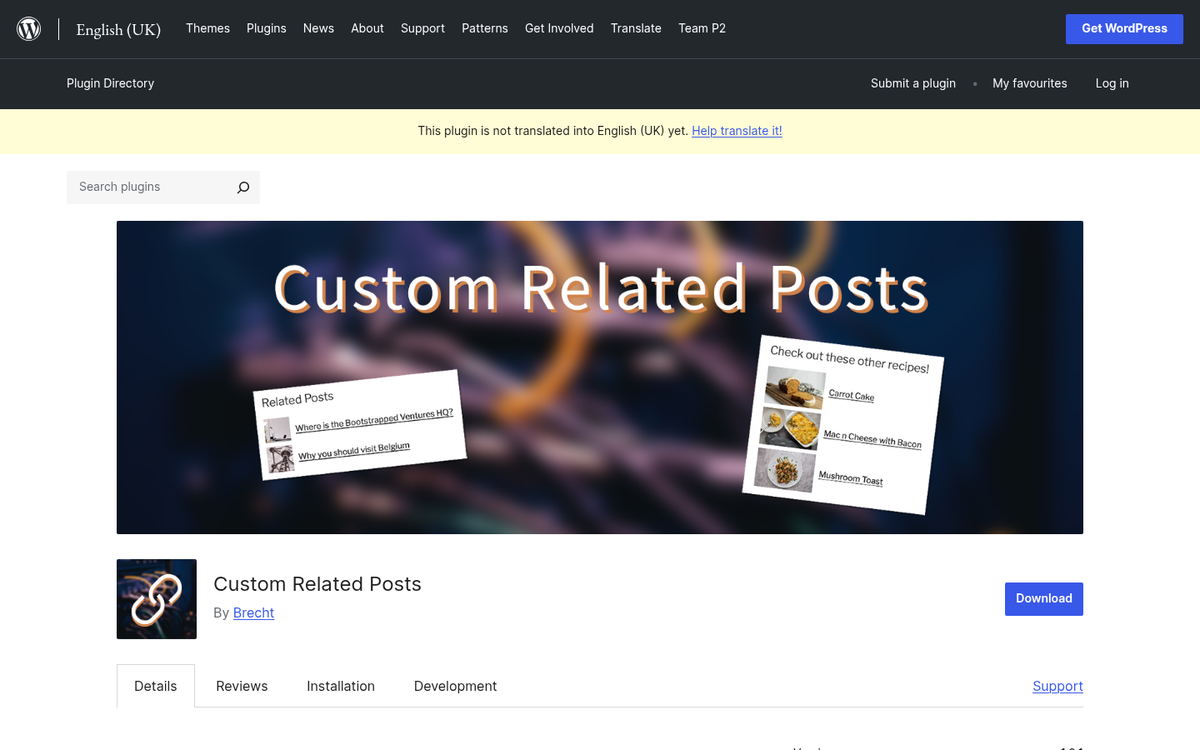
How do you think the plug-in knows what posts are related? There are a couple of ways, but tags is one of the main ones. When you tag content you are branding it, and plug-ins use that brand to build automatic links between different posts - this, again, lets your reader easily scroll through more content, which keeps them on your website longer.
Using a helpful related post plug-in with tags gives you a great amount of control over what your reader will see after they've finished a post, and should be considered when strategizing content and tag generation.
Tag Archive Pages
This last one is a bit more complex than the previous two. One thing to know about this process is that every time you create a new tag or category it automatically gives you a new archive page in WordPress. What that means is that in the structure of your website there's a page for every tag and category you have created.
A page is not a post, but a place where posts are listed - what pops up if you click on a tag in a word cloud, or a category on the home page. WordPress pages and posts behave differently in terms of how they are structured and indexed.
It looks something like:
www.diycraft.com/tag/saws
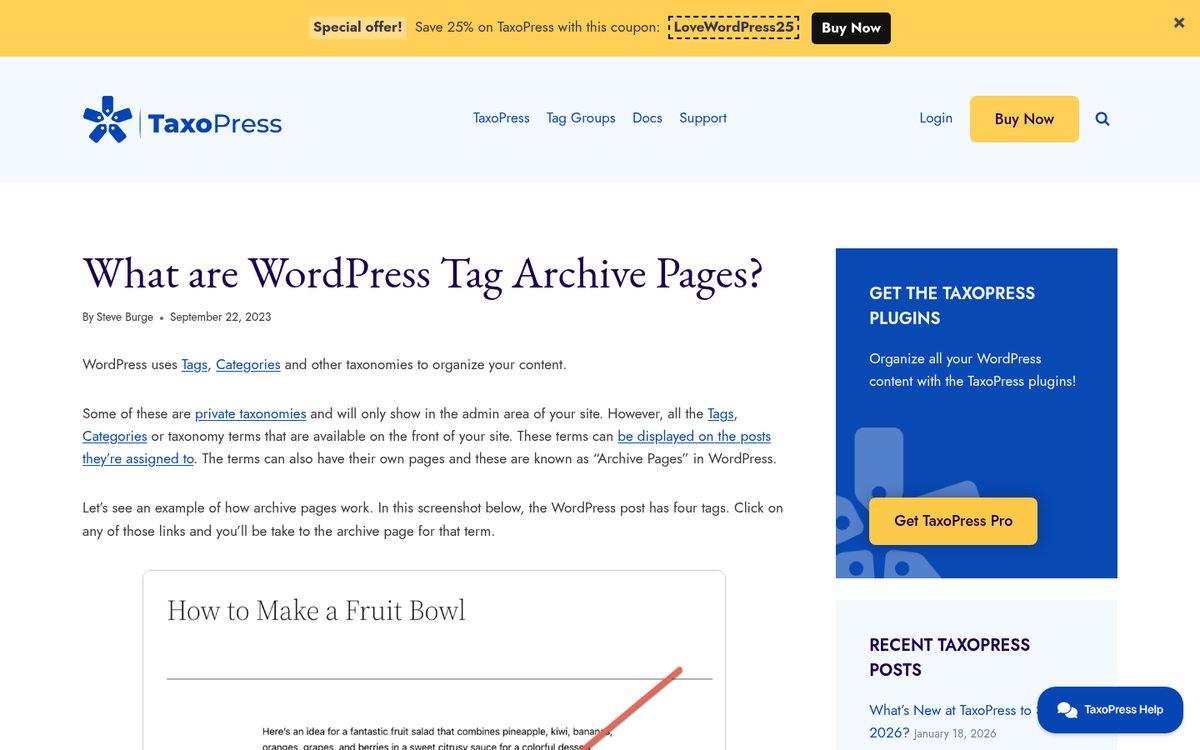
A category example will look like:
www.diycraft.com/category/furniture
The great part about this is that tags will improve your reader's experience when looking for content. In the word-cloud example, when your reader picks the tag "saws" they will be taken to an archive page that lists every post, in chronological order, that you marked with the tag "saws."
There are pros and cons to this. The cons I'll get into below. The pros are that when and if you tag articles correctly and display them it will take readers a few seconds to find the content they are looking for, instead of searching through your content in frustration and then leaving. Keeping readers engaged is also one of the best ways to write posts that users find interesting.
All of this is reason to keep tags - not kill them.
SEO and Tags
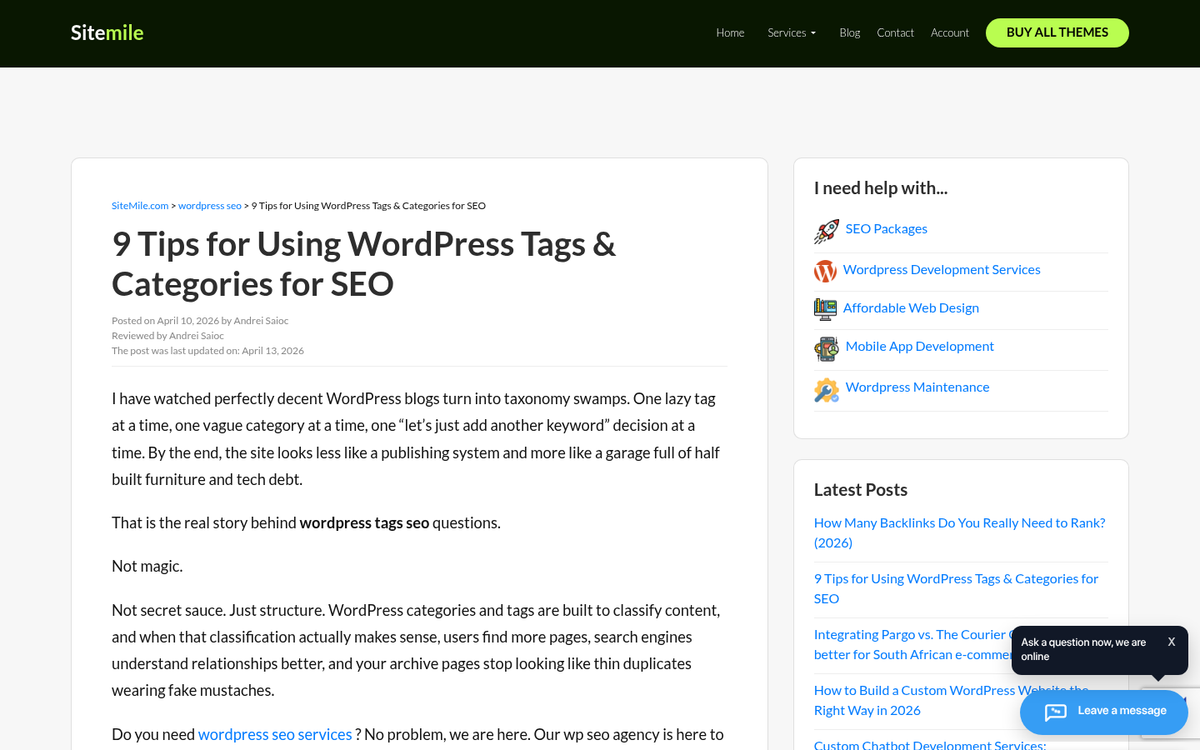
The main reason some have advised against tags on their posts and websites is because they think it will hurt SEO rankings. In general, this just isn't true. Tags are taken into consideration by Google's algorithms and, when used correctly, improve your rankings. Like all things overused or done poorly, they can hurt your rankings.
Tags Help Algorithms
Before I get into the possible problems with tags and SEO, I'll talk about the primary benefit.
Think of it this way: Google's algorithms - now powered by AI and machine learning - are designed to find the best answers to every person's search query. Because of this, accurate tagging still matters - it tells Google's systems what a post is legitimately about. That can help it surface the right content to the right reader.
Just like the human reader trying to find your content more easily, Google's algorithm can use your tags to better find your website and posts on your website - it means tags can, in the long run, help with SEO ranking.
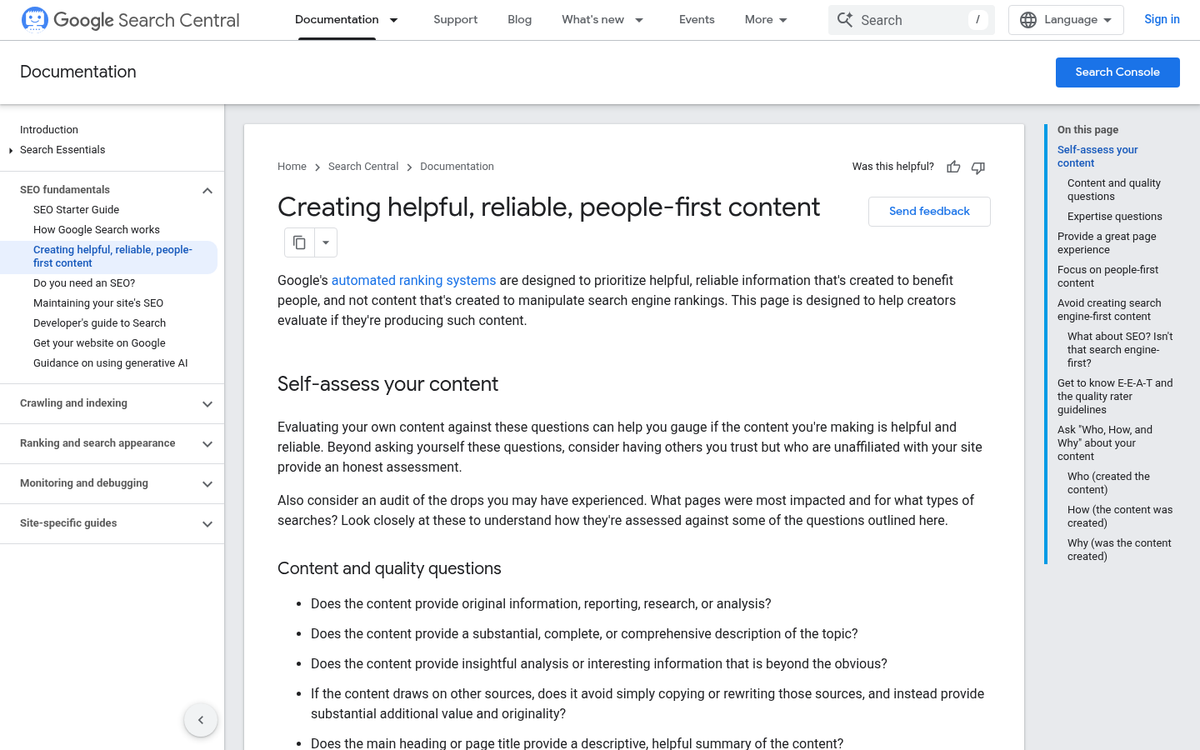
Remember that even if tags do help, they help minimally. Tags are not as impactful as keywords, post titles, rich text, formatted images, or quality backlinks. They just aren't, and that's unlikely to change.
So while you should use them for your readers and for SEO, don't bank on your SEO rankings skyrocketing if you start tagging everything.
The Negatives
While tags are great, there are a couple of ways to incorrectly use them.
The reality is that you can have way too many tags. Think of your word cloud. If you have just 20 posts but 400 tags, it's obvious you're over-tagging. SEO experts at Yoast see sites that have thousands of tag pages and only hundreds of blog posts - a sign that tagging has gone off the rails.
It's also worth considering what over-tagging does structurally. Creating 10 tags for the same post results in 10 duplicate versions of that post appearing across WordPress's archive system - it's a bit of a problem for user experience and search engine indexing.

Remember that every tag gives you a new archive page, so if a reader were to click the tag "saws," then "hack saws," then "rusty saws," just to find one post in all three archive tag pages, they'd be pretty disappointed. A rule of thumb is to make sure each tag has at least 3 or 4 posts connected with it before it's worth keeping. If a tag only ever surfaces a single post, it's probably not pulling its weight.
The key is that you make sure that you have enough content on each archive page to justify having that tag at all. Create the tag "saws," write your first post about saws, and continue to use it every time a new post mentions saws. You can get more specific if you ever need to, but think about whether the specificity is warranted.
If you're just starting out, it will be tough - it's perfectly fine to create new tags if your intent is to create posts that address them over time. But stay on top of avoiding tags you'll never use again. The point is to make your tags into a reference network of like-minded articles - not to introduce very specific terms that will only ever refer to one post.
Don't Use Synonyms
This one comes into direct conflict with Google's algorithms and SEO principles, and relates to the too-many-tags rule.
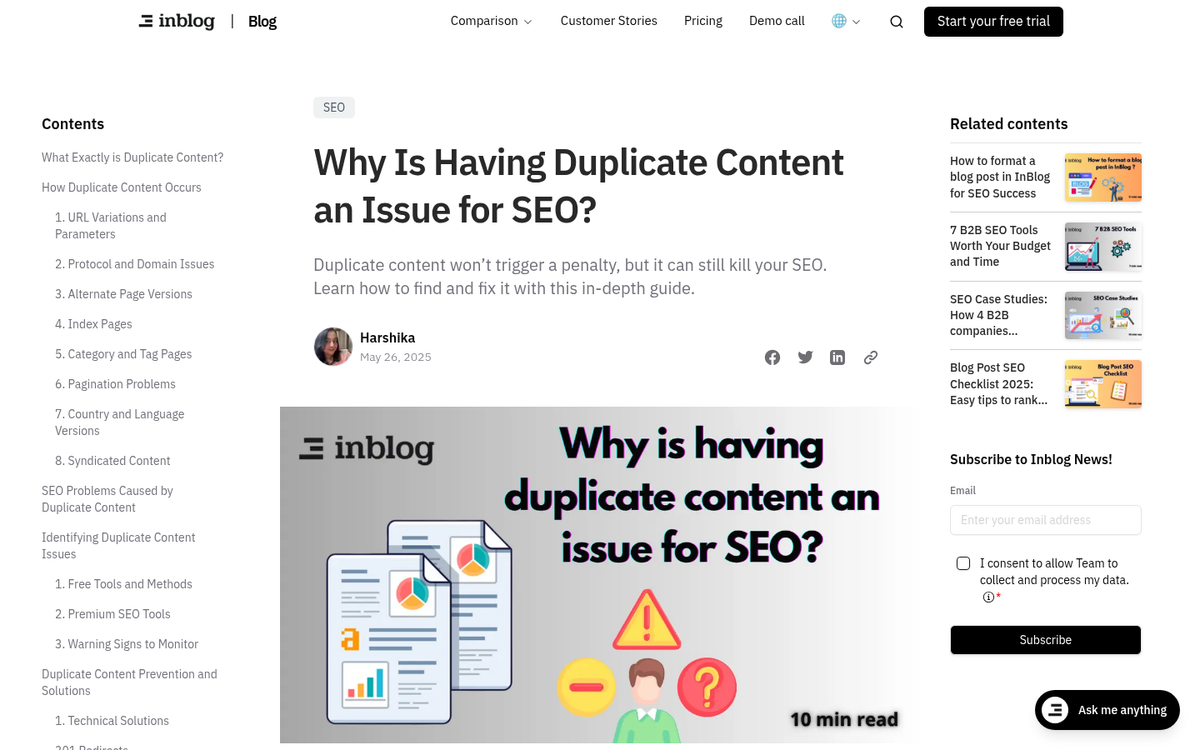
Synonyms in this sense means tags that are so similar to each other that they are interchangeable. For example, tagging a post with "DIY" and "do it yourself" is not necessary - it confuses the reader, because they won't know the difference between these (there's no difference!). Worse, it confuses the algorithm, which will cause a small penalty and bad rankings for that post and those archive pages.
Creating synonym tags will create multiple tag archive pages, which means you'll have way too many archive pages that all have the same content on them. That's what you want to stay away from, as duplicate content can negatively impact SEO.
Duplicate Content
Synonym tagging is one way to create duplicate content on your website. Duplicate content is a bit of an issue for Google, so it's important to address it here.
In the above example, a tag archive page for "DIY" and "do it yourself" would probably have the same articles on them, because they mean the same thing. That means two of your website's pages would have the exact same content, which Google refers to as "Duplicate Content."
The algorithm doesn't know which page is more authoritative and so doesn't know which one to prioritize. That uncertainty works against you. Google's goal is to refer readers to the correct page with the most helpful information.
Duplicate content is a real and longstanding concern that webmasters have dealt with for years. In the early days of blogging, sites would blatantly duplicate content to make their websites seem bigger. Google fought this aggressively with algorithm updates, and the systems are far more refined at detecting it - even soft forms of it.

With multiple tag archive pages that have mostly the same content, you run the danger of a penalty. However, you don't have to worry about legitimately separate tags that happen to surface the same content. Google's algorithms are now sophisticated enough to recognize when tag references are meaningfully different - even if they surface the same articles.
A good example here is the difference between the tag "tools" and "saws." Every post you write about saws will probably have both of the tags - it means the archive pages for "tools" and "saws" will have the same content. Google understands that a saw is a tool and that these are legitimately separate terms, so it won't penalize you.
Wrapping Up
Tags are helpful tools that allow you to organize content for yourself, your readers, and algorithms. They will never deliver giant SEO results, but when used correctly they don't hurt your SEO. Mostly they help readers find your content, which should be your primary concern. Stick to 3-6 tags per post, make sure each tag has at least 3 or 4 posts behind it, and keep your total tag count proportional to the size of your blog.

For those who have way too many tags, consider spending a day culling everything you don't use or need. For those just starting out, develop a plan for your tags (and categories) so as your website builds, your tags grow in the right direction.

4 responses
Thoughtful replies only - we moderate for spam, AI slop, and off-topic rants.
Thanks for the tip, i was overusing tags with about 20 tags per post. I just spent a full day bringing all posts down to 5 main tags. I had over 100 posts to fix
thanks for the tips. I decided to remove all tags from my site now. Don't know it is bad or good 🙁
If we have too many tags that are synonyms. Can we just delete the tags or do we need to redirect them?
Note: Your tags will be removed and categories will be assigned to the posts that used to be in those tags. If you want to convert your categories back to tags, please check out converting categories to tags.